
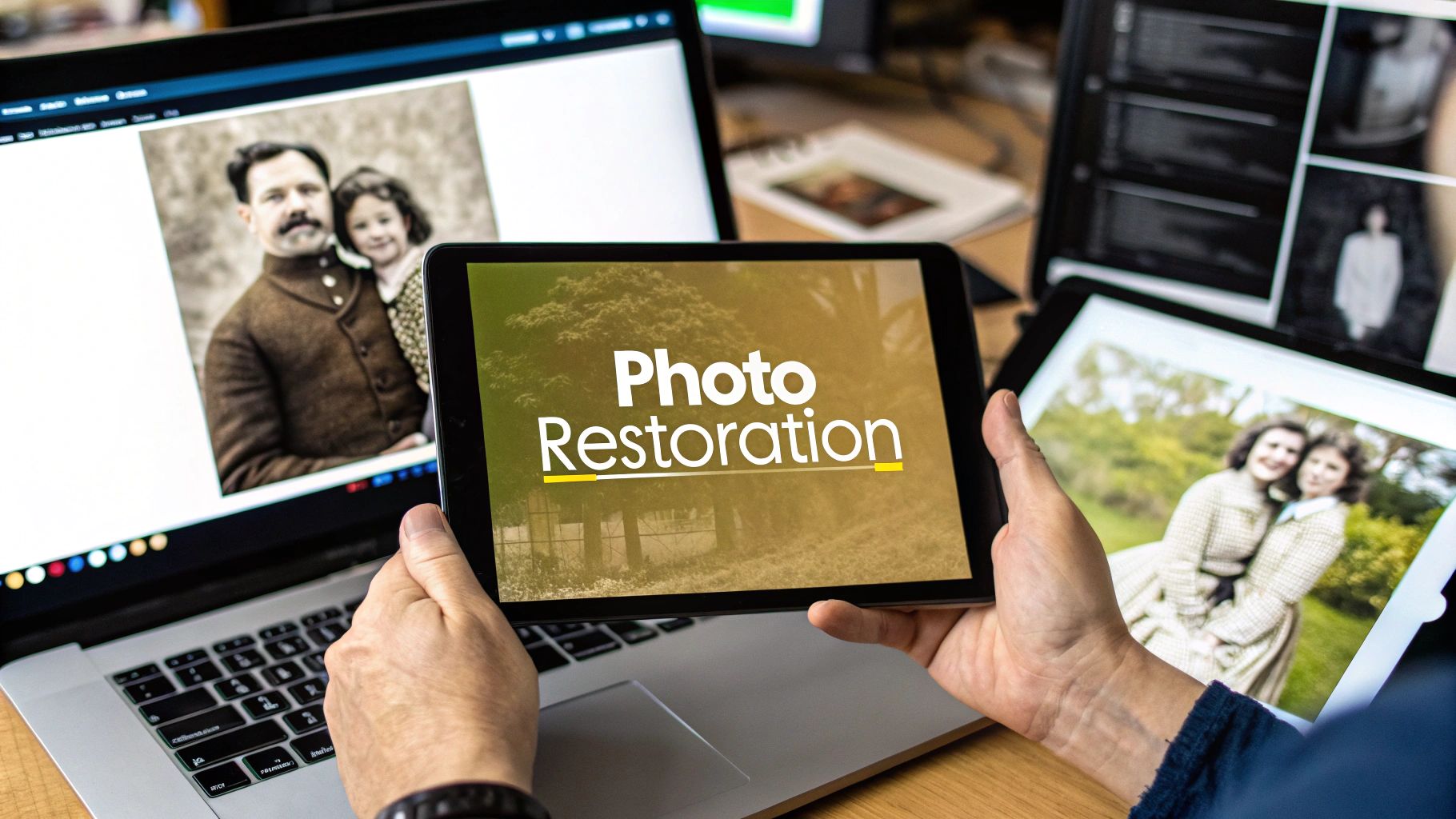
Faded photographs hold priceless memories, but time can take its toll through scratches, discoloration, and tears. Fortunately, you no longer need expensive software or professional skills to bring these images back to life. The process of photo restoration online has become incredibly accessible, with a wide range of powerful tools available directly in your browser or as desktop applications. These platforms use advanced AI and manual editing techniques to repair damage, colorize black-and-white photos, and enhance clarity with just a few clicks.
This guide provides a comprehensive breakdown of the best photo restoration services available today. We'll move beyond simple feature lists and dive into practical, step-by-step examples for each tool. You'll see exactly how to use them to fix specific problems, from minor scratches to severe water damage. We will analyze the strengths and weaknesses of each platform, including Adobe Photoshop, Remini, and VanceAI, to help you make an informed choice based on your specific needs and budget.
Each review includes detailed pros and cons, pricing information, and ideal user scenarios, ensuring you find the perfect solution for your project. For those specifically looking for mobile-friendly options, exploring other top photo restore app picks can provide additional valuable insights. Let's dive in and find the right tool to revive your cherished memories.
1. Adobe Photoshop
Adobe Photoshop is the undisputed industry standard for professional image editing, and its capabilities for photo restoration online are unparalleled. While it operates as downloadable software rather than a purely browser-based platform, its cloud integration makes it a central hub for serious restoration projects. It's the ultimate tool for those who need granular control over every pixel, from mending severe tears to reviving faded, almost nonexistent colors.
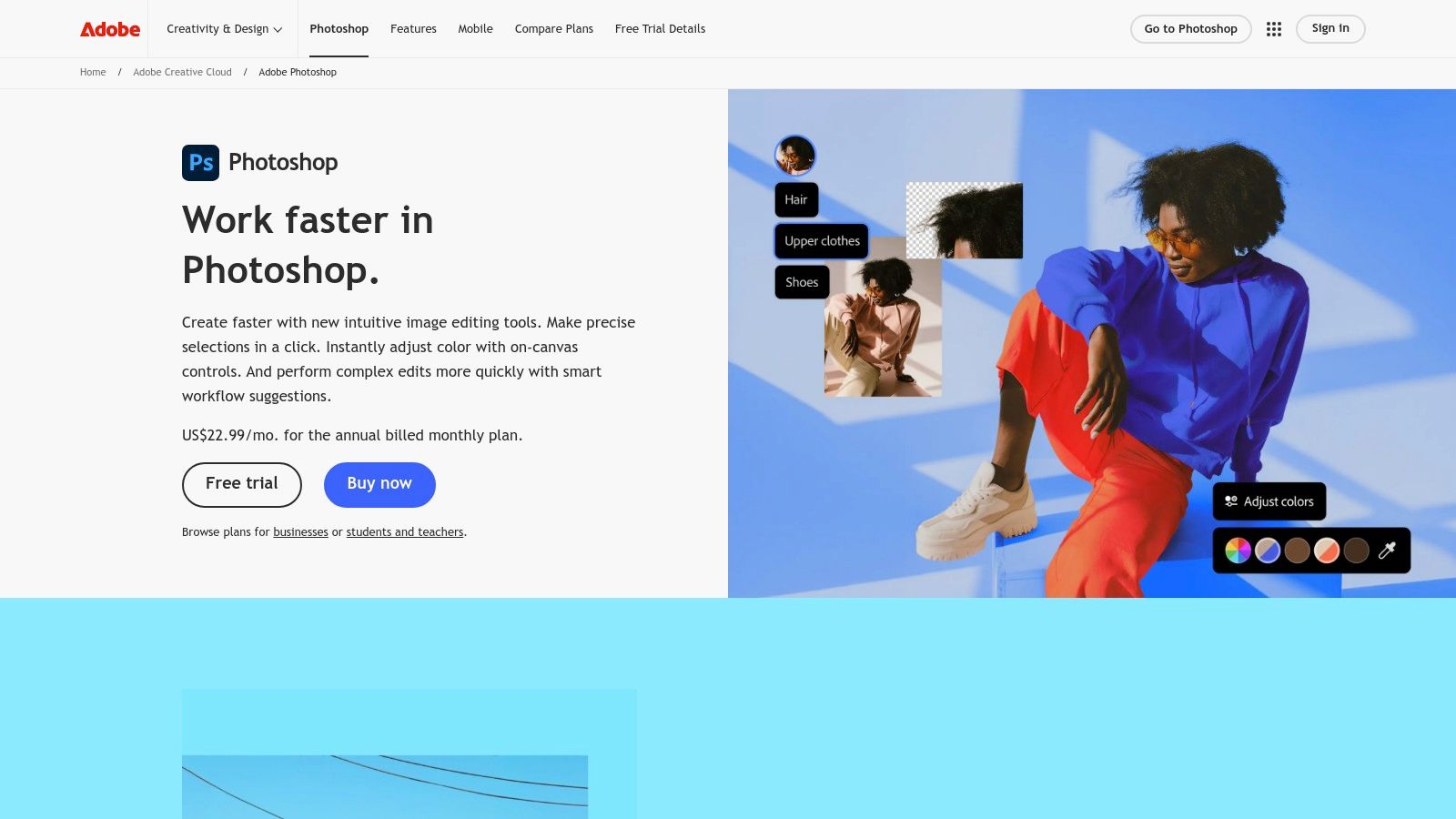
Photoshop stands out by offering a non-destructive workflow using layers and masks. This means you can experiment with complex repairs without permanently altering your original scanned image. The steep learning curve is its main drawback, but the sheer depth of its toolset makes it a worthy investment for professionals and dedicated hobbyists.
Practical Restoration Example: Removing Scratches
For a common task like removing scratches, Photoshop provides several powerful tools. A simple, effective method involves the Spot Healing Brush Tool.
- Duplicate Your Layer: Open your image. In the Layers panel, right-click your background layer and select "Duplicate Layer." This creates a non-destructive copy to work on.
- Select the Tool: Choose the Spot Healing Brush from the toolbar (it looks like a band-aid). Ensure "Content-Aware" is selected in the top options bar.
- Adjust Brush Size: Use the
[and]keys to make the brush slightly larger than the scratch you want to remove. - Paint Over the Scratch: Simply click and drag along the scratch. Photoshop's Content-Aware technology will automatically sample surrounding pixels to seamlessly fill in the damaged area. For small spots, a single click is enough.
| Feature | Best For | Learning Curve |
|---|---|---|
| Layers & Masks | Precise, non-destructive editing | High |
| Spot Healing Brush | Removing small scratches and dust | Low |
| Clone Stamp Tool | Reconstructing missing areas | Medium |
| Color Balance & Curves | Correcting severe color fading | High |
Pros & Cons
- Pros: Professional-grade tools for any restoration challenge, extensive community support and tutorials.
- Cons: Requires a subscription (starting at $22.99/month), not beginner-friendly.
Website: https://www.adobe.com/products/photoshop.html
2. VanceAI Photo Restorer
VanceAI Photo Restorer specializes in one-click, AI-driven photo restoration online, making it a fantastic choice for users who want great results without a learning curve. Unlike complex software, this browser-based tool automates the process of fixing common issues. It excels at quickly removing scratches, spots, and tears while also offering a powerful AI colorization feature to bring monochrome photos to life.
The platform stands out for its simplicity and speed. You simply upload a photo, and the AI handles the heavy lifting, delivering a restored image in seconds. This automated approach is its main advantage, but also its limitation, as it lacks the fine-grained manual controls found in professional software. Learn more about the technology behind this kind of AI image enhancement.
Practical Restoration Example: AI-Powered Scratch Removal
For a quick, automatic fix of a moderately scratched photo, VanceAI provides an effortless workflow. The AI algorithm identifies and reconstructs damaged areas without any manual input.
- Upload Your Image: Navigate to the Photo Restorer tool and click "Upload Image" to select your scanned old photograph.
- Select Restoration: Ensure the "Remove Scratches" option is toggled on. You can also choose to enable "Colorize Photo" simultaneously if you have a black-and-white image.
- Start Processing: Click the "Start to Process" button. The AI will analyze the image and apply the fixes automatically.
- Review and Download: The AI will present a before-and-after comparison using a slider. If satisfied, you can download the restored image (high-resolution downloads require credits).
| Feature | Best For | Learning Curve |
|---|---|---|
| AI Scratch & Spot Removal | Automatic repair of common photo damage | Low |
| AI Colorization | Bringing black-and-white photos to life | Low |
| Batch Processing | Restoring multiple photos at once | Low |
| Online Platform | Quick access without software installation | Low |
Pros & Cons
- Pros: Extremely user-friendly and fast, no technical skills required, good for quick fixes.
- Cons: Limited manual control for complex damage, a subscription is needed for high-quality downloads.
Website: https://vanceai.com/photo-restorer/
3. Remini
Remini is a mobile-first powerhouse that brings one-click AI photo restoration online to your fingertips. Primarily an app for iOS and Android, it excels at sharpening blurry or low-resolution portraits and enhancing facial details with startling clarity. Its core strength lies in its simplicity; you upload a photo, and the AI algorithm automatically de-noises, sharpens, and clarifies it within seconds, making it ideal for users who want immediate results without any manual editing.
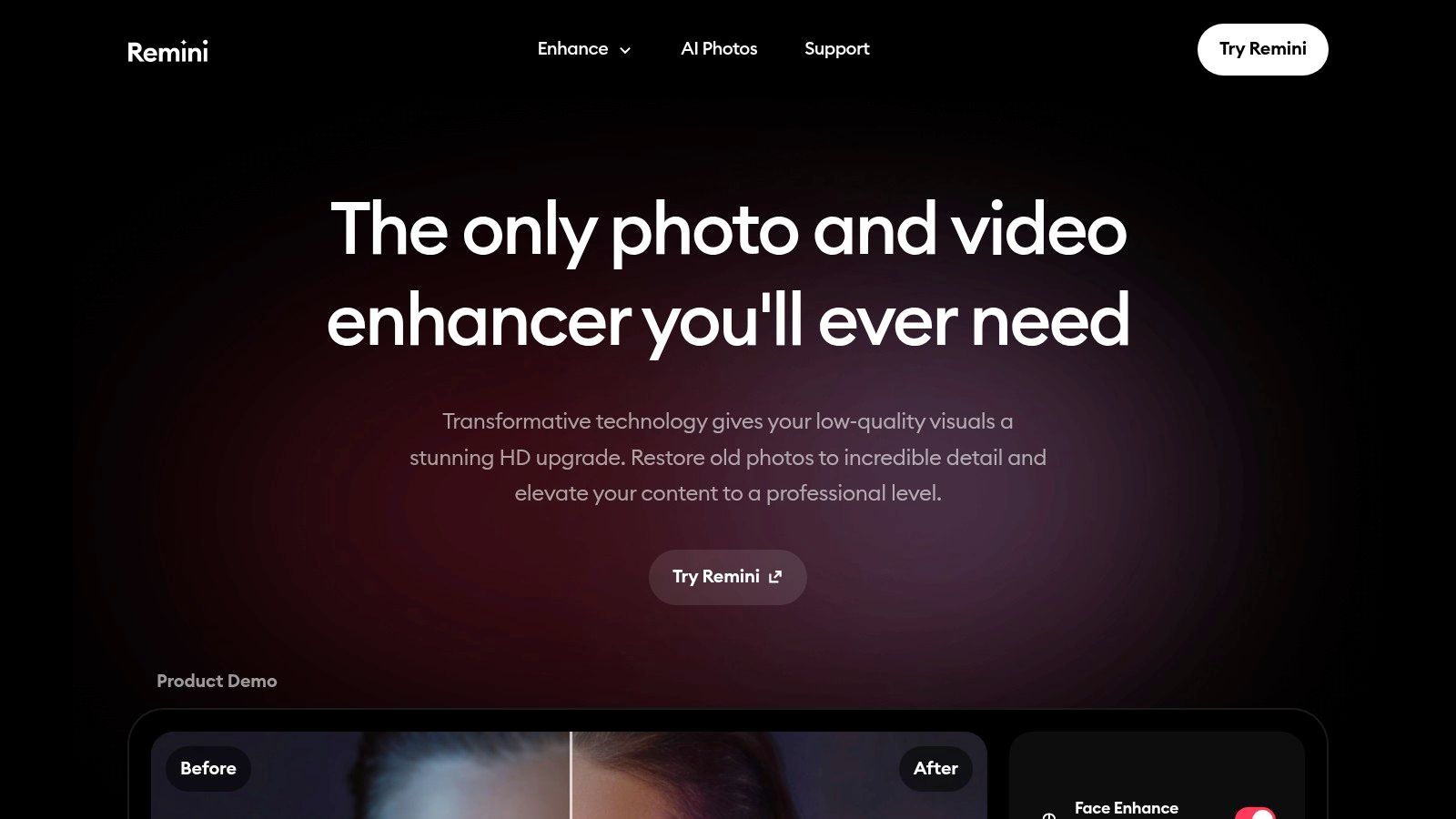
While it lacks the granular control of desktop software, Remini's focus on AI-driven enhancement makes it uniquely effective for breathing life into old, faded headshots or group photos from early digital cameras. The platform's accessibility and speed have made it a go-to tool for quick social media posts and casual family archive projects where the goal is enhanced clarity over meticulous repair.
Practical Restoration Example: Enhancing a Blurry Face
For a common issue like a blurry or out-of-focus face in an old photograph, Remini's process is almost entirely automated and incredibly effective.
- Open the App and Select "Enhance": Launch Remini on your mobile device. From the main screen, tap the prominent "Enhance" button.
- Choose Your Photo: Select the blurry photo you wish to restore from your phone's gallery. The app will immediately import it.
- Start the AI Process: Tap the red checkmark button to begin. The app will upload the image and begin processing. This is typically where you'll watch a short ad in the free version.
- Review the Result: After a few seconds, Remini presents a before-and-after slider. You can drag the slider across the image to see the dramatic improvement in facial clarity, sharpness, and detail. Tap the download icon in the top right to save the restored image to your phone.
| Feature | Best For | Learning Curve |
|---|---|---|
| AI Face Enhancement | Sharpening blurry or low-resolution portraits | Low |
| Color Correction | Automatically improving faded or dull colors | Low |
| Batch Processing | Enhancing multiple photos at once (Pro) | Low |
| Video Enhance | Improving the quality of old, blurry videos | Low |
Pros & Cons
- Pros: Extremely easy to use with instant, impressive results; great for improving facial details.
- Cons: Limited manual control; HD downloads and advanced features require a subscription (starting around $4.99/week).
Website: https://remini.ai/
4. Fotor
Fotor offers a simplified, browser-based approach to photo restoration online, making it an excellent choice for users who want quick, AI-driven results without a steep learning curve. Positioned as an all-in-one photo editor, its strength lies in one-click enhancement tools that are perfect for beginners. It effectively handles common issues like faded colors and minor imperfections, making it a highly accessible option for anyone needing a fast fix.
Unlike professional-grade software, Fotor prioritizes speed and ease of use. The platform’s AI Photo Enhancer automatically sharpens details, improves lighting, and corrects colors with a single click. While it lacks the granular control of advanced programs, its user-friendly interface makes it ideal for social media posts or digitizing family albums without needing technical expertise.
Practical Restoration Example: One-Click Color Correction
For a faded photograph that has lost its vibrancy, Fotor's AI tools can bring it back to life almost instantly. The "Old Photo Restoration" tool is designed for this exact purpose.
- Access the Tool: Navigate to Fotor’s website and find the "AI Photo Editor" section. Select the "Old Photo Restoration" tool from the list of AI tools.
- Upload Your Photo: Click the "Restore Old Photos Now" button and upload your scanned image.
- Apply the Effect: The platform’s AI will automatically analyze and process the image, removing scratches and improving color in one step.
- Preview and Download: Within seconds, Fotor presents the restored version. You can toggle between "Before" and "After" views. If satisfied, click "Download" to save the final result (watermarked in the free version).
| Feature | Best For | Learning Curve |
|---|---|---|
| Old Photo Restoration | Automatic scratch, fade, and blur removal | Low |
| AI Photo Enhancer | Improving overall clarity and color | Low |
| Text & Overlays | Adding context or watermarks to photos | Low |
| Basic Adjustments | Manually tweaking brightness & contrast | Low |
Pros & Cons
- Pros: Extremely beginner-friendly, fully browser-based for easy access, fast AI-powered results.
- Cons: The free version has significant limitations and watermarks, less control over complex damage.
Website: https://www.fotor.com/
5. PhotoGlory
PhotoGlory is a dedicated desktop software that brings powerful AI tools for photo restoration online to your computer, focusing specifically on reviving old, damaged photographs. It excels at two key tasks: automatically colorizing black-and-white images and repairing physical damage like creases, scratches, and dust spots. Its strength lies in its simplicity, making sophisticated restoration accessible to users without a technical background.
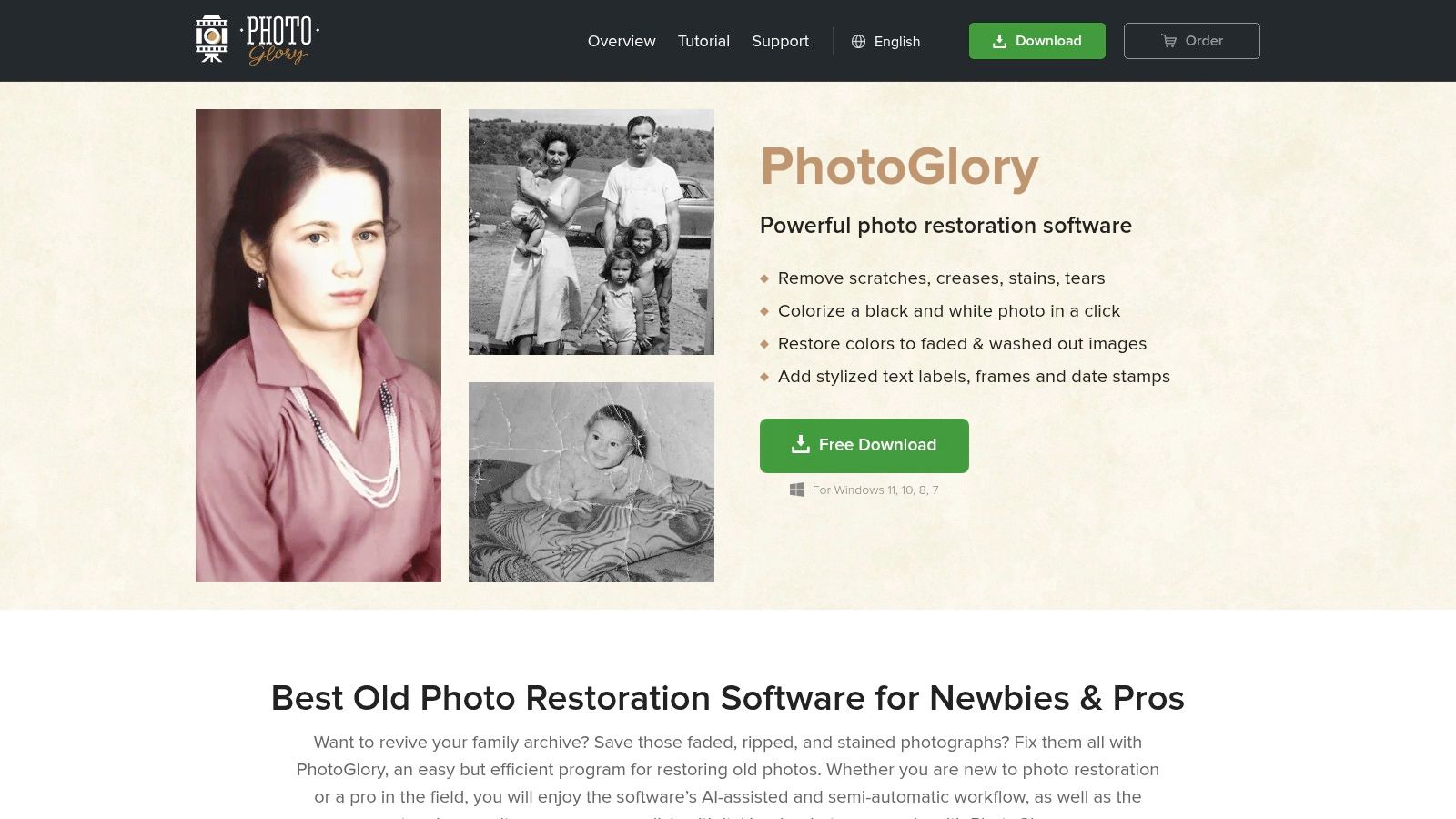
Unlike comprehensive editors, PhotoGlory is built for a specific purpose. This focus allows it to deliver impressive results with minimal user effort, especially in its one-click colorization feature. While it may not replace a full-featured editor for complex jobs, it's an ideal choice for anyone wanting to quickly breathe new life into an old family album. Many users also pair its restoration features with an online image upscaler to enhance the final resolution.
Practical Restoration Example: AI Colorization
PhotoGlory’s standout feature is its intelligent, one-click colorization, which instantly turns a monochrome image into a vibrant color photo.
- Import Your Photo: Open the PhotoGlory software and click "Open Photo" to import your scanned black-and-white picture.
- Locate the Colorize Button: On the right-hand panel, under the "Enhance" tab, find the "Colorize" section.
- Apply Colorization: Simply check the box next to "Colorize black and white photo." The AI analyzes the image and applies natural-looking colors based on the scene's context in seconds.
- Manual Tweaks (Optional): If needed, switch to the "Retouch" tab and select "Coloring" to use manual brushes for adjusting specific areas, like changing a shirt's color or refining skin tones.
| Feature | Best For | Learning Curve |
|---|---|---|
| AI Colorization | Instantly coloring B&W photos | Low |
| Scratch Removal Tool | Fixing creases, tears, and spots | Low |
| Auto Enhancement | Improving contrast and brightness | Low |
| Manual Coloring | Fine-tuning AI-generated colors | Medium |
Pros & Cons
- Pros: Excellent AI colorization and repair tools, very user-friendly interface.
- Cons: Less manual control than professional software, requires software download, a one-time purchase.
Website: https://photoglory.net/
6. Retouch Pilot
Retouch Pilot is downloadable software focused on providing a gentle entry point into photo restoration online for beginners. Unlike complex professional suites, it offers a curated set of tools specifically designed for common problems like dust, scratches, and stains. Its main selling point is its simplicity and guidance, making it a great choice for users who feel intimidated by more advanced programs but still want hands-on control over their restoration projects.
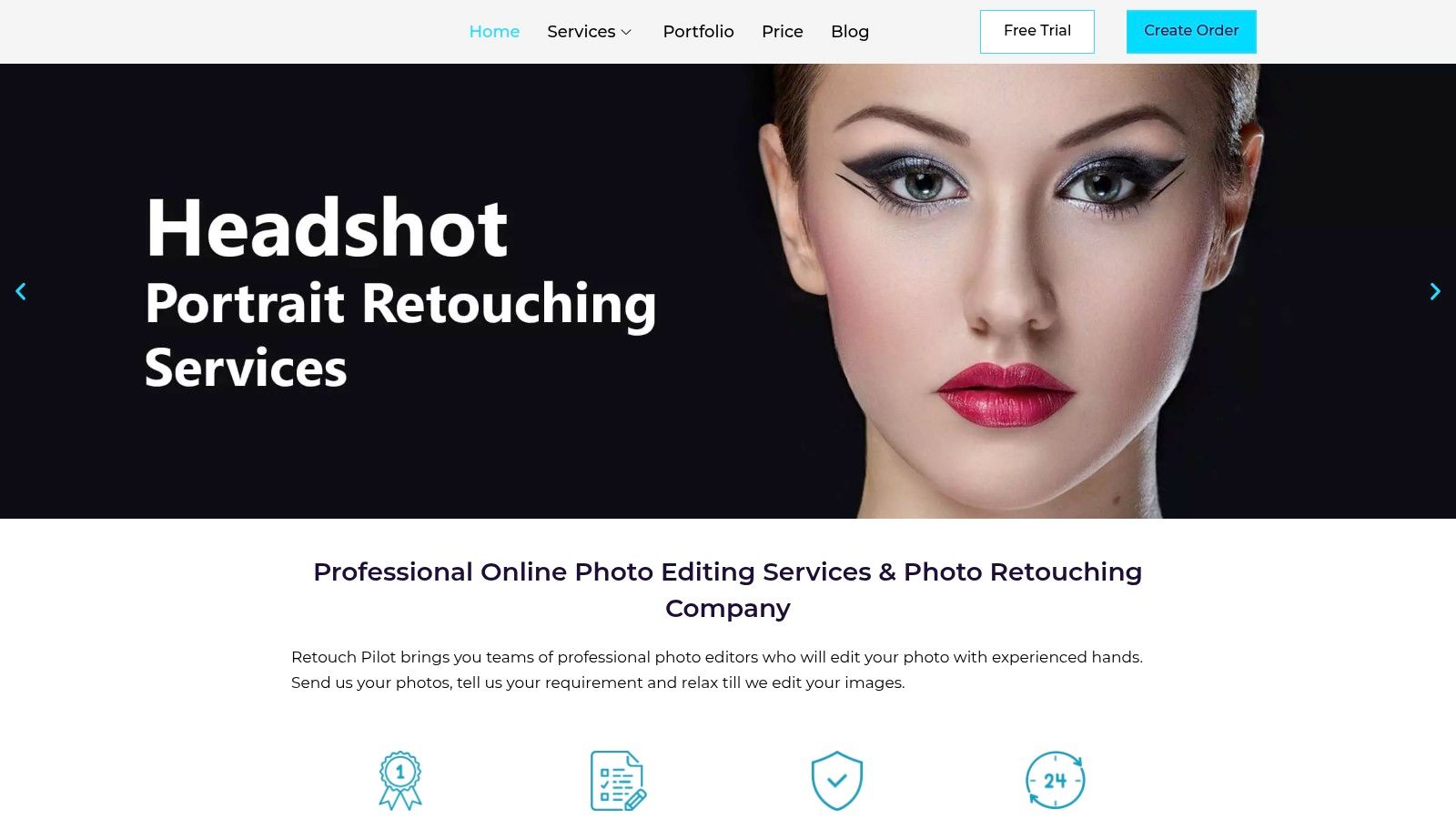
The software stands out with its built-in, step-by-step demonstration system. For every tool, you can watch a tutorial directly within the program, showing you exactly how to use it. While the interface may appear dated compared to modern cloud platforms, its straightforward design and one-time payment model make it an accessible and budget-friendly option for casual users.
Practical Restoration Example: Fixing a Large Damaged Area
For repairing a significant tear or stain where a simple spot-heal won't work, Retouch Pilot's Smart Patch tool is the ideal solution.
- Select the Tool: From the left-hand toolbar, choose the "Smart Patch" tool (it looks like a puzzle piece).
- Outline the Defect: Carefully click and drag your mouse to trace around the entire damaged area you want to replace. A selection marquee will appear.
- Drag to a Clean Area: Click inside the selection and drag it to a clean, undamaged part of the photo that has a similar texture and lighting (e.g., another part of the sky or a clean patch of wall).
- Release and Blend: Release the mouse button. The software automatically uses the selected clean patch to cover the defect, blending the edges for a smooth, seamless repair.
| Feature | Best For | Learning Curve |
|---|---|---|
| Smart Patch | Repairing large tears, stains, and defects | Low |
| Scratch Eraser | Removing thin scratches and dust marks | Low |
| Elastic Tool | Correcting minor distortions and proportions | Medium |
| Built-in Demos | Learning each tool's function quickly | Low |
Pros & Cons
- Pros: Very user-friendly with extensive tutorials, affordable with a one-time payment ($29.95).
- Cons: Lacks AI-powered automatic enhancements, interface feels outdated.
Website: http://www.retouchpilot.com/
7. ScanMyPhotos
ScanMyPhotos offers a different approach to photo restoration online, acting as a professional service rather than a DIY tool. It's the ideal choice for those who want their precious memories handled by experts, combining high-quality photo scanning with meticulous manual restoration. This service excels at tackling severe damage, from water stains and tears to extreme fading, where automated tools might fail.
What sets ScanMyPhotos apart is its all-in-one workflow. You mail your physical photos, and their team of professionals digitizes and restores them for you. With over 30 years of experience, they provide a reliable, hands-off solution for people who lack the time or technical skill to perform complex digital repairs themselves.
Practical Restoration Example: Ordering a Restoration
Using the service involves a straightforward ordering process rather than hands-on editing.
- Scan Your Photo: First, use the ScanMyPhotos service to digitize your physical photograph at a high resolution. You can also use your own high-quality scan.
- Select Restoration Service: Navigate to the "Photo Restoration" section on their website.
- Upload and Get a Quote: Upload your scanned image and fill out the form, describing the damage and what you want fixed. For example: "Please repair the large crease on the right side and restore the faded colors."
- Approve and Receive: The team will review your request and send a quote based on the complexity. Once you approve the quote and make the payment, their technicians will manually restore the image and send you the final digital file.
| Feature | Best For | Learning Curve |
|---|---|---|
| Professional Restoration | Severe physical damage (tears, water damage) | N/A (Service-based) |
| Color Correction | Reviving badly faded or discolored photos | N/A (Service-based) |
| High-Quality Scanning | Digitizing entire collections before restoration | Low |
| Print Ordering | Getting physical copies of restored images | Low |
Pros & Cons
- Pros: Expert-level results without any technical skill required, comprehensive service from scanning to printing.
- Cons: Discounts do not apply to restoration, can be more costly than DIY software for multiple photos.
Website: https://www.scanmyphotos.com/
8. FixThePhoto
FixThePhoto shifts the focus from do-it-yourself software to a fully managed human-powered service, offering professional photo restoration online for those who prefer an expert touch. Instead of learning complex tools, you submit your scanned photos and receive a quote based on the damage level. This service is ideal for restoring severely damaged or cherished family heirlooms where the precision of a trained artist is non-negotiable.
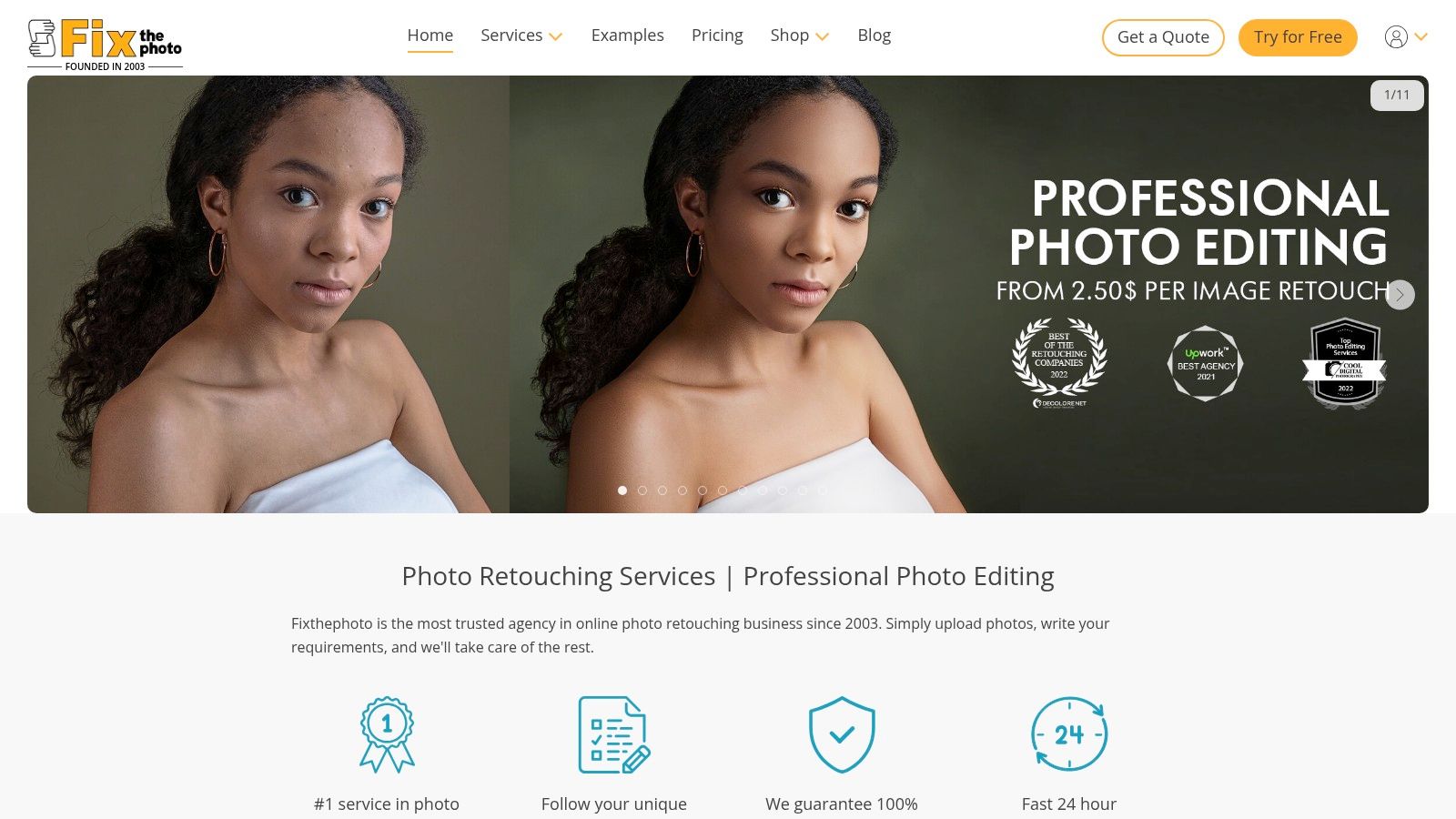
The platform stands out by connecting you directly with professional retouchers who handle everything from minor dust removal to complete reconstruction of missing sections. This manual approach ensures a level of detail and artistic interpretation that automated tools often miss, especially with complex textures like clothing or facial features. You get the quality of a professional service without needing any technical skills.
Practical Restoration Example: Ordering Extensive Repairs
FixThePhoto simplifies the process of getting complex restorations done by breaking it down into service tiers.
- Select a Service Level: Visit their Photo Restoration page and choose a package that matches your photo's condition (e.g., "Standard," "Premium," or "Extensive"). For a photo with a torn corner and heavy fading, "Premium" would be appropriate.
- Upload and Instruct: Upload your scanned photograph. In the instructions box, be specific: "Please reconstruct the torn top-left corner. Remove the coffee stain from the bottom right. Also, please colorize the photo and ensure my grandfather's suit is dark blue."
- Receive Your Quote: The team will assess the work and provide a final price and an estimated delivery time.
- Approve and Wait: Once you approve, the artists get to work. Turnaround is typically 2-4 business days. You will receive the restored image via email for your approval.
| Feature | Best For | Learning Curve |
|---|---|---|
| Human Retouchers | Complex damage, artistic results | None (Service-based) |
| Tiered Pricing | Budgeting based on damage severity | N/A |
| Colorization Service | Bringing black-and-white photos to life | None (Service-based) |
| Damage Repair | Fixing tears, stains, and missing parts | N/A |
Pros & Cons
- Pros: High-quality, professional results with meticulous attention to detail; no software or skills required.
- Cons: Pricing varies greatly based on photo complexity; turnaround time is not instant.
Website: https://fixthephoto.com/
9. Image Restoration Center
Unlike AI-driven tools, Image Restoration Center offers a fully manual service, connecting you with professional artists for detailed photo restoration online. This platform is for those who have a precious, severely damaged photograph and want a human touch to bring it back to life. It excels at complex projects involving significant physical damage, such as large tears, water stains, or missing sections, where automated software would likely fail.
The key differentiator is the direct-to-artist approach. You submit your photo, receive a custom quote based on the specific damage, and then a skilled professional meticulously repairs it. This ensures a level of detail and artistic interpretation that algorithms can't replicate, making it ideal for cherished family heirlooms that deserve dedicated attention.
Practical Restoration Example: Fixing Severe Damage
The process is service-based, so instead of using tools yourself, you provide clear instructions to the artists.
- Get a Free Quote: Go to their website and click "Get a Free Estimate." Upload a scan of your damaged photo.
- Describe the Damage in Detail: Use the provided form to be as specific as possible. Mention key issues like "deep crease across my grandmother's face, please repair without losing facial detail" or "severe water damage on the bottom third, please reconstruct the pattern of the dress."
- Specify Enhancements: This is where you can request additional changes, such as colorization, changing the background, or removing an unwanted person from the photo.
- Review and Approve: You will receive an email with a no-obligation quote. If you accept, the artists will begin work. The team sends a proof for you to review, and you can request revisions before finalizing the project.
| Feature | Best For | Learning Curve |
|---|---|---|
| Manual Restoration | Severely damaged photos, heirloom quality | N/A (Service) |
| Custom Quotes | Complex jobs with unique damage | Low |
| Color Correction | Faded or discolored photographs | N/A (Service) |
| Damage Repair | Fixing tears, stains, and missing pieces | N/A (Service) |
Pros & Cons
- Pros: High-quality, detailed results from experienced artists; handles complex damage effectively.
- Cons: Pricing is variable and based on complexity; turnaround time can be longer than automated tools.
Website: https://imagerestorationcenter.com/
10. Mendr
Mendr offers a unique approach to photo restoration online by acting as a marketplace connecting users with professional human editors. Instead of an automated tool, it provides access to skilled artists who handle complex restorations, from fixing water damage to mending torn photographs. This service-based model is ideal for users who lack the time or skill for manual editing and want a guaranteed high-quality, handcrafted result.
The platform stands out by blending professional editing services with the convenience of an online app. You simply upload your photo, select the "Complete" or "Custom" editing tier, and a real editor gets to work. While you sacrifice direct control, the results are often more nuanced and detailed than what AI can currently achieve, especially for severely damaged photos.
Practical Restoration Example: Submitting for Professional Repair
Using Mendr is a straightforward process focused on clear communication with the editor.
- Upload Your Photo: Start by uploading your scanned old photograph through their website or mobile app.
- Choose an Edit Tier: For significant damage, you would choose a "Custom Edit." This allows you to submit detailed instructions.
- Provide Clear Instructions: This is the most critical step. In the notes section, be specific. For example, "Please repair the large tear across the top left corner and remove the distracting person in the background. Please also colorize the photo, keeping the clothing colors historically accurate if possible."
- Review and Approve: The assigned editor completes the work and sends it back for your review. You can then approve the job or request revisions if something isn't quite right.
| Feature | Best For | Learning Curve |
|---|---|---|
| Human Editors | Complex damage (tears, water, fire) | Low |
| Simple Interface | Users who want a hands-off process | Low |
| Custom Edits | Specific, detailed restoration requests | Low |
| Colorization | Achieving natural, realistic colors | Low |
Pros & Cons
- Pros: Access to professional editors, excellent for severe damage, quick turnaround times.
- Cons: No manual editing controls, pricing can vary based on the complexity of the job.
Website: https://www.mendr.com/
11. PhotoWorks
PhotoWorks is an intelligent, downloadable photo editor for Windows that offers a solid suite of tools for photo restoration online tasks without the intimidating complexity of professional software. It positions itself as an accessible yet powerful option, ideal for users who want to quickly fix old family photos without needing to learn complex techniques. Its strength lies in combining AI-driven enhancements with manual controls in a clean interface.
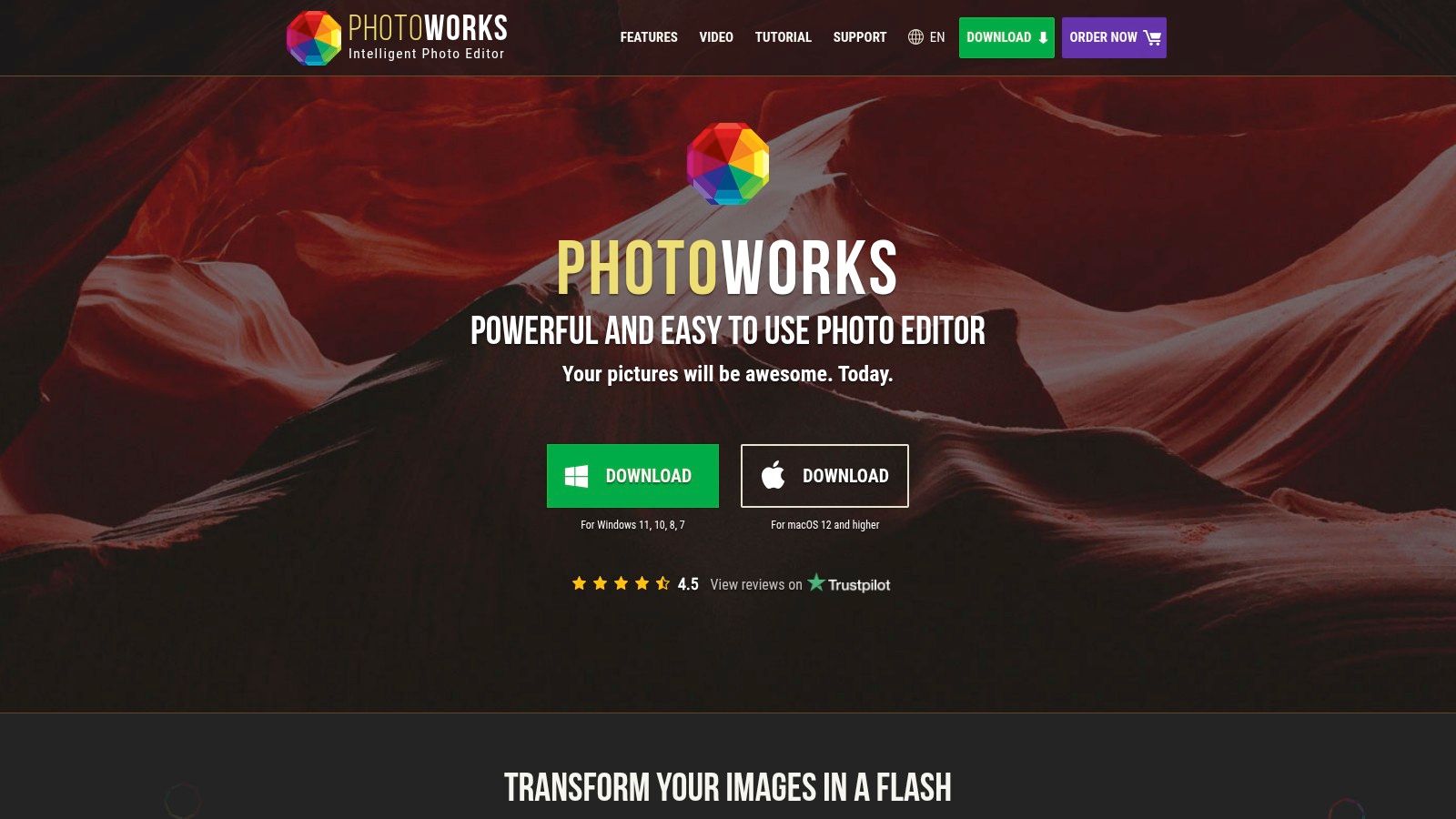
Unlike subscription-based models, PhotoWorks is available for a one-time purchase, making it an affordable long-term investment. While it lacks the collaborative cloud features of some rivals, its targeted restoration tools are highly effective for common problems like dust, scratches, and faded colors, making it a go-to for hobbyists focused purely on reviving old pictures.
Practical Restoration Example: Erasing Folds and Scratches
The Precision Healing tool in PhotoWorks is designed for accurately removing imperfections like creases or tears from a scanned photograph.
- Open the Image and Go to Retouch: Launch PhotoWorks, open your damaged photo, and navigate to the "Retouch" tab on the top toolbar.
- Select Healing Brush: From the side panel, choose the "Healing Brush." This tool is perfect for linear damage like folds and long scratches.
- Adjust Brush Size: Use the "Size" slider to make the brush slightly wider than the crease or scratch you are fixing.
- Paint to Erase: Click and paint along the entire length of the fold. The software intelligently analyzes adjacent pixels to reconstruct the area, making the damage disappear seamlessly as you paint over it. For small dots, use the "Clone Stamp" tool.
| Feature | Best For | Learning Curve |
|---|---|---|
| Precision Healing Brush | Removing creases, scratches, and dust | Low |
| Auto Color Correction | Instantly fixing faded or yellowed photos | Low |
| Noise Reduction | Smoothing out grain from old photo scans | Low |
| Crop & Straighten | Fixing composition and crooked scans | Low |
Pros & Cons
- Pros: Very user-friendly interface, affordable one-time purchase, effective AI-powered restoration tools.
- Cons: Only available for Windows, lacks the advanced layer-based editing of professional software.
Website: https://photo-works.net/
12. GIMP
GIMP (GNU Image Manipulation Program) is the leading free and open-source alternative to Photoshop, offering powerful tools for those seeking high-quality photo restoration online without a subscription fee. While it is downloadable software, its feature set rivals many paid applications, providing advanced capabilities like layers, masks, and precise selection tools. It’s the ideal choice for budget-conscious users who are willing to navigate a slightly less polished interface to gain professional-level control.
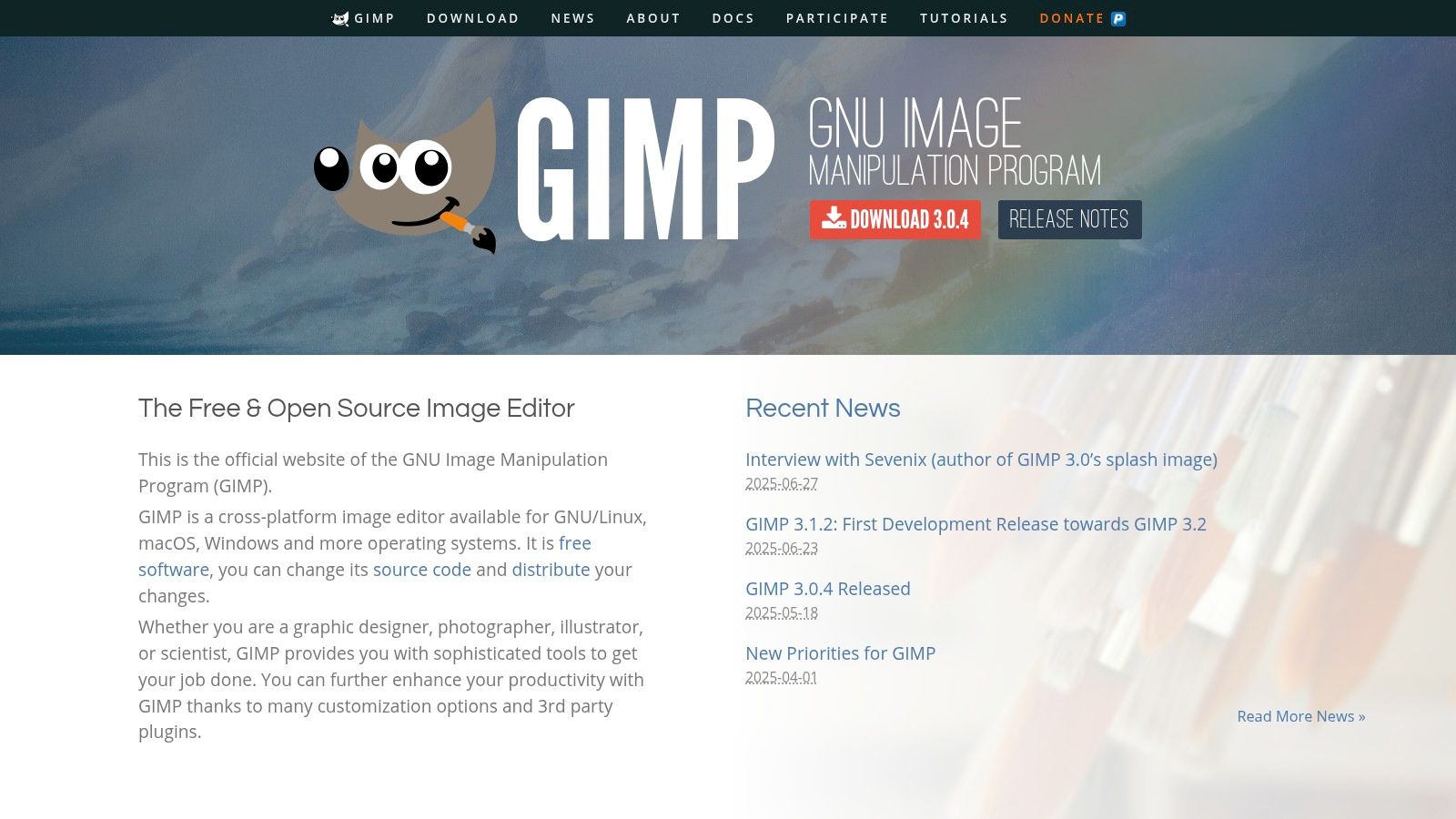
GIMP stands out due to its extreme customizability through plugins and scripts, allowing users to tailor the software to their specific restoration needs. Its community-driven development means it is constantly evolving, with a vast library of user-created resources available. This makes it a versatile tool for everything from simple blemish removal to complex reconstruction of heavily damaged photographs.
Practical Restoration Example: Repairing Damaged Areas
For repairing larger damaged sections, like a torn corner or a significant water stain, GIMP's Clone Tool is essential. It works by copying pixels from an intact source area to paint over the damage.
- Select the Clone Tool: Find the tool, which looks like a rubber stamp, in the toolbox.
- Choose a Source: Hold down
Ctrl(orCmdon Mac) and click on a clean, undamaged area of the photo that matches the texture and lighting of the area you want to repair. This sets your source point. - Paint Over Damage: Release the
Ctrlkey. Move your cursor over the torn or stained section and begin painting. You will see the source pixels being copied over the damage, effectively reconstructing the missing part of the image. For best results, use a soft-edged brush and re-sample your source point (Ctrl-click) often.
| Feature | Best For | Learning Curve |
|---|---|---|
| Layers & Masks | Non-destructive edits and complex selections | Medium |
| Clone Tool | Reconstructing large missing or damaged areas | Medium |
| Healing Tool | Blending out small imperfections like dust | Low |
| Extensive Plugins | Adding advanced functions and filters | High |
Pros & Cons
- Pros: Completely free to use, highly customizable with plugins, powerful feature set for detailed work.
- Cons: The user interface can feel dated and is less intuitive than modern editors, steeper learning curve for beginners.
Website: https://www.gimp.org/
Top 12 Photo Restoration Tools Comparison
| Product | Core Features ✨ | User Experience ★★★★☆ | Value Proposition 💰 | Target Audience 👥 | Unique Selling Points 🏆 | Price Points 💰 |
|---|---|---|---|---|---|---|
| Adobe Photoshop | Advanced repair, layering, color correction | Professional, steep learning curve | Industry-standard, powerful tools | Professionals, hobbyists | Comprehensive manual control | Subscription-based |
| VanceAI Photo Restorer | AI-driven auto repair, colorization online | Easy, fast for beginners | Quick results, no software needed | Beginners, quick users | Automatic AI restoration | Subscription-based |
| Remini | AI enhancement, batch processing, mobile app | Simple, fast with app convenience | Affordable for casual users | Mobile users, casual | Mobile batch processing | Subscription for HD |
| Fotor | One-click fix, AI scratch removal | Browser-based, beginner-friendly | Convenient online access | Beginners, casual | Fast AI enhancements | Freemium model |
| PhotoGlory | AI colorization, scratch & tear repair | Simple UI, effective | Focused on B&W restoration | Basic restorers | Specializes in black-and-white photos | One-time purchase |
| Retouch Pilot | Smart Patch, elastic tool, tutorials | User-friendly, tutorial-rich | Affordable one-time purchase | Beginners | Smart Patch for large defects | One-time purchase |
| ScanMyPhotos | Pro restoration, scanning, prints | Service-based, expert results | Full-service photo care | Professionals, consumers | 30+ years expertise, print options | Service pricing |
| FixThePhoto | Pro restoration, color correction, damage repair | High detail, custom results | Tailored solutions | Professional restoration seekers | Variety of detailed restoration | Variable service pricing |
| Image Restoration Center | Damage repair, color correction, enhancement | Experienced artists, quality | Professional results | Professional & serious users | Detailed manual restoration | Variable service pricing |
| Mendr | Pro restoration, easy submission | Convenient, quick turnaround | Affordable professional edits | Anyone needing pro edits | Connects users to editors | Variable pricing |
| PhotoWorks | Precision healing, color correction | User-friendly, Windows only | Affordable single purchase | Beginners, Windows users | Effective healing tools | One-time purchase |
| GIMP | Clone, healing, layers, plugins | Customizable but steep learning | Free and open-source | Tech-savvy, budget users | Extensive plugin support | Free |
Final Thoughts
Navigating the world of photo restoration online can feel like stepping into a time machine. We've explored a wide spectrum of tools, from the powerhouse manual control of Adobe Photoshop and GIMP to the one-click AI magic of services like Remini and VanceAI. We've also seen the dedicated, human-touch expertise offered by services like FixThePhoto and Image Restoration Center. The right choice isn't about finding a single "best" tool; it's about matching the right technology to your specific photograph and your personal goals.
Your journey from a faded, damaged print to a vibrant digital memory is now clearer. The key takeaway is that each tool has a distinct purpose. A severely damaged family heirloom with complex tears and missing sections will likely require the nuanced, manual approach of a professional service or the detailed layers of Photoshop. Conversely, a shoebox full of slightly faded, scratched 90s snapshots can be batch-processed beautifully and efficiently using an AI-powered tool.
Your Path to Perfect Restoration
To select the ideal tool, start by assessing your project's unique needs. Ask yourself these critical questions:
- What is the extent of the damage? Is it simple color fading and minor scratches, or are there significant tears, water damage, or missing pieces? AI tools excel at the former, while manual restoration is often necessary for the latter.
- What is your skill level and time commitment? If you're a professional or an enthusiast willing to learn, Photoshop offers unparalleled control. If you need quick, impressive results without a learning curve, AI-driven apps like Remini are your best bet.
- What is your budget? Your financial commitment will guide you. You can choose from free software like GIMP, affordable subscriptions for AI tools, or per-image pricing for professional human-led services.
- What is the final use case? A photo for a professional documentary requires a different level of detail and authenticity than one you plan to share on social media. Define your quality standard before you begin.
A Quick Action Plan to Get Started
Feeling ready to bring your old photos back to life? Here’s a simple, actionable plan based on what we've covered:
- Digitize Properly: Start with a high-resolution scan. Use a flatbed scanner at 600 DPI or higher for the best source material. Poor digitization will limit even the best photo restoration online tools.
- Choose Your Primary Tool: Based on your needs assessment above, select your main restoration software or service.
- Experiment and Iterate: Don't be afraid to try more than one tool. You might use an AI tool for initial color correction and sharpening, then import the image into a manual editor like PhotoWorks or GIMP for fine-tuning specific blemishes. This hybrid approach often yields the most professional-looking results.
- Save and Archive: Once you have a restored version you love, save it in a lossless format like TIFF for archival purposes, and create a high-quality JPG for sharing.
Ultimately, the technology available today is nothing short of remarkable. It empowers us to rescue our most cherished memories from the decay of time, ensuring they can be shared and appreciated for generations to come. The perfect solution is out there, waiting for you to begin your restoration project.
While you're exploring the power of AI to enhance and restore your images, consider expanding your creative toolkit. For those looking to generate entirely new visuals or elevate their marketing content, AI Photo HQ offers a suite of advanced AI image generation tools. Discover how our platform can help you create stunning, unique visuals for any project at AI Photo HQ.


