
How to Turn Any Photo Into Studio Ghibli‑Style Art With AI (Step‑by‑Step Guide)
If you love the warm, magical feeling of Studio Ghibli movies and wish your selfies, pet photos, or travel shots could look like that, you’re not alone.
With our AI Photo Generator, you can turn almost any photo into Ghibli‑style art in just a few minutes. In this guide, we’ll walk you through:
- How to turn a photo into Ghibli style art step by step
- The exact types of prompts that work best
- How to fix common issues like weird hands, faces, or backgrounds
- Tips for different photo types (selfies, pets, landscapes)
We’ll focus on one thing only: transforming real photos into consistent, Ghibli‑inspired illustrations using our online Ghibli style image generator.
What Makes the “Ghibli” Art Style Special?
Before we touch any settings, it helps to understand what we’re asking the AI to do.
The Ghibli‑inspired look has a few recognizable traits:
- Soft, painterly backgrounds – often with watercolor‑like textures and gentle gradients
- Comforting color palettes – warm, natural tones; skies are vibrant but not neon
- Expressive faces and eyes – simple line work but very emotive
- Clean but organic lines – not hyper‑detailed like some manga, not messy either
- Atmospheric lighting – golden hour, soft overcast, or cozy indoor lighting
When you write prompts and adjust settings in a Ghibli art style AI generator, you’re basically guiding the model toward these visual traits while still keeping your original photo recognizable.
Step 1 – Upload Your Photo to Our Ghibli Style Image Generator Online
First, decide which photo you want to transform:
- A selfie or portrait if you want a character‑style illustration
- A pet photo for a cute, storybook‑like rendering
- A landscape or city shot to turn into a dreamy background scene
Then, inside our AI Photo Generator:
- Open the image‑to‑image (photo to art) mode.
This allows the AI to use your photo as a base while applying the Ghibli‑inspired style. - Upload your image.
Higher‑resolution images (at least 1024×1024 or close) tend to give better results. - Choose an illustration or anime‑style model or preset, if available.
This tells the AI that we want stylized art, not pure photorealism.
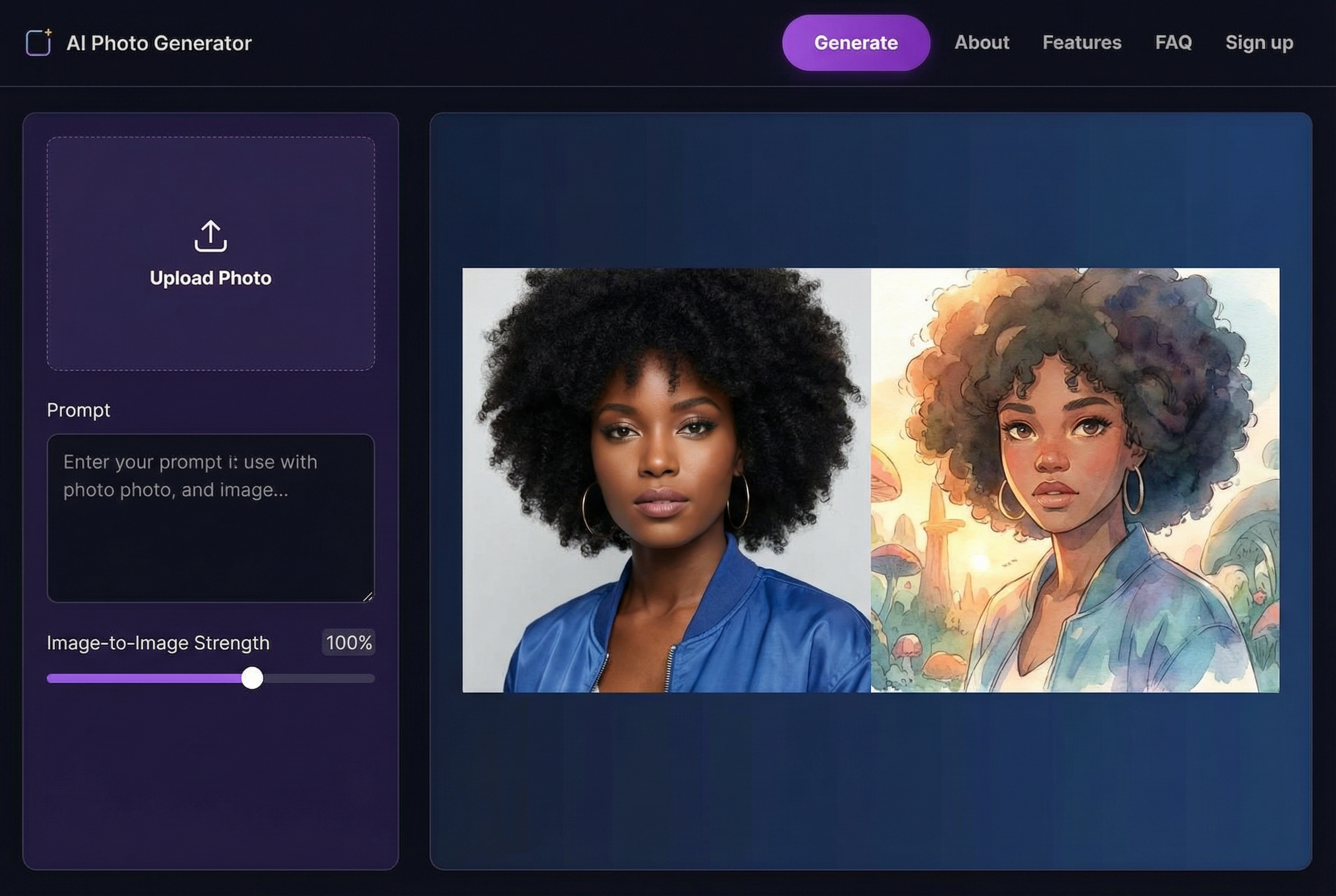
At this point, your image is ready. The real magic happens in the prompt and settings.
Step 2 – Craft a Ghibli‑Inspired Prompt (With Copy‑Paste Examples)
The prompt is where you describe how you want your final illustration to look.
A good base structure for Ghibli‑style prompts looks like this:
Ghibli-inspired illustration of [subject], soft painterly background, warm colors, expressive eyes, clean line art, anime style, cinematic lighting
Below are ready‑made prompts tailored for different types of photos you might upload.
For Selfies & Portraits
Use these if you uploaded a selfie or portrait photo.
Prompt example 1 – Soft outdoor portrait
Ghibli-inspired illustration of a young person standing outside, soft painterly background, detailed sky, warm sunlight, expressive anime eyes, gentle smile, clean line art, soft shading, cinematic anime style
Prompt example 2 – Cozy indoor portrait
Ghibli-style anime portrait of a person sitting by a window, warm indoor lighting, soft shadows, detailed background with books and plants, expressive face, clean and simple line art, watercolor-like colors
To keep your likeness, don’t over‑describe the facial features. Let your photo do that work. Use broader terms like “young person”, “adult woman”, “man with short hair” only if needed.
For Pets
Pets look incredible in a Ghibli‑inspired world.
Prompt example – Whimsical pet portrait
Ghibli-inspired illustration of a cute [dog/cat/rabbit] sitting in a meadow, soft grass, flowers, bright sky, vivid but soft colors, expressive big eyes, anime style, painterly background, gentle lighting
Replace the bracket with your pet type and, if you want, add specifics like “fluffy white cat” or “golden retriever puppy”.
For Landscapes & Travel Photos
This is perfect for turning your favorite vacation photo into a magical background.
Prompt example – Cityscape
Ghibli-style city illustration, inspired by a European town, soft watercolor textures, detailed buildings, warm light, hanging laundry, plants on balconies, cozy atmosphere, anime background art
Prompt example – Nature scene
Ghibli-inspired landscape painting of rolling hills and forest, soft painterly brushstrokes, detailed sky with fluffy clouds, warm and vibrant colors, atmospheric depth, anime background style
Use wording like “Ghibli-inspired”, “Ghibli-style”, “anime background art” to trigger the look you want. Our AI Photo Generator understands this style language well, and acts as a reliable Ghibli art style AI generator from your uploaded photo.
Step 3 – Adjust Image Strength & Settings for the Right Balance
In image‑to‑image mode, one of the most important settings is often called "strength", "influence", or "image weight". This controls how much the AI changes your original photo.
- Lower strength (0.3–0.5):
Your photo’s composition and details stay close to the original, with a lighter Ghibli effect AI style overlay. - Medium strength (0.5–0.7):
Sweet spot for most images. The art style is clear, but you can still recognize the subject strongly. - Higher strength (0.7–0.9):
Very stylized, sometimes more creative, but can distort faces or hands more easily.
We typically recommend starting around 0.55–0.65 for a balanced Studio Ghibli filter AI photo look.
Other useful settings to check:
- Resolution: Aim for at least 1024×1024 or a similar aspect ratio to your photo. Higher resolutions capture more painterly detail.
- Guidance/CFG Scale: Middle values (around 6–9) help the AI follow your prompt without becoming too rigid.
- Number of steps/samples: More steps can mean more detail, but also longer processing time. The default is usually fine for most users.
Run a first generation and see what you get. From here, we can fix and refine.
Step 4 – Fix Common Issues (Weird Hands, Faces, Backgrounds)
Any AI generator can occasionally produce odd results. Our tools are designed to help you correct them without starting over.
Problem 1: Weird Hands, Extra Fingers, or Twisted Limbs
Hands are famously tricky for AI. To reduce "AI hand chaos":
- Crop tighter around the face/upper body if the hands aren’t essential. Fewer limbs = fewer problems.
- Use negative prompts (if available), such as:
deformed hands, extra fingers, disfigured limbs, distorted anatomy, mutation, blurry details - Lower the image strength a bit (for example from 0.7 to 0.55).
This lets more of the original hand pose come through. - If your editor includes inpainting tools:
- Mask only the hand area.
- Re‑generate just that part with a focused prompt:
natural hand, correct anatomy, clean lines, Ghibli-style art
Problem 2: Distorted Faces or Off Expressions
Faces carry most of the emotion in a Ghibli‑style illustration, so it’s worth getting them right.
Try this when faces look off:
- Use a photo where the face is clear and well‑lit.
Blurry or extreme angles are harder to stylize cleanly. - Avoid over‑describing the face in your prompt.
Too many adjectives can fight with what’s in the photo. - Add subtle guidance like:
symmetrical face, expressive anime eyes, gentle smile, clean line art - Reduce the strength slightly if the AI is changing facial structure too much.
- If your workflow supports it, run a second pass that focuses on the face only, with a tighter crop.
Problem 3: Busy or Messy Backgrounds
Sometimes the subject looks great, but the background becomes noisy or chaotic.
You can fix this by:
- Adding simpler background cues to your prompt, like:
simple background, soft blurred trees, painterly sky, minimal clutter - Masking and regenerating the background (using an inpainting/erase‑and‑redraw brush):
- Keep your subject locked in place.
- Prompt only for the environment:
Ghibli-inspired background, soft watercolor trees, distant town, warm atmosphere, subtle details
- Cropping to a composition with less background if the original photo is very cluttered.
By iterating like this, you can turn a rough first output into a polished Ghibli‑inspired artwork.
Step 5 – Refine With Iterative Editing
One of the biggest advantages of using an AI photo generator is how quickly you can experiment.
Here’s a simple refinement workflow:
- Generate 3–4 variations of your first prompt.
Pick the one with the best pose and expression. - Upscale your favorite result (if available).
Upscaling can add crisp line art and finer painterly details. - Tweak the prompt slightly for mood:
- Add
golden hour lightingfor warm sunsets. - Add
rainy day, soft raindrops on windowfor a melancholic feel. - Add
springtime, cherry blossoms in the backgroundfor classic anime vibes.
- Add
- Use light editing tools (crop, slight color adjustments) to polish the final image.
Over time, you’ll develop your own mini “recipes” for the perfect Ghibli effect AI look.
Prompt Library: Ready‑Made Studio Ghibli Filter AI Photo Tutorial Recipes
Use these as templates and customize for your own images.
Portrait Recipe (Upload a Selfie)
Prompt:
Ghibli-inspired anime portrait of a young person, soft painterly background with sky and distant trees, warm sunlight, expressive big eyes, gentle smile, clean line art, subtle shading, cinematic anime lighting, cozy atmosphere
Negative prompt (optional):
deformed hands, extra fingers, distorted face, blurry, harsh shadows, realistic photography style, horror, glitch
Recommended settings:
- Strength: 0.55–0.65
- Guidance (CFG): 7–9
- Resolution: at least 1024 px on the shortest side
Pet Recipe (Upload a Pet Photo)
Prompt:
Ghibli-style illustration of a cute [pet type] sitting in a field of flowers, soft grass, pastel sky, vivid but soft colors, expressive eyes, charming anime style, painterly texture, whimsical mood
Negative prompt:
scary, horror, realistic fur photograph, deformed anatomy, extra limbs, dark and moody
Landscape Recipe (Upload a City or Nature Photo)
Prompt:
Ghibli-inspired background art of [scene: city street / seaside village / mountain valley], soft watercolor textures, detailed but clean buildings, warm light, lush plants, atmospheric depth, anime background painting
Negative prompt:
overly detailed photorealism, harsh contrast, neon cyberpunk, cluttered, messy composition
Feel free to create your own variations. If you ever see “gilbil art” or similar misspellings used online, know that what people are really after is exactly this kind of Ghibli effect AI style we’re describing.
Tips for Different Types of Photos
1. People & Selfies
- Use good lighting: natural daylight near a window works best.
- Avoid extreme angles or very close fisheye‑style shots.
- If you wear glasses, try one version with and one without; reflections can confuse some models.
- Don’t overload the prompt with clothing details. Let the photo guide the outfit and pose.
2. Pets
- Capture your pet in a simple environment if possible (sofa, floor, grass) for cleaner generations.
- Front‑facing or 3/4 angle faces translate best to anime‑style art.
- Add emotional cues like
curious expression,happy, orsleepyto match their personality.
3. Landscapes & Architecture
- Wide shots work well for background‑style art.
- Mention the time of day in your prompt:
sunrise,golden hour,blue hour, ornight with warm street lights. - If your photo has many signs or text, expect the AI to simplify or reinterpret them—this is normal and often looks better.
Frequently Asked Questions About Ghibli Art Style AI Generators
Is this copying a specific movie or just inspired by the style?
When you prompt for a "Ghibli‑inspired" look, you’re asking the AI to evoke general stylistic traits: soft colors, painterly backgrounds, expressive anime faces, and cozy atmosphere. Our focus is on creating original illustrations that feel similar in mood, not reproducing any specific copyrighted frame.
Can I use these images online or in my projects?
In most cases, yes, you can use AI‑generated art for:
- Social media posts
- Personal projects (phone wallpapers, prints, profile pictures)
- Many creative and commercial contexts, depending on your local laws and platform policies
Always check the terms of use for our AI Photo Generator and be sure you have rights to the original photo you upload.
Why does the result sometimes look more like generic anime than a pure Ghibli look?
Anime styles overlap a lot. To nudge the AI closer to a Ghibli‑like feel:
- Emphasize
painterly,watercolor-like,soft background, andcozy atmospherein your prompt. - Avoid words like
highly detailed line art,sharp, orcyberpunk, which push it toward other anime aesthetics. - Lower the strength slightly so your photo’s composition and lighting guide the scene more.
Bringing Your Photos Into a Ghibli‑Inspired World
With the right photo, a clear prompt, and a few small tweaks, you can reliably turn any photo into Ghibli‑style art using our online AI Photo Generator.
To recap the workflow:
- Upload your photo in image‑to‑image mode.
- Use a Ghibli‑inspired prompt tailored to your subject (portrait, pet, or landscape).
- Set a medium image strength (around 0.55–0.65) for a balanced transformation.
- Fix hands, faces, and backgrounds with negative prompts, cropping, or targeted re‑generation.
- Iterate and refine with variations, upscaling, and subtle prompt adjustments.
Once you’ve tried it a few times, you’ll be able to create your own library of “recipes” and bring your world into that soft, cinematic, Ghibli‑inspired universe any time you want.
Ready to experiment? Grab a favorite selfie or a photo of your pet, and see how it looks as a hand‑painted anime character in just a few clicks.


