
Finding the right online image upscaler can feel overwhelming, with dozens of tools all promising miraculous results. Low-resolution images, pixelation, and digital noise are common frustrations for social media influencers, digital artists, and marketing agencies alike. These issues can compromise the quality of your content, whether it's for a client's campaign, your digital portfolio, or a personal photography project. The core problem is simple: you have an image that needs to be larger and clearer without looking like a blurry artifact. This resource is designed to solve that problem directly.
We've tested and analyzed the top platforms to provide a comprehensive guide, helping you choose the best tool for your specific needs. Forget generic feature lists and marketing jargon. Instead, this article delivers a practical, in-depth comparison of the leading image enhancement tools available today. Each review includes a detailed breakdown of key features, honest limitations, and pricing structures. More importantly, we provide step-by-step instructions and real-world use case scenarios to show you exactly how to achieve professional-quality results.
This guide will help you understand:
- Which tool is best for specific tasks like restoring old photos, enhancing product images, or preparing art for print.
- How to use each platform effectively with practical, step-by-step guidance.
- The actual costs and limitations you can expect before you commit.
We will cover a range of options, from free, browser-based tools to powerful, subscription-based platforms. The technology behind these tools is a fascinating field in its own right; to understand the broader context, you might be interested in exploring AI's advancements in enhancing and upscaling digital media as well. Let’s dive into the list and find the perfect online image upscaler for your projects.
1. MyEdit
MyEdit secures the top spot on our list with its powerful, yet remarkably accessible, suite of AI-powered tools. While many platforms offer a single function, MyEdit provides a comprehensive toolkit that goes beyond simple upscaling, making it a one-stop-shop for quick and effective photo enhancements. Its strength lies in combining high-quality results with an interface that welcomes beginners without sacrificing depth for more experienced users.
This platform is an excellent online image upscaler for those who need more than just a resolution boost. Its AI can intelligently deblur fuzzy photos and remove digital noise, restoring clarity to images that might otherwise be unusable. The background removal tool is impressively accurate, cleanly isolating subjects for professional-looking product shots or social media posts.
How to Restore a Vintage Photo with MyEdit
MyEdit excels at bringing old, low-resolution family photos back to life. Follow this step-by-step tutorial:
- Open the Enhancer: Navigate to the AI Photo Enhancer tool on the MyEdit website.
- Upload Your Photo: Drag and drop your scanned vintage photograph or click to upload it. The platform will automatically apply initial enhancements.
- Refine the Image: Use the Denoise tool to clean up film grain and the Deblur tool to sharpen any soft focus areas.
- Upscale for Printing: Select the Image Upscaler from the tool menu and choose the 4x option. This increases the resolution, making the photo suitable for high-quality printing.
- Review and Download: Use the before-and-after preview slider to ensure the result is perfect. Once satisfied, download your restored photo.
Key Insight: MyEdit’s value is its integrated workflow. You can deblur, denoise, and upscale an image in a single session without needing multiple specialized tools, saving significant time and effort.
Access and Pricing: MyEdit offers a free tier with limited daily credits for most tools. For unlimited access and advanced features, a premium subscription is required, making it a scalable solution for both casual users and professionals.
Website: https://www.myedit.com
2. Media.io Upscaler
Media.io earns its spot by giving users exceptional control over the enhancement process. Instead of a single, one-size-fits-all algorithm, it offers a selection of specialized AI models, allowing you to choose the perfect tool for your image's specific needs. This model-based approach makes it a powerful online image upscaler for users who want to fine-tune their results beyond a simple resolution increase.
The platform stands out by empowering users to experiment. You can apply different models like the standard Upscaler, a dedicated Portrait Enhancer, or a Color Correction tool and then compare the outcomes side-by-side. This immediate visual feedback is invaluable for selecting the best possible enhancement, whether you are sharpening a product photo or restoring color to a faded landscape.
How to Enhance a Digital Portrait with Media.io
Media.io is ideal for perfecting headshots or social media profile pictures. Here's a step-by-step guide to achieving a professional result:
- Upload Your Portrait: On the Media.io website, upload your portrait to the Image Upscaler.
- Select the Best AI Model: After processing, the platform presents several AI models. Start by selecting the Portrait Enhancer to automatically smooth skin and sharpen key facial features like eyes and hair.
- Compare and Refine: Switch to the Color Correction model to see if it provides richer, more balanced skin tones. Use the side-by-side comparison slider to visually confirm which enhancement looks best.
- Upscale the Image: Once you've chosen the best model, select a 4x or 8x upscale factor. This ensures the final image is crisp and clear for use on any digital platform.
- Download Your Result: Click the download button to save your professionally enhanced portrait.
Key Insight: Media.io’s strength is its comparative preview. The ability to switch between multiple AI models and instantly see the differences on your own image removes the guesswork and ensures you download the optimal result.
Access and Pricing: Media.io provides free use with watermarked downloads. For watermark-free results and greater access, it offers flexible pay-as-you-go credit packs and affordable subscription plans, catering to both infrequent users and regular creators.
Website: https://www.media.io/upscaler
3. Remini
Remini carves out its niche by focusing intensely on people and portraits, using its AI to bring stunning clarity and life to faces. While it functions as a general-purpose upscaler, its real power lies in restoring old, blurry, or low-resolution photos of individuals, making it a favorite for genealogists, families, and social media users looking to revive precious memories. The platform is engineered to recognize and enhance facial features with remarkable precision.
This tool is a top-tier online image upscaler for anyone whose primary goal is enhancing portraits. Beyond just increasing pixel count, Remini’s AI excels at deblurring faces, correcting colors, and even offers subtle beauty filters to refine the final look. Its video enhancement feature also applies these same principles, making it a versatile tool for restoring not just still photos but also cherished home videos.
How to Enhance a Blurry Portrait for Social Media with Remini
Remini makes it simple to turn a blurry, low-quality selfie or group photo into a crisp, shareable image. Here’s a quick tutorial:
- Select the Tool: On the Remini website, choose the Photo Enhancer tool.
- Upload Your Portrait: Upload the photo you want to improve. The AI will immediately process the image, automatically sharpening facial details.
- Adjust the Look: Toggle the Face beauty option. Leave it on for a slightly retouched appearance or turn it off for a more natural result.
- Correct the Colors: Apply the Color correction filter to automatically balance the colors and make them more vibrant.
- Compare and Download: Use the slider to move between the enhanced version and the original. Once you're happy with the improvement, download the high-resolution result to post on your social media.
Key Insight: Remini's strength is its specialized focus on facial reconstruction. Where other tools might produce a generically sharper image, Remini intelligently rebuilds eyes, skin texture, and hair with an algorithm trained specifically for human features.
Access and Pricing: Remini offers a free trial and a personal plan with weekly limits (20 enhanced images per week). For more frequent use or access to its full suite of tools, including video enhancement, paid subscription plans are available.
Website: https://www.remini.ai
4. HitPaw Photo Enhancer
HitPaw Photo Enhancer earns its spot by offering a specialized suite of AI models tailored for different image types, from portraits to landscapes and animations. This platform excels at delivering high-resolution results up to 8K, making it a powerful tool for those who need professional-grade enlargements. Its strength is its focused approach, allowing users to select the best AI model for their specific photo to achieve optimal clarity and detail.
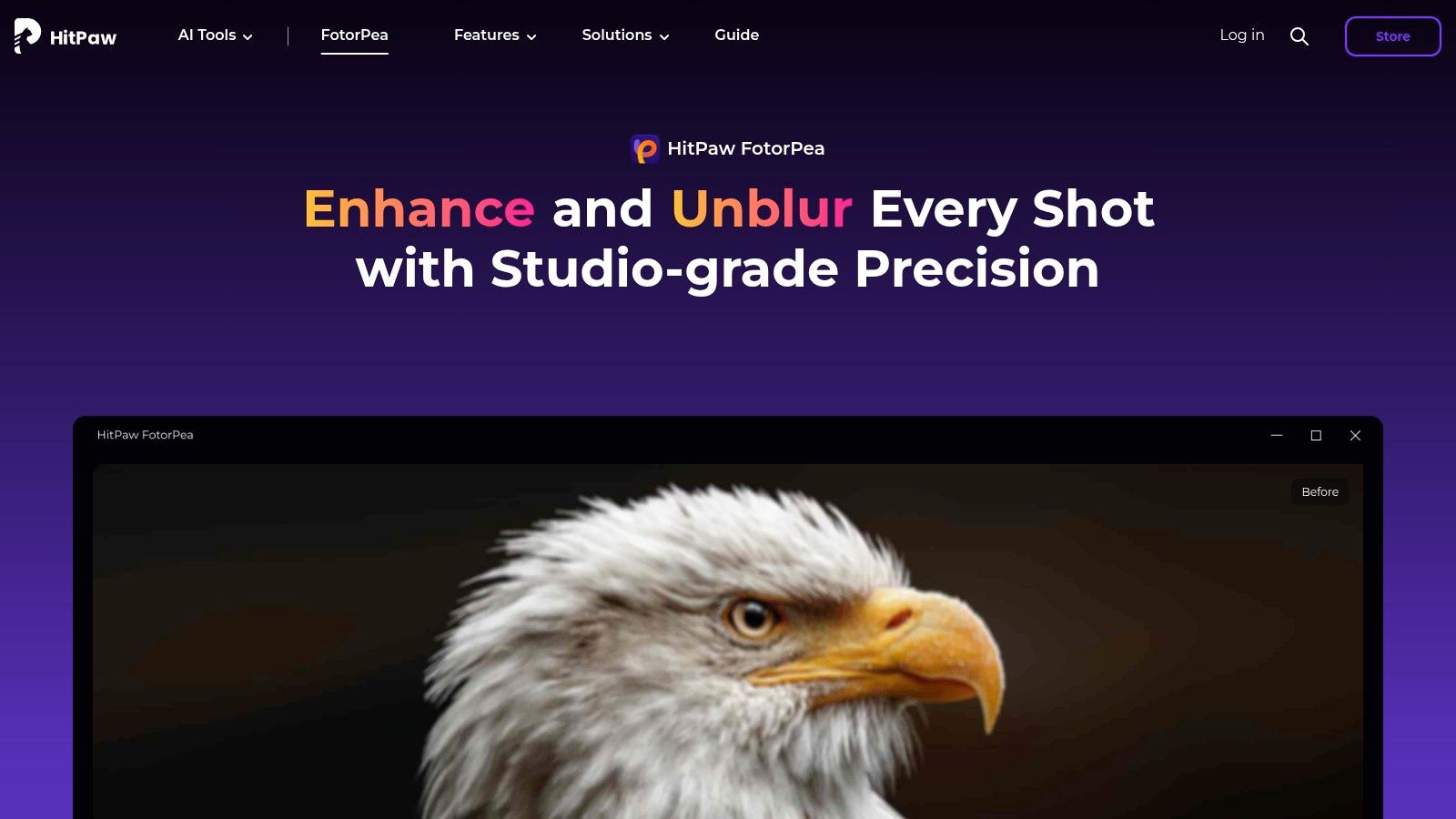
This platform is an excellent online image upscaler for photographers and digital artists who want more control over the enhancement process. Beyond simple upscaling, it features powerful noise removal, sharpening, and an impressive colorization model that can breathe new life into black-and-white photos. While the online version is convenient for single edits, the lack of batch processing might be a limitation for users with large volumes of images.
How to Colorize and Upscale a Historic Photo with HitPaw
HitPaw makes restoring and enhancing vintage pictures for high-quality archival simple. Here’s a step-by-step guide:
- Upload the Photo: Go to the HitPaw Online Photo Enhancer and upload your scanned black-and-white photo.
- Apply Colorization: From the AI model options presented, select the Colorize Model. The AI will analyze the photo and automatically add realistic colors.
- Sharpen and Denoise: After colorization, switch to the General Model. This model will sharpen the newly colored details and reduce any film grain or digital noise from the original scan.
- Set the Final Resolution: Choose your desired output resolution. For a large-format print, select 4K or even 8K.
- Download the Restored Image: Preview the final result and download the high-resolution color photo, ready for printing and framing.
Key Insight: HitPaw's multi-model system is its biggest advantage. By allowing you to choose a specialized AI for your image type (like anime or portraits), it produces more refined and contextually accurate results than one-size-fits-all enhancers.
Access and Pricing: HitPaw offers a free trial for users to test its capabilities with watermarked results. To download images without watermarks and unlock all features, a subscription plan is required.
Website: https://www.hitpaw.com/photo-enhancer.html
5. Upscale.media
Upscale.media offers a refreshingly direct and efficient approach to AI-powered image enhancement. Its core strength is its simplicity, providing a clean, single-purpose interface that allows users to increase image resolution up to 4x with just a few clicks. This makes it an ideal online image upscaler for those who need a quick, high-quality result without navigating complex menus or a steep learning curve. The platform is designed for speed and accessibility, delivering impressive clarity and detail preservation.
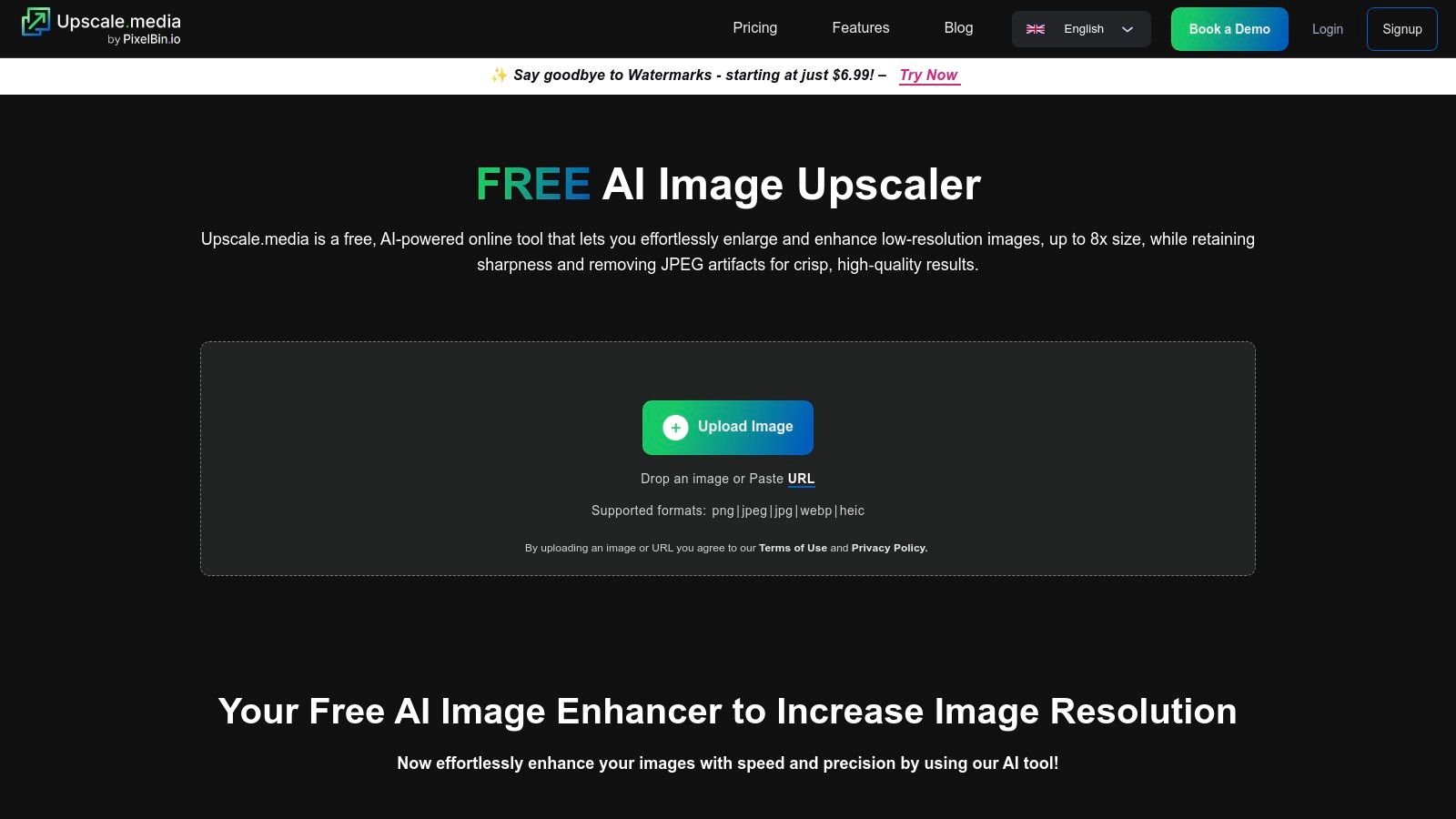
The platform supports common file types like PNG, JPEG, and WEBP, and its fully automated process handles everything from artifact removal to texture smoothing. While it focuses primarily on upscaling, Upscale.media is part of the broader Pixelbin.io ecosystem, which provides other useful image processing tools. This integration offers a pathway to more advanced features for users who start with basic upscaling and later require a more comprehensive solution. For those interested in how AI is transforming digital media further, you can explore the process of turning static images into dynamic content by learning more about AI-driven image-to-video conversion.
How to Prepare E-commerce Product Images with Upscale.media
Upscale.media is perfect for e-commerce owners who need to ensure their product photos are sharp and professional on high-resolution displays. Follow these simple steps:
- Navigate and Upload: Go to the Upscale.media website. Drag and drop your product image directly onto the page, or click the Upload Image button.
- Automatic Enhancement: The AI automatically processes the image and enhances it to 2x its original size by default.
- Increase Resolution: To ensure maximum clarity for product zoom features, select the Upscale to 4x option.
- Review the Details: Use the slider to compare the original and upscaled versions, checking for sharpness in key product details.
- Download and Use: Click Download Image to save the high-resolution file, ready to be uploaded to your online store.
Key Insight: Upscale.media’s minimalist design and automated workflow make it one of the fastest tools for single-image tasks. Its availability as a mobile app adds a layer of convenience for on-the-go edits.
Access and Pricing: The service offers a free plan for processing a limited number of images. For higher volume needs, batch processing, and faster speeds, a premium subscription is available.
Website: https://www.upscale.media
6. Icons8 Smart Upscaler
Icons8 Smart Upscaler carves out its niche with a focus on efficiency and bulk processing. While many tools handle single images well, Icons8 is built for users who need to process large batches of photos quickly, making it a powerful asset for e-commerce stores, digital marketers, and anyone managing extensive visual libraries. Its straightforward, no-frills interface prioritizes speed and simplicity over a complex suite of editing tools.
This platform is a standout online image upscaler for its ability to handle up to 500 images in a single batch. It supports common file formats like JPG, PNG, and WebP, and can upscale images up to 4x their original size, reaching a maximum resolution of 7680x7680px. This makes it ideal for preparing product photos for high-resolution displays or updating an entire portfolio to modern standards without tedious, one-by-one processing.
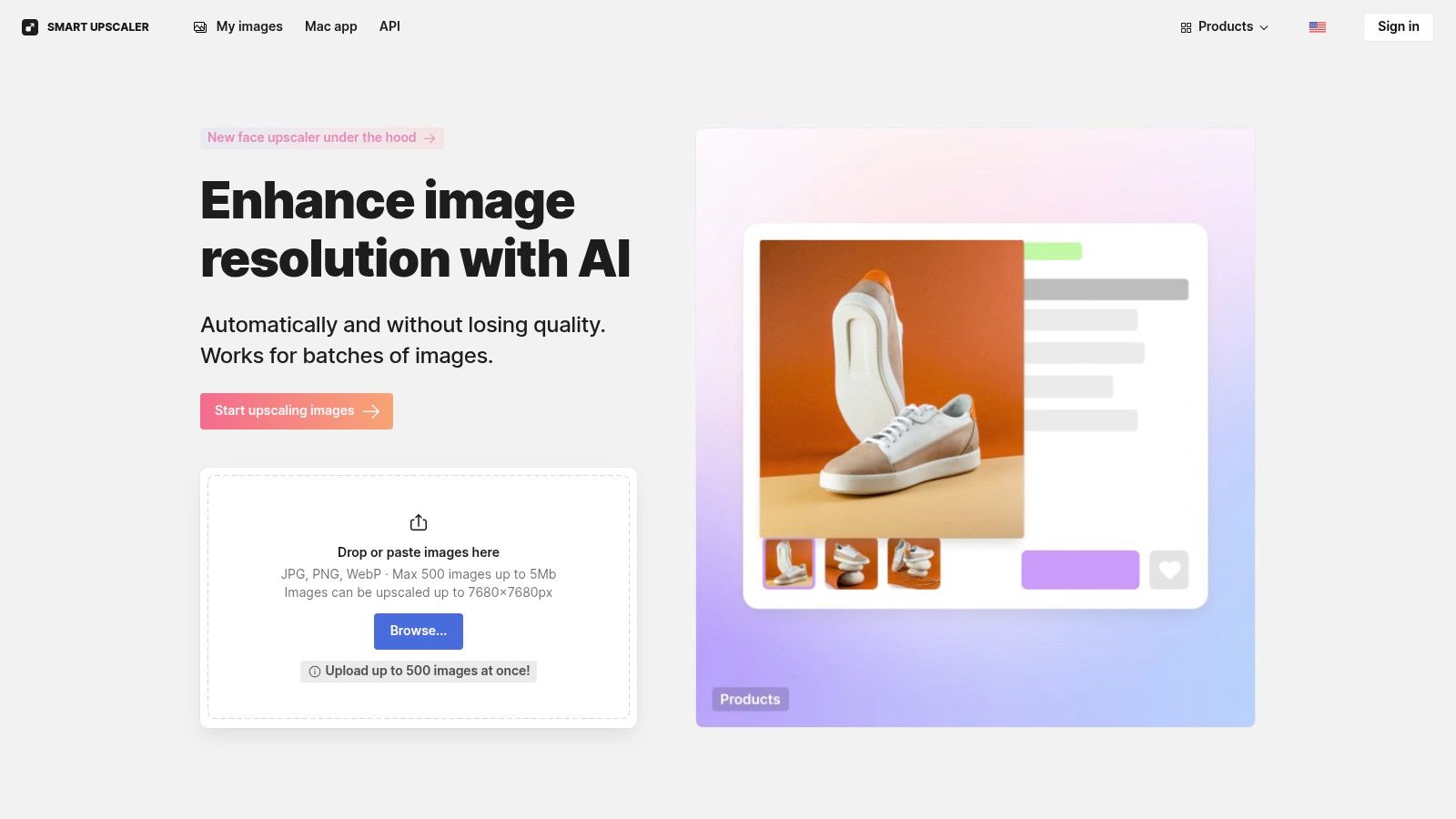
How to Batch Upscale Product Photos with Icons8
For an e-commerce manager needing to update an entire catalog of product images, Icons8 simplifies the workflow into a few easy steps:
- Navigate and Select: Go to the Smart Upscaler page on the Icons8 website.
- Upload in Bulk: Drag and drop an entire folder containing up to 500 product images directly onto the upload area. You don't need to select files one by one.
- Configure Settings: The platform will automatically begin processing the entire batch. You can choose to upscale each image by 2x or 4x.
- Download the Batch: Once the processing is complete, you can download all the enhanced images as a single, convenient ZIP file, which is ready for direct upload to your website.
Key Insight: Icons8's core strength is its massive batch processing capability. For tasks involving hundreds of images, it offers unparalleled time savings compared to tools that require individual uploads and downloads.
Access and Pricing: Icons8 offers a free plan that allows for 3 free upscales with a watermark. Paid plans are required for batch processing, higher resolutions, and watermark-free downloads, with pricing based on the number of images processed per month.
Website: https://icons8.com/upscaler
7. Let's Enhance
Let's Enhance carves out its niche by offering some of the most powerful upscaling capabilities on the market, pushing resolution boosts up to a massive 16x. This cloud-based platform is engineered for users who need to dramatically increase image size for high-resolution displays or large-format printing. Its strength lies in a specialized, no-frills approach to upscaling, combined with intelligent AI that simultaneously enhances color and lighting.
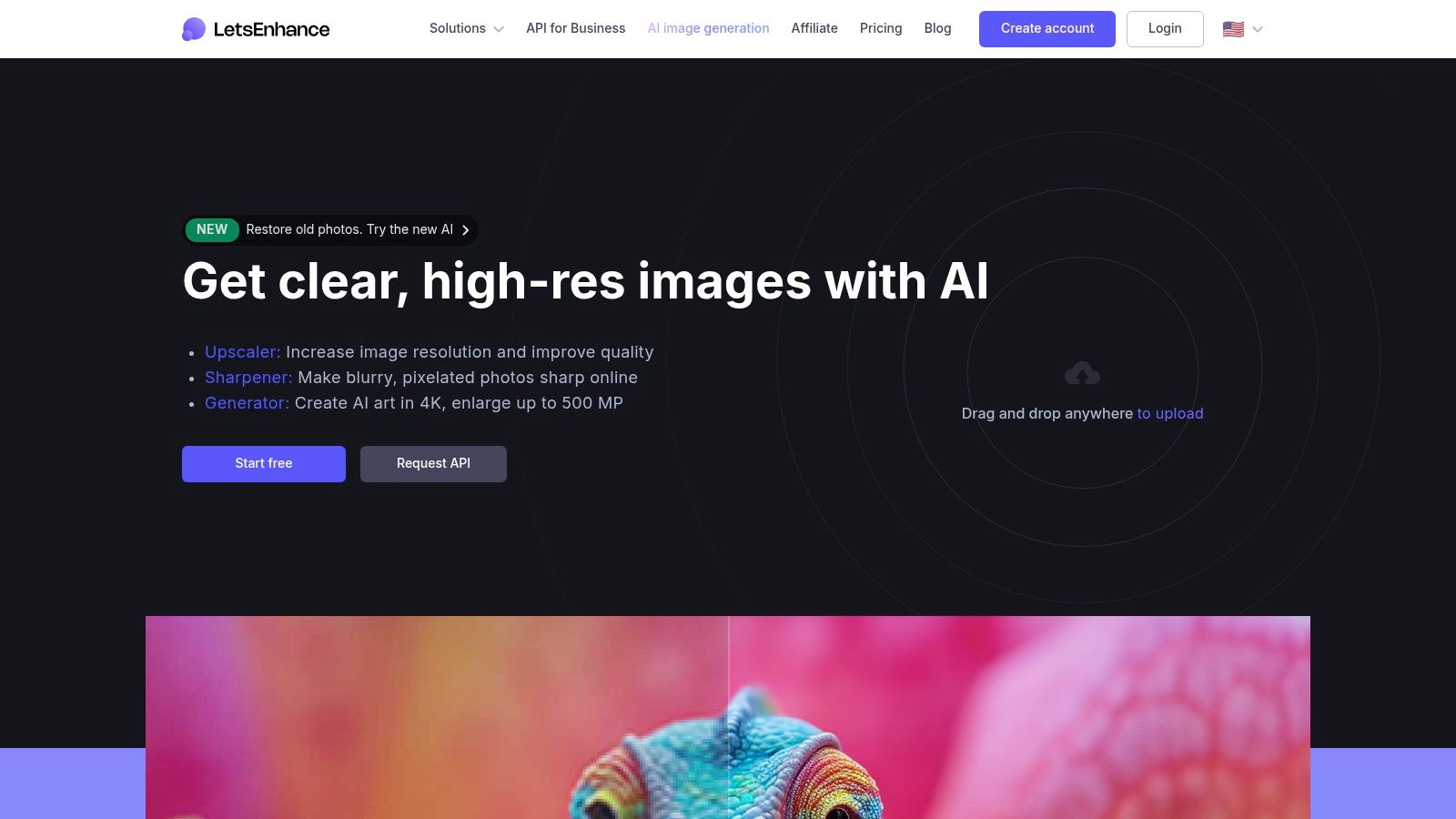
As an online image upscaler, it’s a go-to tool for preparing digital art or photographs for professional printing. The platform's AI not only adds pixels but also improves tonal balance and color vibrancy, often correcting minor lighting issues in the source file. This dual enhancement makes it highly efficient for photographers and designers looking to perfect their final output without extensive manual editing in separate software.
How to Prepare Digital Art for a Large Print with Let's Enhance
Let’s Enhance is ideal for artists who need to turn a smaller digital creation into a high-quality, large-scale print. Here’s a step-by-step tutorial:
- Upload Your Artwork: Log in to the Let's Enhance platform and drag your digital art file into the upload area.
- Choose Processing Type: In the right-hand panel, select the "Photo" processing type, as it's best for images with rich detail.
- Select Upscale Type: Under the "Upscale type" dropdown, choose "Smart Enhance." This allows the AI to intelligently improve details and lighting while enlarging the image.
- Set the Magnification: Set the upscale factor by selecting "Custom." Choose your desired multiplier, such as 8x or 16x, to meet the printer’s Dots Per Inch (DPI) requirements for your target print size.
- Process and Download: Click "Start processing." Once complete, download the high-resolution file, which is now ready to be sent to a professional printer for a gallery-quality Giclée print.
Key Insight: Let's Enhance excels at extreme magnification. The 16x upscaling feature is a standout capability, making it uniquely suited for transforming low-resolution source files into assets for large physical media like posters and canvas prints.
Access and Pricing: Let's Enhance provides a free plan with a limited number of credits to test the service. For higher volume or more frequent use, it offers various subscription plans and pay-as-you-go credit packages, catering to both hobbyists and professional agencies.
Website: https://letsenhance.io
8. VanceAI Image Upscaler
VanceAI Image Upscaler carves out a specific niche in the market by offering powerful upscaling up to 8x the original resolution, with specialized algorithms designed for anime and cartoon images. Its AI model is trained to enhance details, suppress noise, and remove blur simultaneously, making it an excellent tool for reviving low-quality or compressed graphics. This platform stands out for its high-magnification capabilities and its focus on a specific visual style.
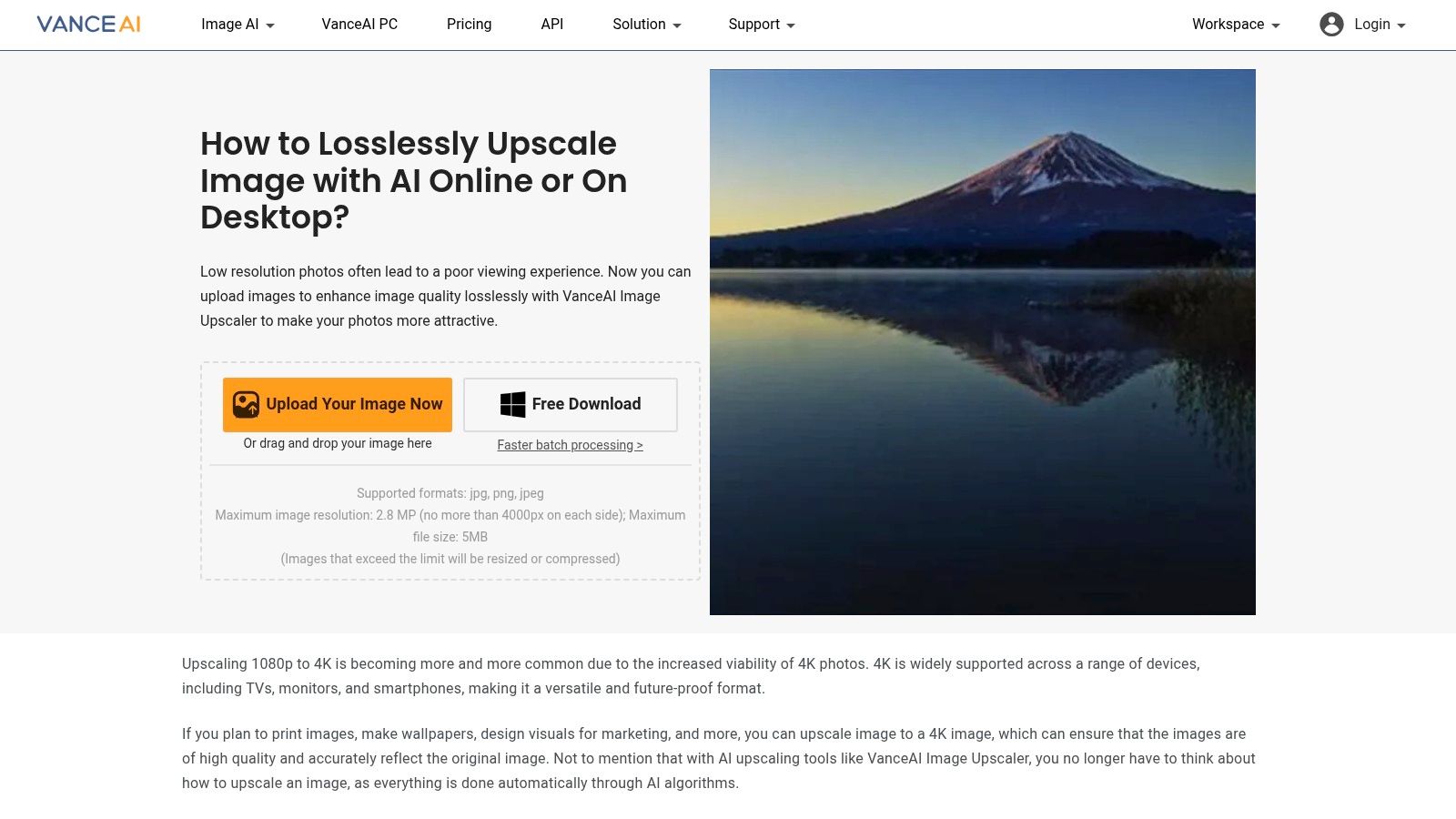
This online image upscaler is particularly useful for digital artists and anime fans who want to create high-resolution wallpapers or prints from smaller source files. The dedicated anime algorithm ensures that lines remain sharp and colors stay vibrant without the typical artifacts found in standard upscalers. For those interested in how AI can transform images, you can explore more about AI-driven image styling.
How to Enhance a Low-Resolution Anime Screenshot with VanceAI
VanceAI excels at preparing anime-style art for high-resolution displays. Here is a tutorial for getting the best results:
- Select the Right Workflow: On the VanceAI Image Upscaler page, choose the Anime workflow. This loads the specialized AI model.
- Upload Your Art: Upload your low-resolution anime screenshot or digital art file.
- Configure Enhancement: Choose your upscale factor, from 2x up to 8x. For best results, use the sliders to adjust noise reduction and blur removal levels based on the quality of your source image.
- Preview and Process: Process the image and use the side-by-side preview to check the enhanced details. Pay close attention to the sharpness of the linework and the vibrancy of the color gradients.
- Download Your Wallpaper: Download the crisp, high-resolution version, which is now ready to be used as a desktop background or sent for printing.
Key Insight: VanceAI’s strength is its specialized anime model. It understands the unique characteristics of this art style, such as clean lines and flat color areas, delivering superior results compared to general-purpose upscalers.
Access and Pricing: VanceAI provides a limited free trial with three credits. For more extensive use, including 8x upscaling and batch processing, a subscription or a prepaid credit plan is required.
Website: https://vanceai.com/image-upscaler/
9. Fotor
Fotor carves out its spot as a comprehensive and user-friendly photo editing suite that integrates a capable AI image upscaler. Its primary advantage lies in its all-in-one environment, which appeals to users who need to perform multiple edits, from basic adjustments to advanced AI enhancements, without juggling different applications. Fotor is more than just a tool; it's a creative platform stocked with templates, stock photos, and design elements.
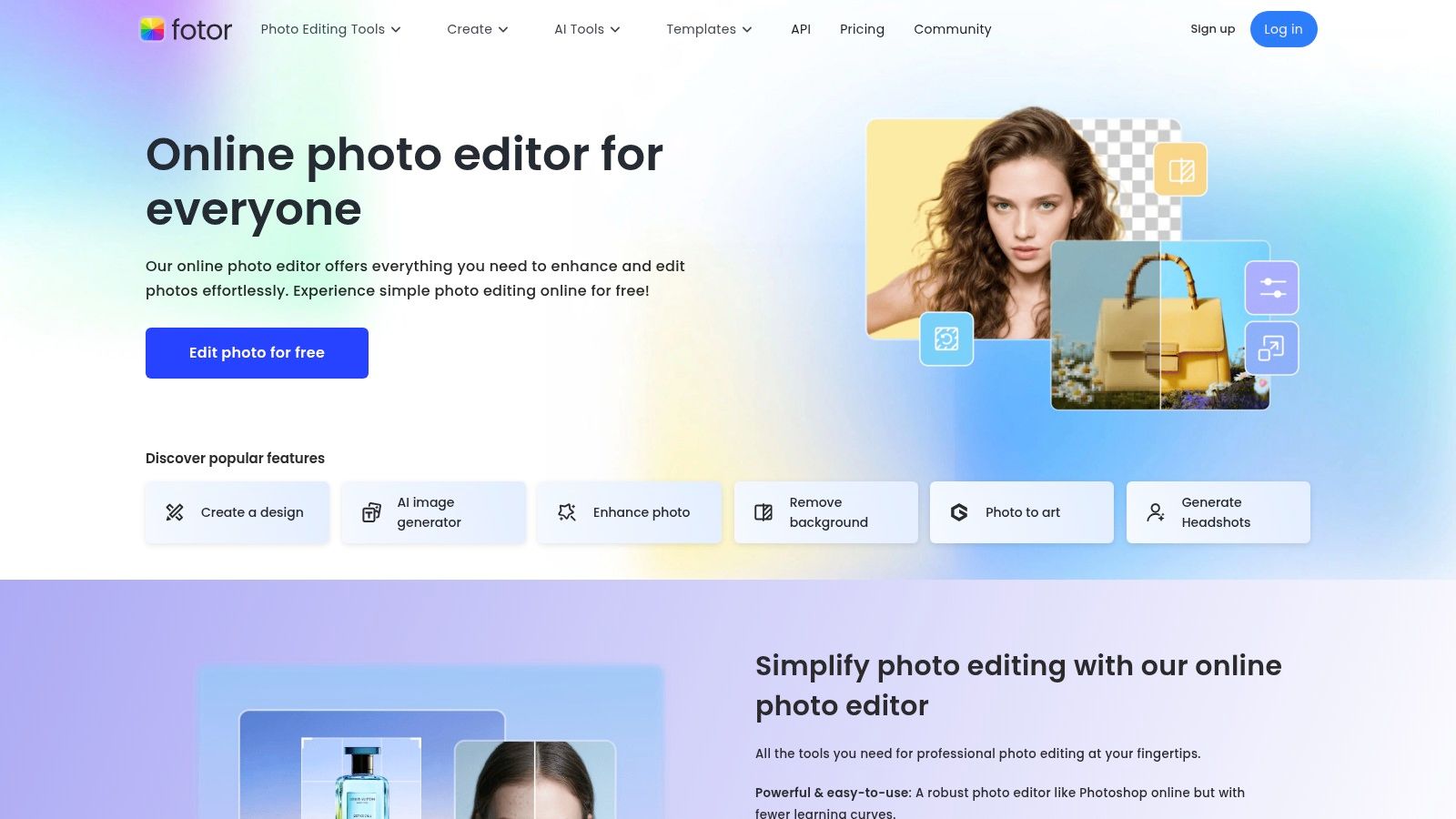
This platform is a strong online image upscaler for social media managers and content creators who need to quickly prepare visuals. The batch processing feature is a significant time-saver, allowing you to enhance and upscale multiple product photos or event pictures simultaneously. Its massive library of templates and stock photos provides a foundation for creating polished marketing materials or blog graphics efficiently.
How to Upscale Images for a Product Gallery with Fotor
Fotor is ideal for quickly preparing a batch of product images for an online store. Here's a step-by-step workflow:
- Navigate to the Tool: From the Fotor dashboard, select the Photo Editor. Inside the editor, find the AI Enlarger in the "AI Tools" menu on the left.
- Upload Your Images: Click Open Image and select all the product photos you need to process. Fotor will display them as thumbnails at the bottom for easy access.
- Upscale the First Image: Select the first thumbnail and choose your desired upscale factor (e.g., 200% or 400%). The AI will process the image, enhancing detail and clarity.
- Apply to the Batch (Pro Feature): If you have a Pro account, you can apply the same upscale settings to all other images in one click. Otherwise, select each thumbnail individually to upscale it.
- Review and Download: Preview each upscaled image. Once you're satisfied, download the high-resolution versions for your e-commerce gallery.
Key Insight: Fotor's strength is its combination of an easy-to-use upscaler with a vast library of creative assets. You can upscale a product photo and immediately drop it into a promotional template without ever leaving the platform.
Access and Pricing: Fotor provides free access with basic features and watermarked downloads. To unlock advanced tools like the full-powered AI enlarger, batch processing, and access to all creative resources, users must subscribe to a Fotor Pro or Pro+ plan.
Website: https://www.fotor.com
10. DeepImage
DeepImage carves out its niche by focusing on efficient, high-volume image enhancement. Its core strength is its powerful batch processing capability, which allows users to upload and upscale entire folders of images simultaneously. This makes it an invaluable tool for professionals like e-commerce store owners, real estate agents, or event photographers who need to process large sets of photos quickly without sacrificing quality.
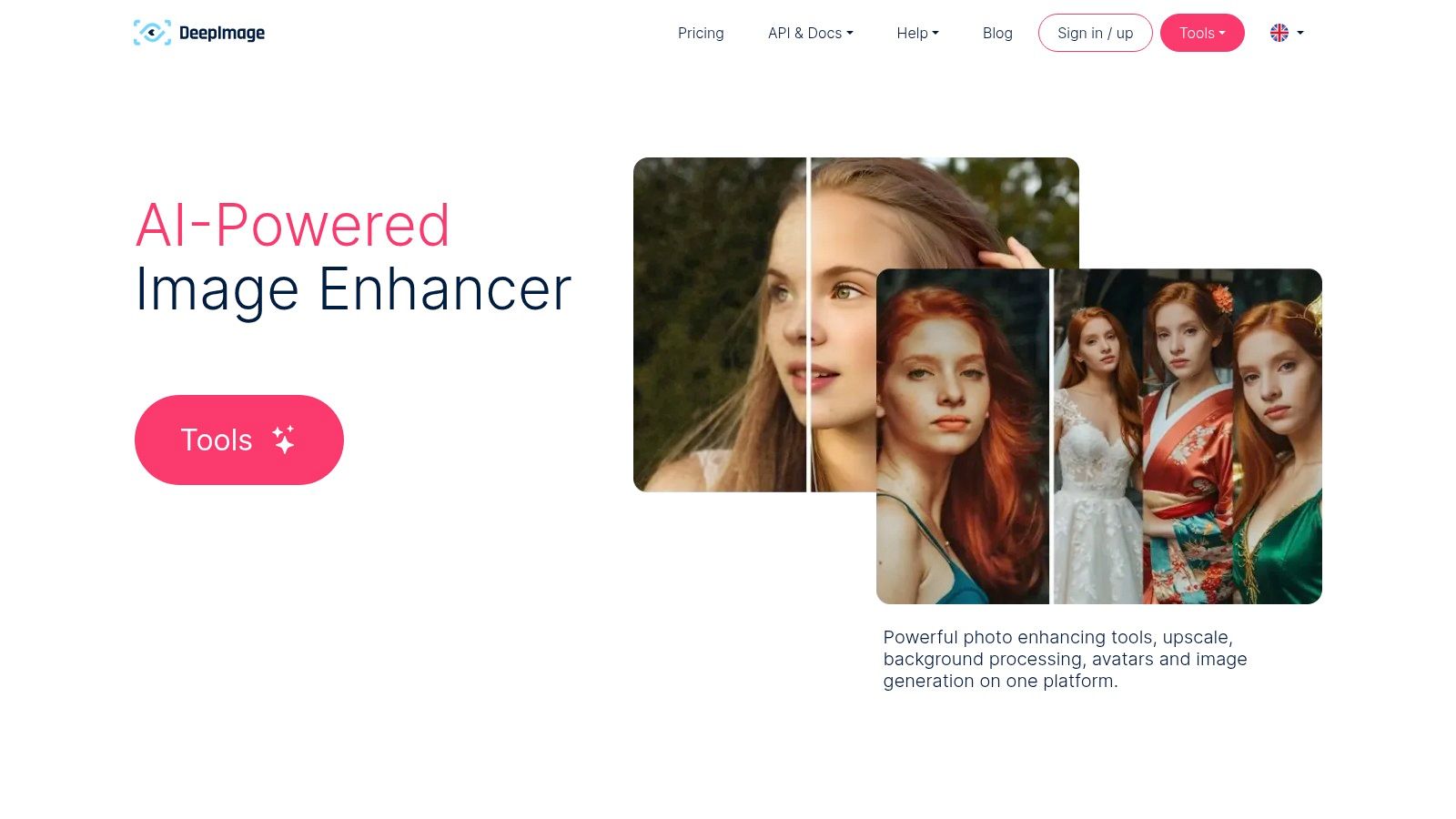
As an online image upscaler, DeepImage stands out with its flexible dimension controls and multi-platform support, including dedicated apps for major operating systems. The platform delivers reliable 4x upscaling results, making it ideal for preparing product catalogs or upgrading digital portfolios. While it lacks the all-in-one editing suite of some competitors, its specialization in bulk processing is a significant advantage for users with specific, high-volume needs.
How to Prepare an E-commerce Product Catalog with DeepImage
DeepImage is perfect for getting a new collection of product photos ready for an online store. Here’s a tutorial on how to do it efficiently:
- Organize and Upload: First, organize all your product images into a single folder on your computer. On the DeepImage website, select the Batch Upload option and drag and drop the entire folder into the upload area.
- Set Upscaling Parameters: The platform will queue all your images for processing. Set your desired upscaling factor to 4x.
- Specify Dimensions (Optional): If your e-commerce platform requires exact image dimensions, you can specify a precise width and height. DeepImage will resize and upscale to these specifications.
- Process and Download: Initiate the process. Once it's complete, download all the enhanced images as a single compressed ZIP file, ready for catalog upload.
Key Insight: DeepImage's value lies in its efficiency. The ability to process hundreds of images in one go, combined with API access for developers, positions it as a premier solution for workflow automation and enterprise-level tasks.
Access and Pricing: DeepImage offers a free trial with 4 credits to test the service. For continued use, users can purchase subscription plans or pay-as-you-go credit packs, providing flexibility for both occasional and heavy users.
Website: https://deep-image.ai
11. Topaz Gigapixel AI
Topaz Gigapixel AI stands out as a professional-grade desktop application revered by photographers and digital artists for its exceptional detail restoration. While not a purely online image upscaler, its power and quality earn it a place on this list for serious users. The software uses sophisticated deep learning models to analyze and reconstruct image details, allowing for enlargements up to 600% without the typical artifacts seen in standard upscaling methods.
Its strength lies in the nuanced control it offers. Unlike many automated online tools, Gigapixel AI provides different AI models tailored for specific image types, such as architecture, portraits, or low-resolution graphics. This allows users to achieve stunning clarity and texture, making it an indispensable tool for preparing images for large-format printing or professional post-production workflows.
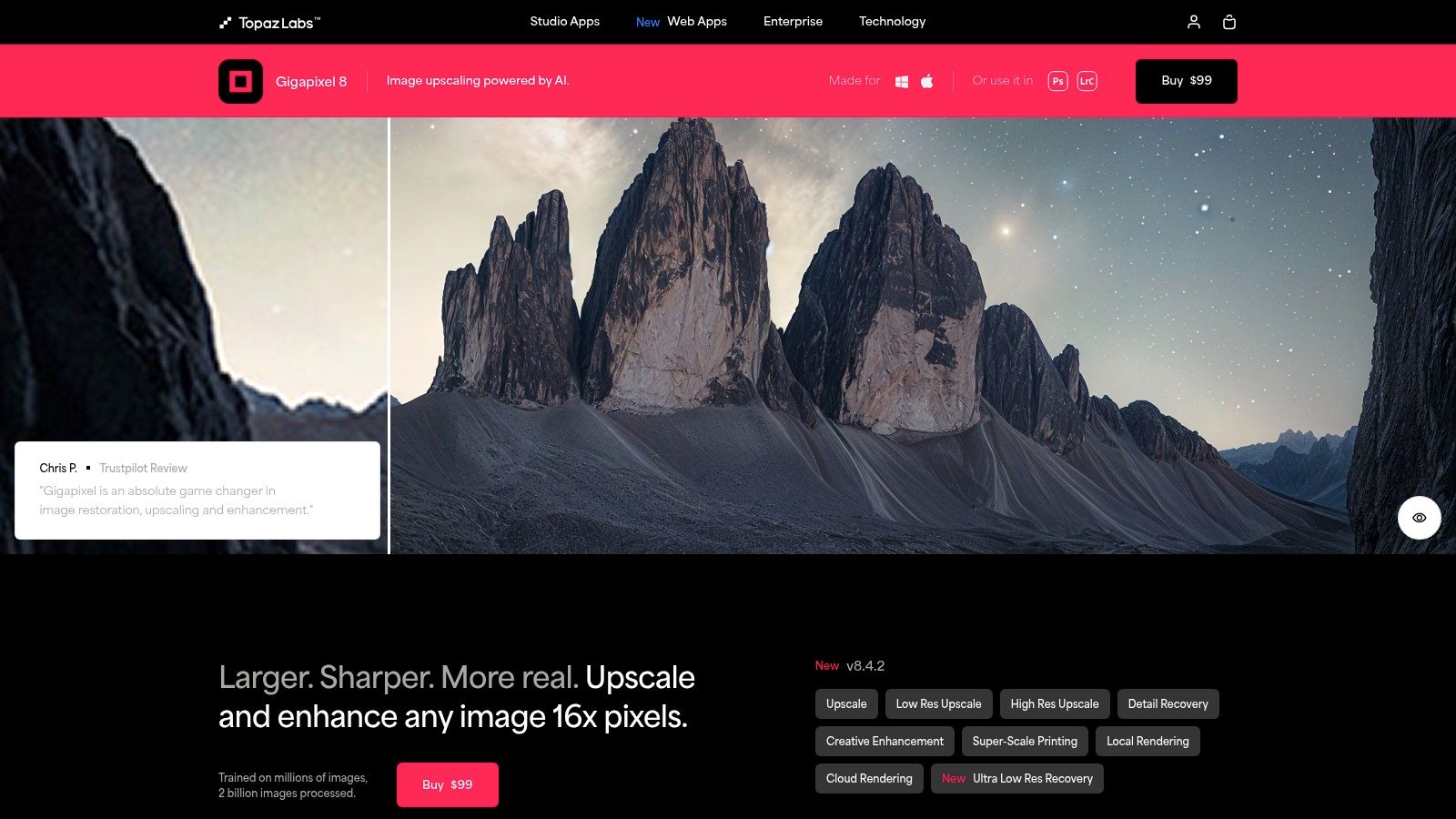
How to Prepare a Landscape Photo for Print with Gigapixel AI
Gigapixel AI is perfect for turning a standard digital photo into a high-resolution, print-ready masterpiece. Here’s a step-by-step guide for photographers:
- Open and Import: Open the Gigapixel AI application on your Windows or macOS computer. Drag your landscape photo file into the main window.
- Select the Right AI Model: In the right-hand control panel, select an appropriate AI model. For landscapes, the "Standard" or "Lines" models work best, as they are trained to enhance natural textures and sharp edges.
- Set the Upscale Factor: For a large gallery print, choose a 4x or 6x (600%) upscale factor.
- Fine-Tune the Details: Use the "Suppress Noise" and "Remove Blur" sliders to manually clean up any imperfections. The split-screen preview is excellent for comparing the changes in real time.
- Export for Print: Once satisfied, export the image in a lossless format like TIFF. This preserves every detail the AI has generated, ensuring the highest quality for printing. You can even transform your picture into an anime-style masterpiece with its incredible detail enhancement.
Key Insight: Gigapixel AI's specialization is its greatest advantage. By focusing solely on upscaling and detail recovery with dedicated AI models, it produces results that are often superior to all-in-one online editors, especially for professional applications.
Access and Pricing: Topaz Gigapixel AI requires a one-time purchase for a lifetime license, which includes one year of updates. This premium price point reflects its positioning as a professional tool for users who demand the highest quality enlargements.
Website: https://www.topazlabs.com/gigapixel-ai
12. Photoroom AI Image Upscale
Photoroom earns its place on this list with a powerful focus on e-commerce and social media creators, offering a generative AI upscaler that integrates seamlessly into a broader editing suite. While many tools simply enlarge pixels, Photoroom’s AI generates entirely new ones based on contextual data, ensuring that textures, edges, and fine details are sharpened and enhanced, not just stretched. This makes it an exceptional tool for preparing product photos for high-resolution displays.
The platform stands out by being available as both a web application and dedicated mobile apps for iOS and Android, making it a highly accessible online image upscaler for on-the-go content creation. It supports common input files like PNG, JPEG, WEBP, and even HEIC, making it easy to work with photos directly from your phone. The generative AI approach ensures that sharpness and original context are maintained, preventing the soft, artificial look that can plague other upscalers.
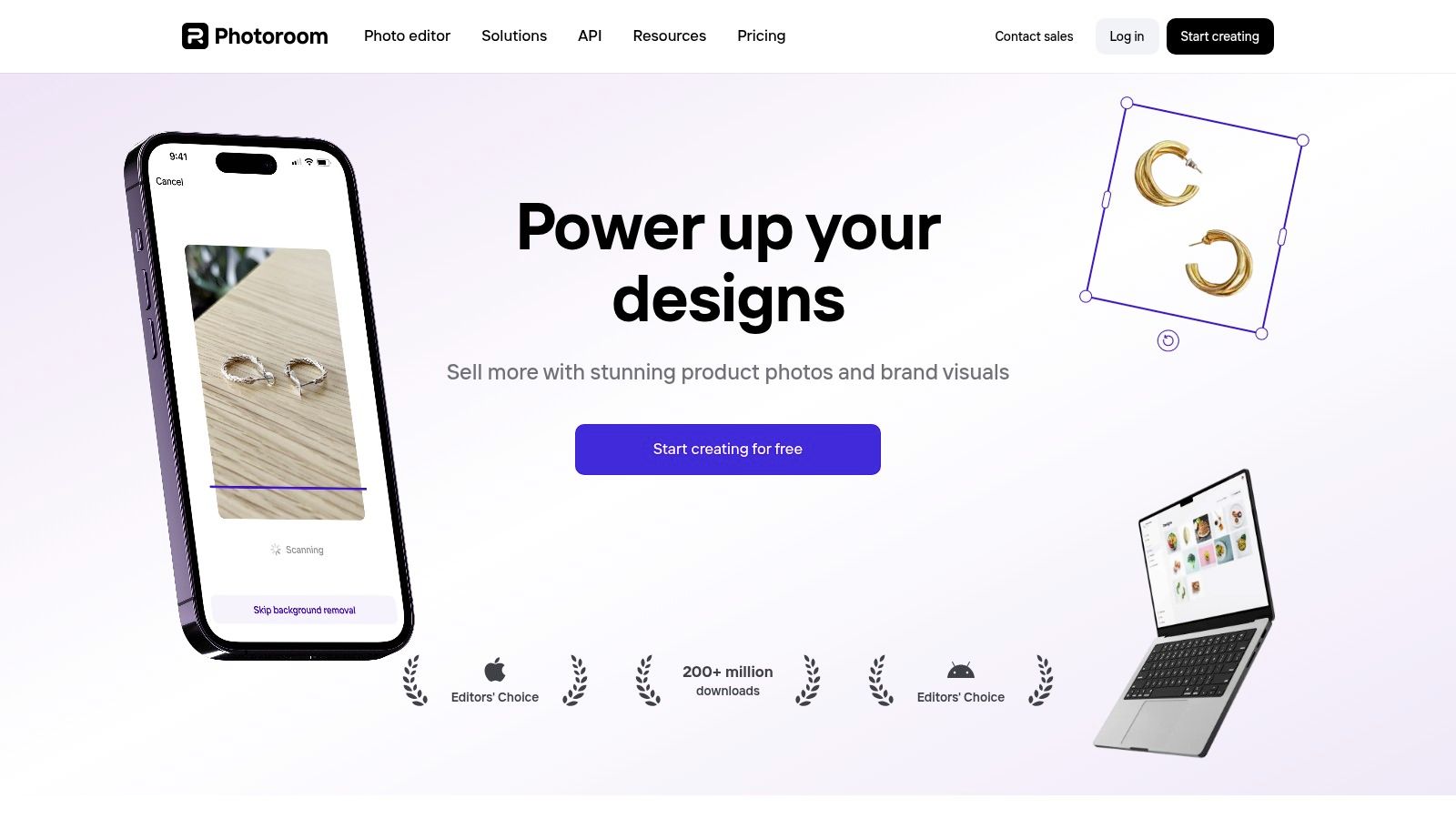
How to Prepare E-commerce Product Shots with Photoroom
Photoroom excels at turning low-quality supplier images into professional assets ready for an online storefront. Follow this tutorial:
- Upload and Edit: On the Photoroom website or mobile app, upload your product image into the AI Photo Editor.
- Isolate the Product: Use the one-click Background Remover to instantly create a clean, professional look with a plain white or transparent background.
- Upscale with AI: Next, access the Upscale tool (often called 'HD' or similar). The generative AI will analyze your product and increase its resolution while enhancing details like fabric textures or small print on packaging.
- Export for Your Store: Export the final image in your desired format. Choose PNG for a transparent background, knowing it will be sharp enough for your marketplace's zoom features.
Key Insight: Photoroom's strength is its mobile-first accessibility combined with a powerful generative AI engine. It's a full-fledged editing suite in your pocket, perfect for sellers and influencers who manage their content primarily from a smartphone.
Access and Pricing: Photoroom offers a free version with core functionalities. The Pro subscription unlocks batch editing, higher resolution exports, and removes the Photoroom watermark, catering to professional users who need to process images in bulk.
Website: https://www.photoroom.com
Top 12 Online Image Upscalers Feature Comparison
| Product | Core Features ✨ | User Experience ★★★★☆ | Value Proposition 💰 | Target Audience 👥 | Unique Selling Points 🏆 | Price Points 💰 |
|---|---|---|---|---|---|---|
| MyEdit | AI upscaling up to 4x, deblur, denoise, BG removal | Intuitive interface, preview before download | Subscription needed for advanced | General users, creatives | Accurate BG removal, avatar creation | Subscription-based |
| Media.io Upscaler | Multiple AI models, up to 8x upscale, side-by-side compare | Flexible, affordable | Flexible pricing | Casual users, photo enhancers | Multiple AI models tailored for needs | Affordable flexible plans |
| Remini | Face enhancement, color correction, AI video upscale | User-friendly, effective | Limited free images per week | Photo restorers, casual users | AI video upscaling, beauty filters | Limited free, subscription |
| HitPaw Photo Enhancer | Noise removal, colorize old photos, up to 8K upscale | Versatile but no batch online | Single & bundle purchases | Photographers, animators | Multi-model combo for varied photo types | Paid plans |
| Upscale.media | Automated 4x upscaling, supports multiple file types | Simple web & mobile app | Free/premium for batch | Casual users, social creators | Easy automation, Pixelbin.io integration | Freemium + premium plans |
| Icons8 Smart Upscaler | Batch up to 500 images, up to 4x upscale | Simple UI, high max res 7680x7680 | Focus on project batch accuracy | E-commerce, product photographers | Large batch support, high max resolution | Paid plans |
| Let's Enhance | Upscale to 16x, AI color & lighting enhancement | Cloud-based, no install, good results | Free version limited | Professionals, marketers | High upscale factor, AI-enhanced color correction | Free + paid subscriptions |
| VanceAI Image Upscaler | Upscale up to 8x, noise & blur removal, anime-specific | Specialized for anime | Limited free trial | Anime artists, general users | Dedicated anime upscale algorithms | Subscription with trial |
| Fotor | Batch editing, 100k+ templates, HD stock photos | Easy to use, instant quality improvement | Requires payment for advanced | Casual editors, social media users | Huge template library for creative projects | Freemium + paid plans |
| DeepImage | Batch up to 4x upscale, customizable dimensions | Easy UI, cross-platform | Limited free credits | Professionals, general users | Batch processing, customizable resize | Pay-per-use & plans |
| Topaz Gigapixel AI | Deep learning, up to 600% upscale, desktop app | Professional-grade quality | Premium price | Professionals, advanced users | Industry-leading detail restoration | One-time premium price |
| Photoroom AI Image Upscale | Web & mobile app, wide file support, generative AI | High-quality upscaling, mobile friendly | Pricing not detailed | Mobile users, casual to pro | Generative pixel creation preserving sharpness | Not publicly disclosed |
Final Thoughts
Navigating the landscape of online image upscaler tools can feel overwhelming, but as we've explored, the right solution is often a matter of matching specific features to your unique creative or professional needs. From reviving cherished, low-resolution family photos to preparing high-impact visuals for a major marketing campaign, the power of AI-driven enhancement is more accessible than ever. We've journeyed through a dozen of the top contenders, from the all-in-one editing suites like MyEdit and Fotor to specialized, high-precision tools like Topaz Gigapixel AI and the developer-friendly DeepImage.
The core takeaway is that there is no single "best" online image upscaler for everyone. Your ideal choice hinges on a clear understanding of your project requirements. A social media influencer might prioritize a tool like Remini for its rapid, mobile-first workflow and face-enhancement capabilities, while a digital artist will likely gravitate towards a solution offering more granular control over artifact suppression and texture generation, such as Let's Enhance or HitPaw Photo Enhancer.
How to Choose Your Ideal Upscaler: A Practical Checklist
To move from analysis to action, consider these final implementation steps. Before committing to a subscription or a credit package, use this checklist to guide your selection process:
- Define Your Primary Use Case: Are you restoring old photos, enlarging digital art, preparing e-commerce product images, or enhancing real estate photography? Your primary goal dictates the most critical features. For instance, real estate agents need an upscaler that excels at preserving architectural details and textures.
- Assess Your Technical Skill Level: Are you a beginner looking for a simple, one-click solution like Upscale.media, or are you a seasoned pro who wants to fine-tune every aspect of the enhancement process with a tool like Gigapixel AI? Be honest about how much time you're willing to invest in learning a new interface.
- Evaluate Your Volume and Frequency: Do you need to upscale a handful of images per month or thousands? This is the most significant factor for your budget. Pay-as-you-go models (DeepImage) are great for occasional use, while monthly subscriptions (VanceAI) offer better value for consistent, high-volume needs.
- Test with Your Own Images: Every free trial is an opportunity. Don't just upscale the sample images provided. Upload your most challenging files: a blurry portrait, a noisy landscape, or a piece of intricate digital art. This is the only way to see how an online image upscaler truly handles the content you work with daily.
- For Portraits: Look for natural skin textures. Does the AI create an overly smooth, "plastic" look, or does it realistically enhance details?
- For Landscapes: Check for artifacting in complex areas like tree foliage or water. Does it preserve the natural feel?
- For Graphics: Evaluate how well it handles sharp lines, text, and solid color gradients. Does it introduce halos or color bleeding?
Beyond Upscaling: The Expanding Role of AI in Visuals
It’s also important to recognize that image upscaling is just one facet of a much larger AI revolution in visual media. The same machine learning principles that reconstruct pixels in a low-resolution photo are being applied to generate entirely new images from text prompts, automate complex editing tasks, and optimize content for specific platforms. As AI continues to advance, its applications extend beyond just enhancing image quality. For instance, you can explore how AI is transforming image creation and use on platforms like Pinterest, enabling new ways to generate and manage visual content for marketing and creative inspiration.
Ultimately, the journey to finding the perfect online image upscaler is an investment in the quality of your work. By taking a methodical approach to testing and carefully considering your specific needs against the features we've detailed, you can confidently select a tool that not only enhances your images but also streamlines your workflow. The technology is here to elevate your vision, turning good visuals into unforgettable ones.
Ready to take your image quality to the next level with a tool designed for professionals and creators? The team at AI Photo HQ has developed a powerful, intuitive platform that simplifies the enhancement process without sacrificing quality. Experience the difference and try AI Photo HQ today to see how our advanced algorithms can transform your photos.


