
The secret to sharpening blurred photos isn't just cranking up a "sharpness" slider. Modern AI tools are way smarter than that. They actually figure out why your photo is blurry—whether it's from camera shake or a missed focus—and intelligently rebuild the lost detail. This gives you a clean, natural-looking fix without those ugly halos old-school methods always produced.
Why Your Photos Are Blurry and How AI Fixes Them
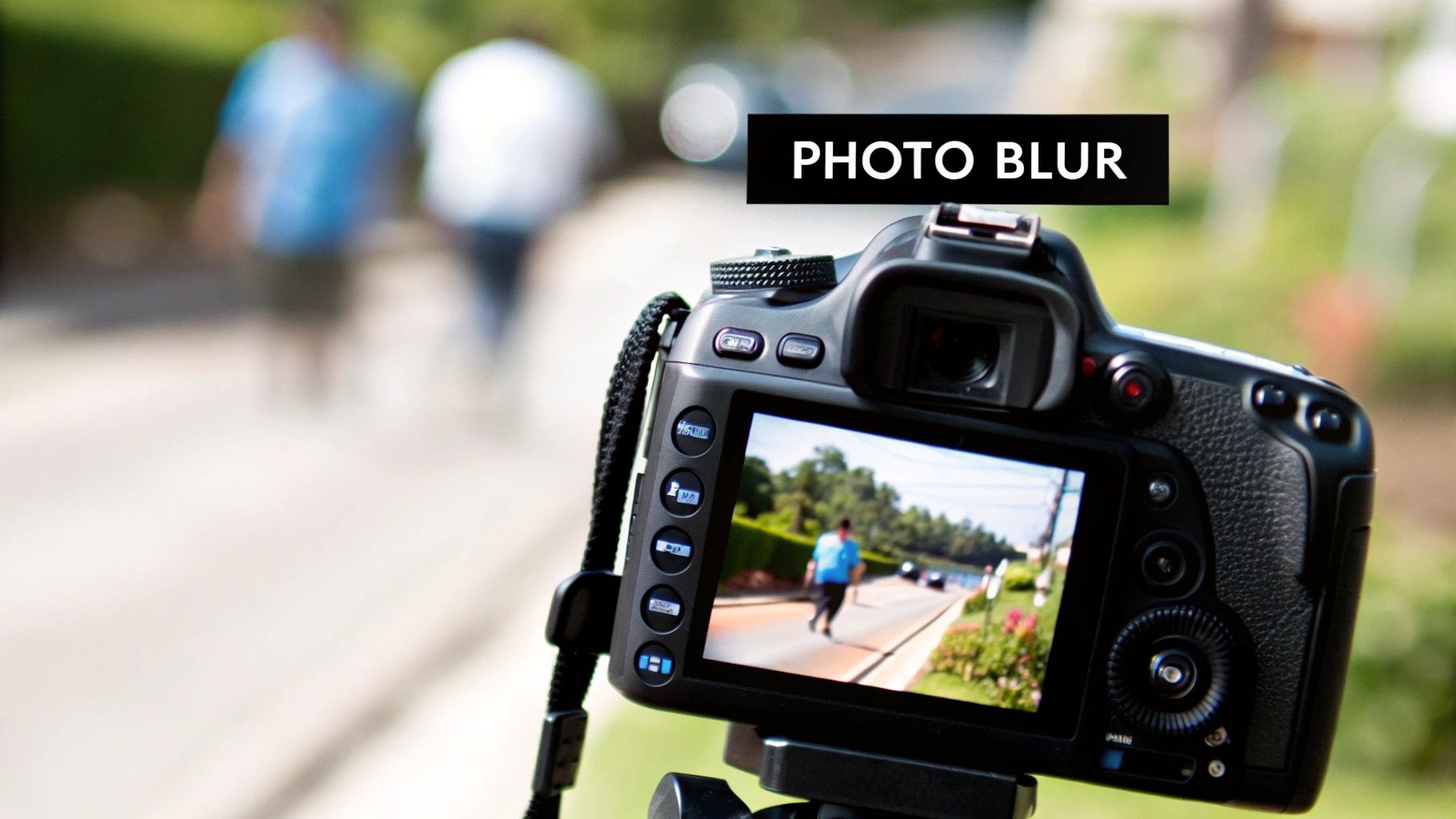
Before you can fix a blurry shot, it really helps to know what went wrong in the first place. Most of the time, it boils down to one of a few usual suspects.
- Camera Shake: This is the classic culprit, especially in low light when your shutter has to stay open longer. The tiniest movement of your hands can smudge the whole image.
- Motion Blur: This happens when your subject is on the move—think of a dog chasing a ball or a car speeding past. The subject looks smeared because they moved while the shutter was open.
- Missed Focus: We've all been there. The camera decides the background tree is more interesting than the person you're trying to photograph, leaving your subject soft and out of focus.
Of course, preventing the blur from ever happening is the best-case scenario. A lot of that comes down to your gear, and a good starting point is understanding how to go about choosing the best camera for event photography to minimize these issues.
The Modern AI Solution for Sharpening
Traditional sharpening filters were a blunt instrument. They just jacked up the contrast along every edge, often leaving images looking crunchy and artificial.
AI is playing a different game entirely.
Instead of just faking sharpness, AI algorithms actually analyze the photo to understand the kind of blur it's dealing with.
An AI tool can tell the difference between blur from a shaky hand and blur from a soft focus. That allows it to intelligently reconstruct the missing details with startling accuracy. What you get is a genuinely clearer image, not just a cheap trick.
This technology has been a massive leap forward for photo editing. It's no surprise the photo editing software market is expected to grow by over USD 606 million between 2024 and 2029, with these advanced AI features being a huge driver. The algorithms are now sophisticated enough to separate unwanted noise from real image texture, which is key to restoring detail precisely.
If you want to dive deeper into the practical steps, we have a complete guide on https://aiphotohq.com/blog/2025/08/how-to-fix-blurry-pictures that walks you through it.
Step-by-Step Guide: Sharpening a Portrait with AI
Theory is great, but seeing AI bring a soft photo back to life is where the magic really happens. We'll use a common example: a portrait where the eyes just aren't quite sharp enough. For this walkthrough, we’ll be using AI Photo HQ.
- Upload Your Image: Start by dragging and dropping your blurry portrait into the editor or using the "Upload" button.
- Locate the AI Tools: Once your photo is loaded, look for the editing panel. Most modern AI editors keep things simple, so find a module called "AI Sharpen," "Enhance," or "Clarity AI."
- Identify the Blur Type: In our portrait example, the issue is a soft focus on the eyes. This means we'll need to use tools designed for focus correction.
- Adjust 'Focus Correction': Find the slider labeled Focus Correction or Focus Recovery. This is the heavy lifter. It scans the image, figures out what should be in focus (like the eyes), and intelligently rebuilds lost detail. Start by nudging this setting up to around 30-40%. Watch the preview window to see the instant effect.
- Refine with 'Detail Recovery': Next, use the Detail Recovery slider. This tool works hand-in-hand with focus correction, but it’s all about the finer things—eyelashes, individual strands of hair, or the texture of a shirt. Be gentle here. A small adjustment of 10-20% is often enough.
- Check Your Work: Zoom in to 100% on the eyes to see the changes up close. Toggle the before/after view on and off to ensure the result looks natural and not over-processed.
Here’s a peek at what the AI Photo HQ interface looks like when you're tweaking these sliders.
Notice how the controls are separated? This is key. It lets you fine-tune the sharpening for a much more natural look instead of just slapping a generic effect over the whole image. The goal isn't just to make it sharp; it's to make it look right. That's the real leap from old-school sharpening to modern AI.
The real art of sharpening blurred photos with AI is in the subtlety. You want the final image to look like it was captured perfectly in-camera, not like it was rescued by aggressive editing. Always zoom in to 100% to check your work.
Nailing That Natural, Believable Look
As you adjust the sliders, keep flicking the before-and-after view on and off. I can't stress this enough. It’s your reality check. It’s incredibly easy to get carried away and over-sharpen an image, leaving you with that gritty, crunchy look that just screams "edited."
Here are a few tips I live by:
- Start low, go slow. Always begin with the sliders at a low value and ease them up. It’s way easier to add a little more sharpening than it is to walk back an over-processed mess.
- It’s all in the eyes. For portraits, the eyes are everything. That's where people look first. Make sure they are crisp and clear, and the rest of the image will feel right.
- Leave the background alone. Pay attention to how your sharpening affects the background. You almost always want to keep the bokeh nice and soft to maintain that professional sense of depth.
By balancing these settings with a careful eye, you can save photos that you might have just deleted before. You're not just cranking up the contrast here; you're intelligently restoring lost information. The result is a final image that’s both sharp and completely authentic.
Adjusting Your AI Technique for Different Types of Blur
You know the feeling. You’ve got a photo that's almost perfect, but it's just a little soft. The thing is, not all blur is created equal, and your fix shouldn't be a one-size-fits-all approach either. A slightly out-of-focus landscape needs a completely different touch than a blurry action shot of your kid running across the yard.
Figuring out what kind of blur you're up against is the first big step. The most common culprits I see are soft focus, motion blur, and good old camera shake. Each one leaves a unique footprint on your image, and thankfully, modern tools like AI Photo HQ have specific settings to tackle each one. Once you get a feel for these, you'll be able to move beyond simple fixes and start performing some truly impressive photo restorations.
Tutorial: Fixing Soft Focus in a Landscape Photo
Soft focus is usually the easiest problem to solve. It’s what happens when the autofocus just barely misses its mark. For landscapes, this might mean distant trees or mountains lack crisp detail.
- Load the image into your AI editor.
- Zoom in to the area that should be sharp, like the distant mountain range.
- Select the 'Focus Recovery' tool. This feature is specifically designed to intelligently rebuild details lost from a minor focusing mistake.
- Apply a moderate adjustment. Start by moving the slider to around 50%. Because landscapes have a lot of fine detail, they can often handle a stronger adjustment than portraits.
- Assess the result. Check for any unnatural-looking textures. If the sky or water starts to look grainy, you've gone too far. Dial it back slightly until the details are crisp but the overall image remains natural.
Tutorial: Tackling Motion Blur in an Action Shot
Now for the trickier ones. Motion blur creates those tell-tale directional streaks when your subject moves while the shutter is open. To fight back against this, you'll want to lean heavily on the Motion Deblur setting.
- Open your action shot (e.g., a running pet, a moving car).
- Identify the direction of the blur. Notice if the streaks are horizontal, vertical, or diagonal.
- Find the 'Motion Deblur' or 'Shake Reduction' tool. This is where the AI really shines. The algorithm analyzes the specific pattern of the blur in your photo.
- Increase the slider. For motion blur, you can often be more aggressive. Start at 60-70% and see how the AI works to realign the pixels, "un-smearing" the image.
- Watch for artifacts. If you push it too far, you might see strange patterns or halos appear. If this happens, dial it back until the artifacts disappear but the sharpness remains. This is a lifesaver for sports photos or any handheld shots you tried to grab in low light.
When you're dealing with some serious motion blur, don't be afraid to be a bit more aggressive with the Motion Deblur slider. Just keep an eye out for any weird digital artifacts. If you start seeing strange patterns or halos pop up, you've gone too far—just dial it back a bit.
This handy infographic shows how different software tools stack up when it comes to sharpening performance.
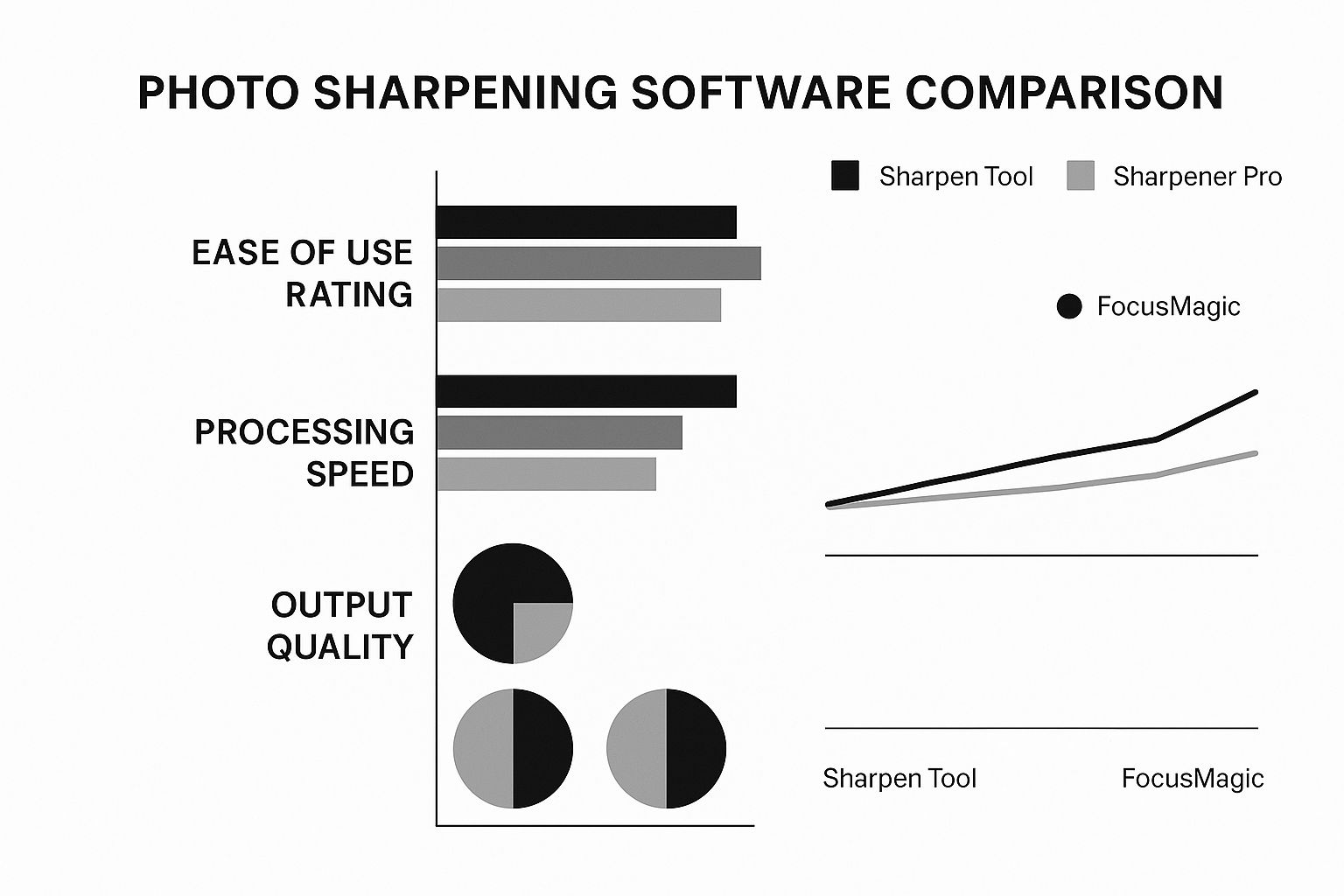
As you can see, there's often a trade-off. Some tools are built for raw speed, while others, like AI Photo HQ, are all about getting the highest quality result, even if it takes a moment longer.
To make things even easier, I've put together a quick cheat sheet for picking the right settings in your AI tool.
AI Sharpening Settings for Common Blur Types
| Blur Type | Primary AI Setting to Adjust | Secondary Setting to Consider | Best For |
|---|---|---|---|
| Soft Focus | Focus Recovery | Detail Enhancement | Portraits, still life shots, and slightly soft landscapes. |
| Motion Blur | Motion Deblur | Noise Reduction | Action shots, sports, and any photos with a moving subject. |
| Camera Shake | Motion Deblur | Focus Recovery | Handheld photos taken in low light without a tripod. |
Think of this table as your starting point. Every photo is different, so don't hesitate to experiment with the sliders until you get a result that looks natural and sharp to your eye.
Pro Tips for Flawless Photo Sharpening
Once you move past the "auto" button, you start to unlock some seriously professional-looking results. One of the best techniques in your toolkit is selective sharpening, which gives you laser-focused control over exactly which parts of your photo get that extra crispness.
Most advanced AI editors include a masking tool. Here’s a quick tutorial on how to use it:
- Apply your initial sharpening to the entire image. Don't worry if it makes the skin or background look bad.
- Select the 'Masking' tool, often represented by a brush icon.
- Choose 'Erase' or 'Subtract'. Set the brush size to be appropriate for the area you're working on.
- Paint over the areas you don't want sharpened. Carefully brush over the subject's skin and the out-of-focus background. This removes the sharpening effect from those areas.
- The result? Razor-sharp eyes and hair, with perfectly smooth skin and a soft, dreamy background. This is the secret to fixing a blurry photo without making it look fake.
Stacking Small Adjustments
Here’s another pro-level trick: instead of yanking one sharpening slider all the way to the max, try stacking smaller, more subtle adjustments.
Let's say you have a landscape shot that's just a little soft. The temptation is to crank the "Focus Recovery" slider up to 80% and call it a day. A better way? Try this step-by-step approach:
- Apply a 40% 'Focus Recovery' adjustment first. This handles the main softness.
- Next, add a subtle second layer, maybe 20% of 'Detail Recovery.' This will enhance the fine textures like leaves and grass.
- This layered approach builds up a much more natural and organic sharpness, sidestepping those harsh digital artifacts you get from one aggressive edit.
The best sharpening is the kind you can't see. The goal is to make the photo feel like it was captured perfectly in the first place, and stacking your adjustments is how you get there.
This careful, layered method is exactly why professional photos look so clean. It's also a big reason behind the explosive growth in advanced editing tools. The global photo editing software market was valued at USD 42.85 billion in 2024 and is on track to hit USD 94.24 billion by 2034, all driven by users who want more sophisticated control. You can dig into the numbers in this in-depth market research on photo editing software.
Preserve Every Detail with Smart Export Settings
Finally, don't let all your hard work go to waste with the wrong export settings. Saving your image correctly is the final, crucial step to lock in all that beautiful detail you just recovered.
Here’s a simple breakdown:
- For the web: A JPEG is your best bet. But don't just accept the default. Aim for a quality setting between 80-95%. This gives you a great balance between a small file size and fantastic clarity.
- For printing or archiving: When image quality is the only thing that matters, export as a TIFF file. TIFF is a lossless format, which means it keeps 100% of the image data without any compression. Your final photo will be as sharp as it can possibly be.
Common Sharpening Mistakes and How to Avoid Them
It’s surprisingly easy to do more harm than good when you’re sharpening a blurry photo. We’ve all been there—nudging that sharpness slider just a little too far, hoping for a miracle. But more often than not, this just makes the image look worse than when you started.
Let’s walk through a few common pitfalls so you can develop a better eye for subtle, effective enhancements that actually work.
The Over-Sharpening Trap
The most frequent mistake I see is over-sharpening. This is what happens when you push the sharpening tools too aggressively, creating harsh, "crunchy" textures and weird digital noise. Instead of looking crisp and clear, the photo ends up looking brittle and over-processed.
You'll often spot distracting halos around the edges of objects, which is a dead giveaway.
Knowing When a Photo Is Beyond Saving
Another big one is simply having unrealistic expectations. As powerful as AI tools are, they can't invent details that were never captured in the first place.
If you’re starting with a photo that's just a motion-filled smear or is severely out of focus, it's probably too far gone for any tool to rescue. Learning to spot an unsalvageable image will save you a ton of time and frustration. If the main subject lacks any discernible shape or basic detail, it's often best to move on.
For a better idea of what a good candidate for sharpening looks like, check out our guide on how to remove blur from a photo.
The golden rule of photo editing is to always work on a copy, never the original file. This simple habit is a lifesaver, ensuring you can always go back to the start if an edit goes sideways.
Getting Your Editing Order Right
Here’s a pro tip that makes a world of difference: always manage digital noise before you start sharpening. Sharpening algorithms work by boosting the contrast along edges, but they can't tell the difference between a real edge and a piece of digital grain. This means they will amplify any existing noise right along with the details you want to enhance.
Here's the right way to approach it:
- First, Reduce Noise: Run a noise reduction tool to smooth out any unwanted grain. This is especially important for photos taken in low light or those with dark shadows.
- Then, Sharpen: With a much cleaner base image to work with, the sharpening tool can now focus on bringing out the actual details without making the noise problem worse.
This two-step workflow is essential for getting a clean, professional-looking result. And in today's market, quality visuals are non-negotiable. It's no surprise that North America holds over 40% of the global photo editing software market, driven by a massive need for perfect images in e-commerce and social media advertising.
Answering Your Questions About AI Photo Sharpening
Even with the best tools, you're bound to have some questions when you dive into sharpening blurry photos. I've been there. Let's walk through some of the most common ones I hear, so you can get the best possible results.
Can AI Really Fix Any Blurry Photo?
AI is a powerful ally, but it's not a miracle worker. It does an incredible job of fixing mild to moderate blur—the kind you get from a shaky hand, a slightly missed focus, or a subject that moved just a bit too fast.
Think of it this way: AI is restoring a faded photograph, not painting a new one from a blank canvas. If your image is so blurry that the subject is just an unrecognizable smear, there's no original data left for the AI to rebuild. The better your starting photo, the more stunning the final result will be.
Will Using AI to Sharpen My Photo Hurt the Quality?
This is a great question. When done right, AI sharpening actually enhances the perceived quality of a photo by intelligently recreating lost details. The risk comes from pushing it too far. Over-sharpening can create ugly digital noise and artifacts, which will definitely degrade your image.
My best advice? Make small, gradual adjustments and always zoom in to 100% to check your work. And always, always work on a copy of your photo. Keep that original file safe and untouched.
What’s the Difference Between Sharpening and Clarity?
It’s easy to get these two mixed up, but they do very different jobs. Sharpening is what you need for a blurry photo. It works by increasing the contrast right along the fine edges of objects, which makes them look more defined and "in focus."
Clarity, on the other hand, is more of a stylistic tool. It boosts contrast in the mid-tones of an image, which adds a sense of punch and dimension. For a photo that's out of focus, AI sharpening is the right tool for the job. If you want to dig deeper, you can learn more about how to clear up a blurry picture in our detailed guide.
Ready to see what it can do for your photos? AI Photo HQ gives you the power to rescue those blurry shots and bring back the detail you thought was lost forever. Go ahead and transform your images from soft to sharp today by visiting https://aiphotohq.com.


