
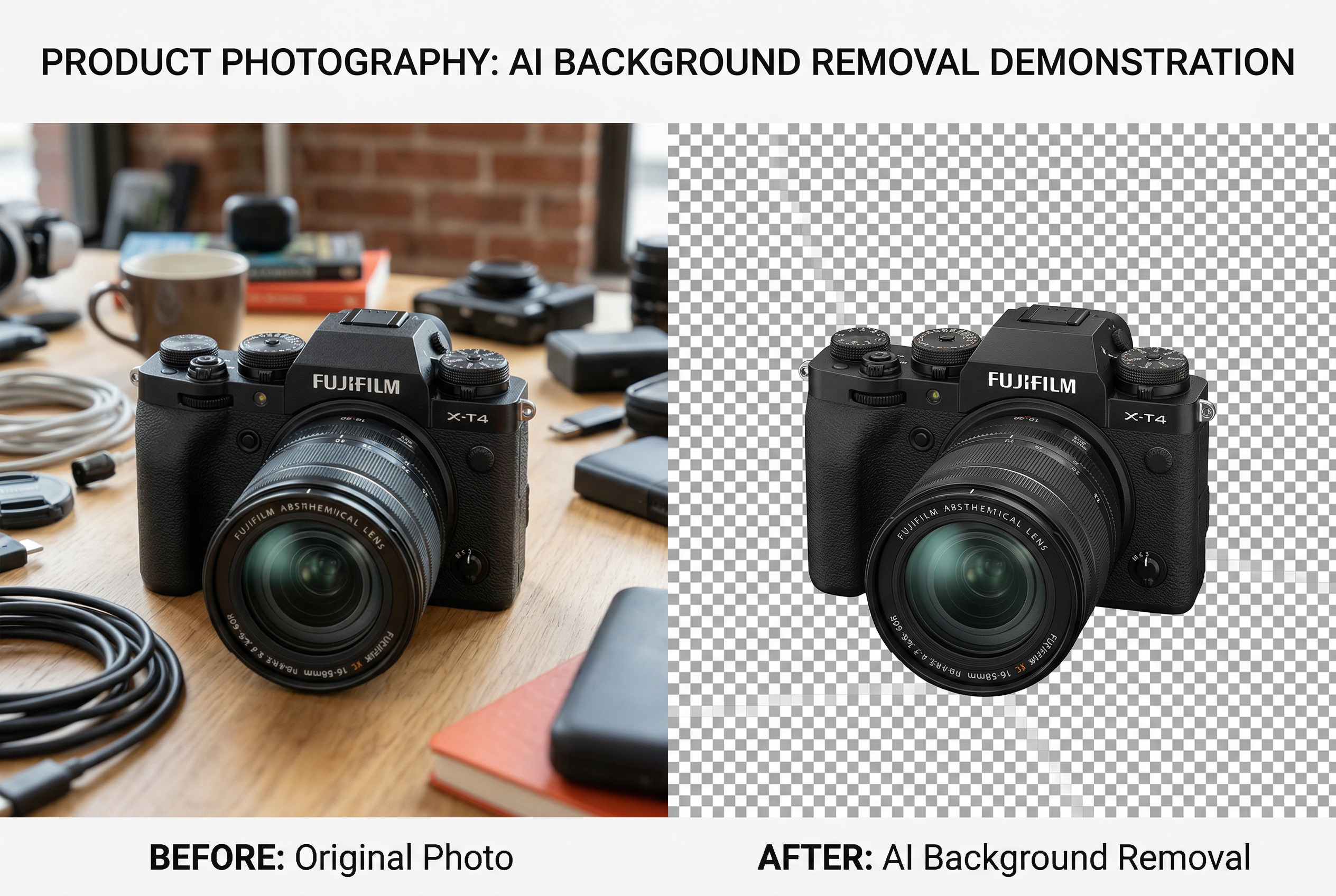
Need to remove a background from a photo? Whether you're a product photographer prepping images for an online store, a designer creating social media graphics, or someone who just wants a clean headshot for LinkedIn, AI background removers have made the process ridiculously fast.
What used to require 30 minutes of careful masking in Photoshop now takes about three seconds. But here's the thing — not all background removers are created equal. Some butcher hair edges, others can't handle transparent objects, and a few will upcharge you for basic features that should be free.
I've tested over 20 background removal tools to find the ones that actually deliver. Here are the 10 best AI background removers in 2026, with honest takes on what each one does well (and where it falls short).
How Does AI Background Removal Actually Work?
Before we get into the tools, it helps to understand what's happening under the hood — because it explains why some tools handle tricky images better than others.
AI background removal relies on image segmentation, a deep learning technique where a neural network classifies every single pixel in your image as either "foreground" (keep) or "background" (remove). It's essentially a per-pixel classification task.
Modern tools use architectures like U-Net, DeepLabV3, and Segment Anything Model (SAM) — all trained on millions of images with manually labeled masks. The AI learns patterns: skin tones against office walls, product shapes on white surfaces, hair strands against cluttered backgrounds.
The process works in three stages:
- Coarse segmentation — The model identifies the rough boundary between subject and background at low resolution
- Edge refinement — A secondary network (or refinement pass) sharpens edges, especially around hair, fur, and semi-transparent elements
- Alpha matting — For the best tools, a final step calculates transparency values along edges, creating smooth, natural-looking cutouts instead of harsh binary masks
This three-stage approach is why premium tools produce noticeably better results on difficult images. Cheap tools skip step 3 entirely, which is why hair always looks choppy in their output.
Segmentation vs. Matting: Why It Matters
There's an important distinction most guides skip:
- Segmentation creates a binary mask — each pixel is either 100% foreground or 100% background. Fast, but leaves hard edges.
- Matting calculates an alpha (transparency) value for each pixel, allowing for smooth transitions. This is what makes hair, veils, smoke, and glass look natural after removal.
The best AI background removers in 2026 use matting (or hybrid approaches), not just segmentation. Keep this in mind as you evaluate tools.
10 Best AI Background Removers in 2026
1. Remove.bg — Best for Quick, Reliable Results
Best for: Fast one-off removals, API integration
Pricing: 1 free preview per image (low-res); HD downloads from $0.20/image; subscription plans from $9/month
Platforms: Web, Windows, macOS, Linux, API, Photoshop plugin
Remove.bg is the OG of AI background removal, and it's still one of the best in 2026. Upload a photo, and you'll have a clean cutout in under five seconds — no account required for the preview.
What it does well:
- Excellent edge detection, especially on hair and fur
- Handles complex backgrounds (busy streets, nature scenes) without breaking a sweat
- Robust API for developers and e-commerce automation
- Photoshop and Figma plugins for in-workflow use
- Batch processing for up to 1,000 images at once
Where it falls short:
- Free tier only gives you low-resolution (625×400) downloads — HD requires credits
- Struggles with semi-transparent objects like glass and veils
- No manual refinement tools — what the AI gives you is what you get
If you just need background removal and nothing else, Remove.bg is hard to beat for consistency and speed.
2. Photoroom — Best for E-Commerce Product Photos
Best for: Product photography, marketplace sellers
Pricing: Free tier (with watermark); Pro from $9.99/month
Platforms: Web, iOS, Android
Photoroom isn't just a background remover — it's a full product photo studio. But its background removal engine is genuinely excellent, often matching or beating Remove.bg on edge quality.
What it does well:
- Instant background removal with AI-generated replacement backgrounds
- Templates optimized for Amazon, eBay, Etsy, and Shopify
- Batch editing with consistent styling across product lines
- AI shadow generation — adds natural-looking shadows after removal
- Mobile-first design that actually works well
Where it falls short:
- Free tier adds a small watermark
- Less effective on non-product images (portraits, landscapes)
- No desktop app — browser or mobile only
If you're selling products online and need consistent, professional-looking photos at scale, Photoroom is purpose-built for you.
3. Canva — Best All-in-One Design Tool with Background Removal
Best for: Designers who need background removal as part of a broader workflow
Pricing: Background Remover requires Canva Pro ($12.99/month) or Canva Teams
Platforms: Web, Windows, macOS, iOS, Android
Canva's Background Remover isn't the most precise tool on this list, but it wins on convenience. If you're already designing social media posts, presentations, or marketing materials in Canva, having one-click background removal built right in is incredibly useful.
What it does well:
- Seamless integration with Canva's design ecosystem
- One-click removal that works well for clean, simple images
- Manual erase and restore brushes for fine-tuning
- Millions of replacement backgrounds, templates, and elements
- Works on video backgrounds too (Magic Studio)
Where it falls short:
- Edge quality noticeably worse than dedicated tools like Remove.bg
- Struggles with hair, fur, and fine details
- Requires a paid subscription — no free background removal
- Not ideal for batch processing
Canva is the Swiss army knife approach. The background removal isn't best-in-class, but if you're already in the Canva ecosystem, it's good enough for most use cases.
4. Adobe Express — Best for Adobe Ecosystem Users
Best for: Creative professionals already using Adobe products
Pricing: Free tier available; Premium from $9.99/month (included with most Creative Cloud plans)
Platforms: Web, iOS, Android
Adobe's free background remover (powered by Adobe Firefly and Sensei) is surprisingly good for a free tool. The edge quality is solid, and it benefits from Adobe's decades of experience with image processing.
What it does well:
- Clean edge detection with good alpha matting on hair
- Free tier that actually gives you usable, full-resolution results
- Generative Fill to replace backgrounds with AI-generated scenes
- Direct export to Photoshop, Illustrator, and other Adobe apps
- Commercial-safe AI models trained on licensed content
Where it falls short:
- Slower processing than Remove.bg (typically 5-10 seconds)
- Limited batch processing on the free tier
- Some Firefly features require Premium subscription
If you're already paying for Creative Cloud, Adobe Express is essentially a free bonus that's better than most paid alternatives.
5. Clipdrop — Best Free Option for High Quality
Best for: Users who want high-quality results without paying
Pricing: Free (with limits); Pro from $7/month
Platforms: Web, iOS, Android, API
Clipdrop (now part of the Stability AI family) offers one of the best free background removal experiences available. The AI quality is on par with Remove.bg, and you get full-resolution downloads without watermarks on the free tier.
What it does well:
- High-quality results comparable to premium tools — for free
- Full-resolution downloads on the free tier (no watermarks)
- Additional AI tools: relighting, upscaling, uncropping, text removal
- API access for developers
- Excellent handling of complex edges and semi-transparent materials
Where it falls short:
- Free tier has daily usage limits
- Processing can be slower during peak hours
- The UI/UX isn't as polished as competitors
If you want premium-quality background removal without spending a dime, Clipdrop should be your first stop.
6. Pixelcut — Best Mobile Background Remover
Best for: Mobile-first creators, social media managers
Pricing: Free tier; Pro from $9.99/month
Platforms: iOS, Android, Web
Pixelcut is designed for people who do most of their image editing on their phone. The background removal is fast and accurate, and the app wraps it in a mobile-optimized workflow that makes it easy to go from photo → cutout → finished post in minutes.
What it does well:
- Best-in-class mobile experience — fast, intuitive, no lag
- Instant background removal with one tap
- Built-in templates for product listings and social media
- AI-generated replacement backgrounds
- Batch removal on the Pro tier
Where it falls short:
- Web version feels like an afterthought compared to the mobile app
- Free tier is limited (2 exports per day)
- Less precise on very complex edges versus desktop tools
If your workflow lives on your phone, Pixelcut makes background removal feel native.
7. Fotor — Best for Casual Photo Editing
Best for: Casual users who want background removal plus basic editing
Pricing: Free tier (limited); Pro from $8.99/month
Platforms: Web, Windows, macOS, iOS, Android
Fotor combines a solid background remover with a broad photo editing suite. It's not the most powerful at any one thing, but it covers a lot of ground — background removal, filters, retouching, collages, and design templates.
What it does well:
- Good edge quality for standard photos (people, products, animals)
- Manual refinement brush for tricky areas
- Full photo editing suite beyond just background removal
- AI-powered batch enhancement features
- Reasonable pricing with a usable free tier
Where it falls short:
- Background removal quality a step below Remove.bg and Clipdrop
- Free tier is heavily restricted with watermarks
- Can be slow with large images
Fotor is a good pick if you want a general-purpose photo editor that happens to include decent background removal.
8. PhotoScissors — Best for Manual Control
Best for: Users who want precision control over the removal process
Pricing: Free online (low-res); Desktop from $19.99 (one-time)
Platforms: Web, Windows, macOS
PhotoScissors takes a different approach. Instead of fully automatic removal, it gives you interactive tools to guide the AI — mark what you want to keep (green) and what you want to remove (red), and the AI does the rest.
What it does well:
- Excellent for images where automatic tools fail (unusual subjects, complex compositions)
- Interactive foreground/background marking for precise control
- One-time purchase option — no subscription
- Works offline with the desktop version
- Good for batch processing with consistent settings
Where it falls short:
- Requires more manual effort than fully automatic tools
- Online version limited to low resolution
- Interface feels dated compared to modern competitors
If you've been frustrated by automatic tools that can't handle your specific images, PhotoScissors gives you the control to fix it yourself.
9. Removal.AI — Best Budget API for Developers
Best for: Developers needing a cost-effective background removal API
Pricing: Free tier (50 images/month); paid plans from $0.05/image
Platforms: Web, API
Removal.AI focuses on being the most affordable API-first background removal service. If you're building an app or automating product photography at scale, their pricing is hard to beat.
What it does well:
- Very competitive API pricing — cheaper than Remove.bg for high volume
- Fast processing (under 3 seconds per image)
- Generous free tier for testing (50 images/month)
- Car-specific model for automotive dealers
- Bulk processing with ZIP upload/download
Where it falls short:
- Edge quality slightly below top-tier tools on complex images
- Limited manual refinement options
- Fewer integrations than Remove.bg
For developers and businesses processing thousands of images monthly, Removal.AI's pricing structure makes it a smart choice over pricier alternatives.
10. Erase.bg — Best Completely Free Option
Best for: Users who want zero-cost background removal with no strings attached
Pricing: Free (unlimited standard-resolution); HD plans available
Platforms: Web, API
Erase.bg stands out by offering truly free background removal without watermarks, daily limits, or mandatory sign-ups. The quality isn't at the top of this list, but for a free tool, it's genuinely impressive.
What it does well:
- Completely free with no watermarks on standard resolution
- No sign-up required — just upload and go
- Supports images up to 5000×5000 pixels
- Decent edge quality for straightforward images
- Simple, no-frills interface that gets the job done
Where it falls short:
- HD/full-resolution downloads require a paid plan
- Noticeably weaker on hair, fur, and semi-transparent elements
- No manual refinement or editing tools
- Processing speed inconsistent — sometimes fast, sometimes slow
When budget is the primary concern, Erase.bg delivers usable results at a price that can't be beaten.
AI Background Remover Comparison Table
| Tool | Best For | Free Tier | Starting Price | Edge Quality | Batch Processing | API |
|---|---|---|---|---|---|---|
| Remove.bg | Quick, reliable results | Low-res only | $9/mo | ⭐⭐⭐⭐⭐ | ✅ | ✅ |
| Photoroom | E-commerce product photos | Watermarked | $9.99/mo | ⭐⭐⭐⭐⭐ | ✅ | ✅ |
| Canva | All-in-one design | No BG removal | $12.99/mo | ⭐⭐⭐ | ❌ | ❌ |
| Adobe Express | Adobe ecosystem | Full-res | $9.99/mo | ⭐⭐⭐⭐ | Limited | ❌ |
| Clipdrop | Free high quality | Full-res, no watermark | $7/mo | ⭐⭐⭐⭐⭐ | ✅ | ✅ |
| Pixelcut | Mobile-first | 2 exports/day | $9.99/mo | ⭐⭐⭐⭐ | Pro only | ❌ |
| Fotor | Casual editing | Watermarked | $8.99/mo | ⭐⭐⭐ | ✅ | ❌ |
| PhotoScissors | Manual precision | Low-res | $19.99 (one-time) | ⭐⭐⭐⭐ | ✅ | ❌ |
| Removal.AI | Budget API | 50 images/mo | $0.05/image | ⭐⭐⭐⭐ | ✅ | ✅ |
| Erase.bg | Completely free | Unlimited (std res) | Free | ⭐⭐⭐ | ❌ | ✅ |
How to Choose the Right Background Remover
With 10 solid options on the table, the "best" tool depends entirely on your situation. Here's a quick decision framework:
Choose Based on Your Use Case
E-commerce product photos → Photoroom or Remove.bg. Both excel at clean product cutouts with consistent results across hundreds of images. Photoroom edges ahead if you need marketplace-ready templates.
Casual social media use → Canva or Clipdrop. If you're already designing in Canva, use its built-in remover. Otherwise, Clipdrop gives you better quality for free.
Professional design work → Adobe Express or Remove.bg. Adobe Express integrates with Creative Cloud; Remove.bg offers the most consistent edge quality for demanding work.
Developer/API integration → Remove.bg or Removal.AI. Remove.bg has the best API documentation and integrations. Removal.AI is cheaper at scale.
Zero budget → Clipdrop or Erase.bg. Clipdrop has better quality; Erase.bg has no limits.
The Hair Test
Here's a pro tip: test every tool on a photo with loose, flyaway hair against a complex background. This is the hardest scenario for background removal AI, and it immediately separates the good tools from the mediocre ones.
Tools that handle hair well (Remove.bg, Photoroom, Clipdrop) use advanced alpha matting. Tools that don't (basic Canva, Erase.bg) rely on simpler segmentation that creates choppy, unnatural-looking edges around hair.
5 Pro Tips for Better Background Removal Results
Even the best AI tools benefit from good input. Here's how to get the cleanest possible cutouts:
1. Start with Good Contrast
AI background removers work by detecting edges between foreground and background. The more contrast between your subject and the background, the cleaner the cut. A person wearing a dark suit against a dark background will always be harder than the same person against a white wall.
2. Use the Highest Resolution Available
More pixels = more data for the AI to work with. If you have a choice between uploading a compressed JPEG and the original full-resolution file, always go with the original. The difference in edge quality is noticeable.
3. Clean Up Before Removing
If your subject has stray elements that might confuse the AI (a bag strap blending into the background, a hand partially hidden), consider cropping or cleaning those up first. Garbage in, garbage out.
4. Try Multiple Tools on Difficult Images
Different AI models handle different challenges better. An image that Remove.bg struggles with might be easy for Clipdrop, and vice versa. For important images, spend 30 seconds testing 2-3 tools to find the best result.
5. Add Shadows After Removal
A common mistake: placing a cutout subject on a new background without adding a shadow. It looks like a sticker slapped on a scene. Photoroom does this automatically. For other tools, add a subtle drop shadow or contact shadow to ground the subject.
Background Removal for Specific Use Cases
Product Photography for E-Commerce
Most marketplaces (Amazon, eBay, Etsy) require product photos on white or transparent backgrounds. Here's the workflow that works:
- Shoot products on a clean, contrasting background (light gray or white works best)
- Use Photoroom or Remove.bg for batch removal
- Apply marketplace-specific templates (Photoroom has built-in ones)
- Add AI-generated shadows for a professional finish
- Export at the required resolution (Amazon wants at least 1000×1000px)
Professional Headshots and Portraits
Portrait background removal needs to handle hair perfectly — there's no hiding choppy edges when the focus is on someone's face. For this use case:
- Use Remove.bg or Clipdrop for the best hair handling
- If the result isn't perfect, try AI photo generators that can create entirely new portrait backgrounds while keeping the subject natural
- Always review the area around ears and jawline — AI often softens edges there
Real Estate Photography
Real estate photographers sometimes need to replace dull skies or remove distracting elements. While dedicated sky replacement tools exist, general background removers can handle it:
- Use AI inpainting for selective removal within an image
- For full sky replacement, Canva or Adobe Express offer quick solutions
- Combine with AI upscaling to enhance the final result
Social Media Content Creation
Creating engaging social media content often means layering subjects over branded backgrounds, creating memes, or making transparent PNGs for stories. The key here is speed over perfection:
- Canva is ideal — remove background, design, and post without leaving the app
- Pixelcut wins for mobile-first workflows
- For TikTok/Reels green-screen effects, most video editors now include real-time background removal
AI Background Removal vs. Manual Editing: When to Use Which
AI tools have gotten incredibly good, but they're not always the answer:
| Scenario | Best Approach | Why |
|---|---|---|
| Product photos (clean background) | AI tool | Fast, consistent, perfect for batch processing |
| Portraits with simple backgrounds | AI tool | Modern AI handles hair well enough for most uses |
| Complex compositions (multiple subjects) | Manual or AI + manual touch-up | AI may not know which subject to keep |
| Semi-transparent objects (glass, veils) | Manual (Photoshop) or premium AI | Only the best AI tools handle transparency well |
| Print-quality editorial work | Manual with AI assist | Pixel-perfect edges still require human judgment |
| Batch processing 100+ images | AI tool with API | No human can match AI speed at scale |
The smart approach in 2026: use AI for 90% of the work, then manually touch up the remaining 10% for images that need perfection.
What's Coming Next in AI Background Removal
The technology is evolving fast. Here's what to expect in the near future:
- Video background removal — Real-time background removal in video is already possible (Zoom, Teams) but quality is catching up to still-image standards. Expect consumer tools to offer per-frame matting quality by late 2026.
- 3D-aware removal — Next-gen models will understand depth and 3D structure, enabling more accurate separation of overlapping elements.
- On-device processing — Apple's Neural Engine and Qualcomm's NPUs are making it possible to run high-quality background removal locally on phones, eliminating the need for cloud processing.
- Semantic understanding — Future tools won't just separate foreground from background — they'll understand what objects are in the scene and let you selectively remove or keep specific elements by name.
Frequently Asked Questions
What is the best free AI background remover?
Clipdrop offers the best combination of quality and free access. You get full-resolution downloads without watermarks, with edge quality that rivals premium tools. Erase.bg is another solid free option with no usage limits on standard resolution.
Can AI background removers handle hair and fur?
The best tools (Remove.bg, Photoroom, Clipdrop) handle hair well using advanced alpha matting. Budget tools that rely on simple segmentation will produce choppy, unnatural edges around hair. Always test with a hair-heavy image before committing to a tool.
Is Remove.bg still the best background remover in 2026?
Remove.bg remains one of the best for pure background removal quality and consistency. However, tools like Clipdrop now match its quality for free, and Photoroom offers better value if you need e-commerce features. The "best" depends on your specific needs and budget.
How accurate is AI background removal?
For standard photos (people, products, animals on clear backgrounds), top-tier AI tools achieve 95-99% accuracy. Complex scenarios (semi-transparent objects, subjects blending with backgrounds, very fine details) bring accuracy down to 80-90%, where manual touch-up may be needed.
Can I use AI background removers for commercial purposes?
Yes, all tools on this list allow commercial use of processed images. However, check the specific terms: some free tiers restrict commercial use, and some tools (like Adobe Express) train their AI only on commercially licensed content, which can matter for sensitive use cases.
What image formats do AI background removers support?
Most tools accept JPEG, PNG, and WebP. Some also support HEIC (iPhone photos), TIFF, and BMP. Output is typically PNG (for transparent backgrounds) or JPEG (for white/colored backgrounds). Always export as PNG if you need transparency.
Do I need to install software, or can I use online tools?
Every tool on this list offers a web-based version — no installation required. Some (like PhotoScissors and Canva) also offer desktop apps for offline use and faster processing. For batch work and API access, web-based tools are generally more convenient.