
Faded colors, cracks, stains, and missing pieces - old photographs hold precious memories but often suffer the ravages of time. Finding the best photo restoration software can feel overwhelming, with countless options ranging from simple one-click fixes to complex professional suites. This guide cuts through the noise to provide a detailed, practical resource for anyone looking to bring their old pictures back to life.
We move beyond generic feature lists to give you a comprehensive look at the top tools available. You will learn not just what each application does, but how to use it effectively. Our deep dive explores a dozen powerful platforms, including industry standards like Adobe Photoshop and innovative AI-driven tools like AI Photo HQ and Remini. For each entry, we provide a hands-on analysis, direct links, and clear screenshots to illustrate the results.
This resource is designed to be actionable. Instead of just describing features, we will walk you through step-by-step tutorials for common restoration tasks. You'll see exactly how to repair torn photos, colorize black-and-white images, and sharpen blurry details using different software. Whether you're a photography enthusiast preserving family heirlooms, a digital artist experimenting with vintage aesthetics, or a marketing agency restoring archival content, this guide will equip you with the knowledge to select the right tool and master its capabilities. Let's begin the process of turning your fragile keepsakes into vibrant, lasting images.
1. AI Photo HQ
AI Photo HQ establishes itself as a powerful, multi-functional platform, making a compelling case as the best photo restoration software for users who need more than just a single-purpose tool. While its capabilities extend deep into AI image generation, its restoration features are powered by the same robust Stable Diffusion XL engine, ensuring professional-grade results. This makes it an exceptional choice for creatives, agencies, and enthusiasts who want a unified solution for both restoring historical images and generating new visual content. The platform's core strength lies in its ability to deliver high-quality outputs with remarkable speed, streamlining workflows that would otherwise require multiple applications.
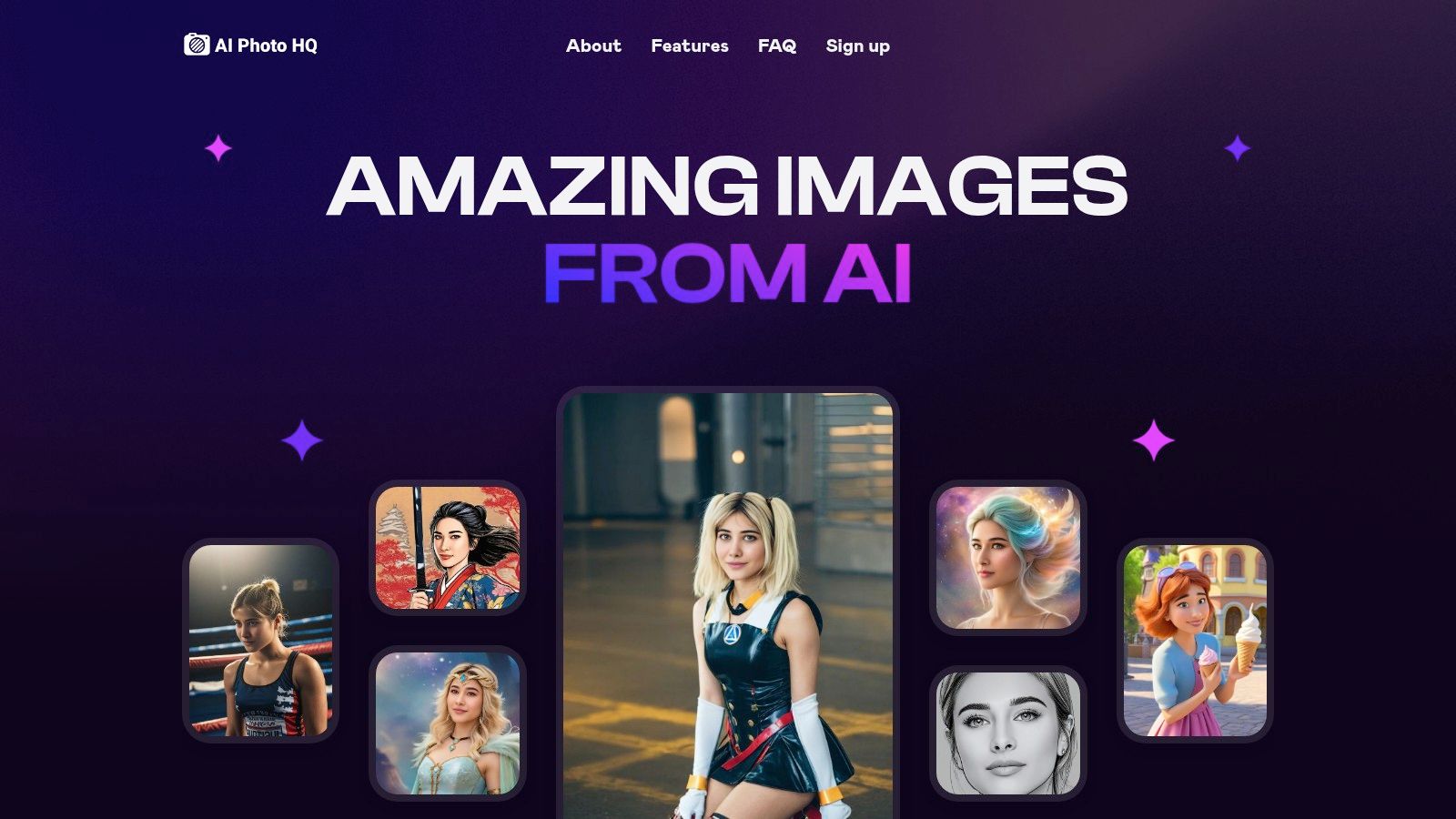
AI Photo HQ moves beyond basic color correction and scratch removal. It excels at reconstructing significant portions of a damaged photograph, sharpening blurry faces, and enhancing details with a clarity that rivals manual touch-ups. The AI is particularly adept at interpreting context within an old photo, which allows it to intelligently fill in missing textures and colors, bringing faded memories back to life with vibrant accuracy. While our focus is on restoration, understanding the broader landscape of AI in photography is key, including insights into the best AI photo generators available.
Standout Features and Practical Applications
The platform's versatility is one of its most significant assets. You aren't just restoring a photo; you are working within a comprehensive creative suite.
- Professional-Grade Restoration: The AI model is trained to handle common issues like tears, creases, water damage, and severe fading. It effectively reconstructs damaged areas while preserving the original character of the photograph.
- Rapid Processing: Leveraging the Stable Diffusion XL engine, restorations that would take hours in traditional software are completed in seconds. This is a game-changer for professionals handling large archives or families digitizing entire photo albums.
- Integrated Creative Tools: Beyond restoration, users can generate 5-second AI video clips from static images, create custom avatars, or experiment with artistic styles like comic book or neon punk. This allows for unique storytelling opportunities with restored family photos.
- Perpetual Hosting: A key benefit is the platform’s perpetual hosting for tagged favorite images, ensuring your restored masterpieces are securely stored and accessible.
How to Restore a Photo with AI Photo HQ
Achieving professional results is straightforward. Here’s a quick guide to get started:
- Upload Your Image: Digitize your old photograph at the highest possible resolution and upload it directly to the AI Photo HQ platform.
- Select the Restoration Tool: Navigate to the image processing tools and choose the "Photo Restoration" or "Image Enhancement" option.
- Initiate AI Processing: With a single click, the AI analyzes the image, identifies damage, corrects colors, sharpens details, and removes imperfections.
- Review and Download: The restored image is generated almost instantly. You can then compare it with the original, save it to your favorites for permanent hosting, or download the high-resolution file. You can discover more about its AI enhancement capabilities on their blog.
Pricing and Access
AI Photo HQ operates on a subscription model, providing flexibility for different user needs.
- Entry-Level: Plans start at $29 per month for 1,000 image credits.
- Agency & Enterprise: Tiers scale up to $269 per month for 25,000 images, including priority support and custom feature requests.
While the subscription-based model may be a consideration for infrequent users, the value provided in the form of speed, quality, and an all-in-one feature set makes it a top-tier investment for serious hobbyists and professionals.
Website: aiphotohq.com
2. Adobe Photoshop
Adobe Photoshop is the undisputed industry standard for image manipulation, and its capabilities for photo restoration are second to none. While it offers a suite of complex manual tools, its standout feature for this purpose is the AI-powered Photo Restoration Neural Filter. This tool streamlines the process, making Photoshop one of the best photo restoration software options for both professionals and dedicated hobbyists seeking granular control.
Unlike simpler one-click apps, Photoshop provides a hybrid workflow. You can apply the automatic Neural Filter and then dive into its non-destructive layer system to manually refine the results using tools like the Clone Stamp, Healing Brush, and Content-Aware Fill.
Practical Steps for Using the Neural Filter
For those new to the software, using the Photo Restoration filter is a great starting point for any damaged photo:
- Open your scanned old photo in Photoshop. Make sure it's on its own layer.
- Navigate to Filter > Neural Filters.
- In the Neural Filters panel, find and enable the Photo Restoration filter (you may need to download it first).
- Use the sliders for Photo Enhancement, Enhance Face, and Scratch Reduction to fine-tune the automatic repair. Push the Scratch Reduction to 100 to see its maximum effect and then dial it back as needed.
- Set the Output to "New Layer" to create a non-destructive edit, which preserves your original image on a separate layer.
- For manual touch-ups on remaining flaws, select the new layer and use the Spot Healing Brush (J key) to click on minor dust spots or paint over small scratches. The AI will automatically blend the repair.
Photoshop operates on a subscription model, typically starting around $22.99/month for the Photography plan, which also includes Lightroom. While the learning curve is steep, no other tool offers this level of professional-grade control.
Website: https://www.adobe.com/products/photoshop.html
3. Luminar Neo
Luminar Neo by Skylum positions itself as a powerful, AI-driven photo editor that excels at simplifying complex tasks. While it lacks a single, dedicated "photo restoration" button like some rivals, its collection of intelligent tools makes it one of the best photo restoration software choices for users who want automated, high-quality enhancements without a steep learning curve. Its strength lies in combining multiple AI features to tackle common issues in old photos like poor lighting, faded colors, and noise.
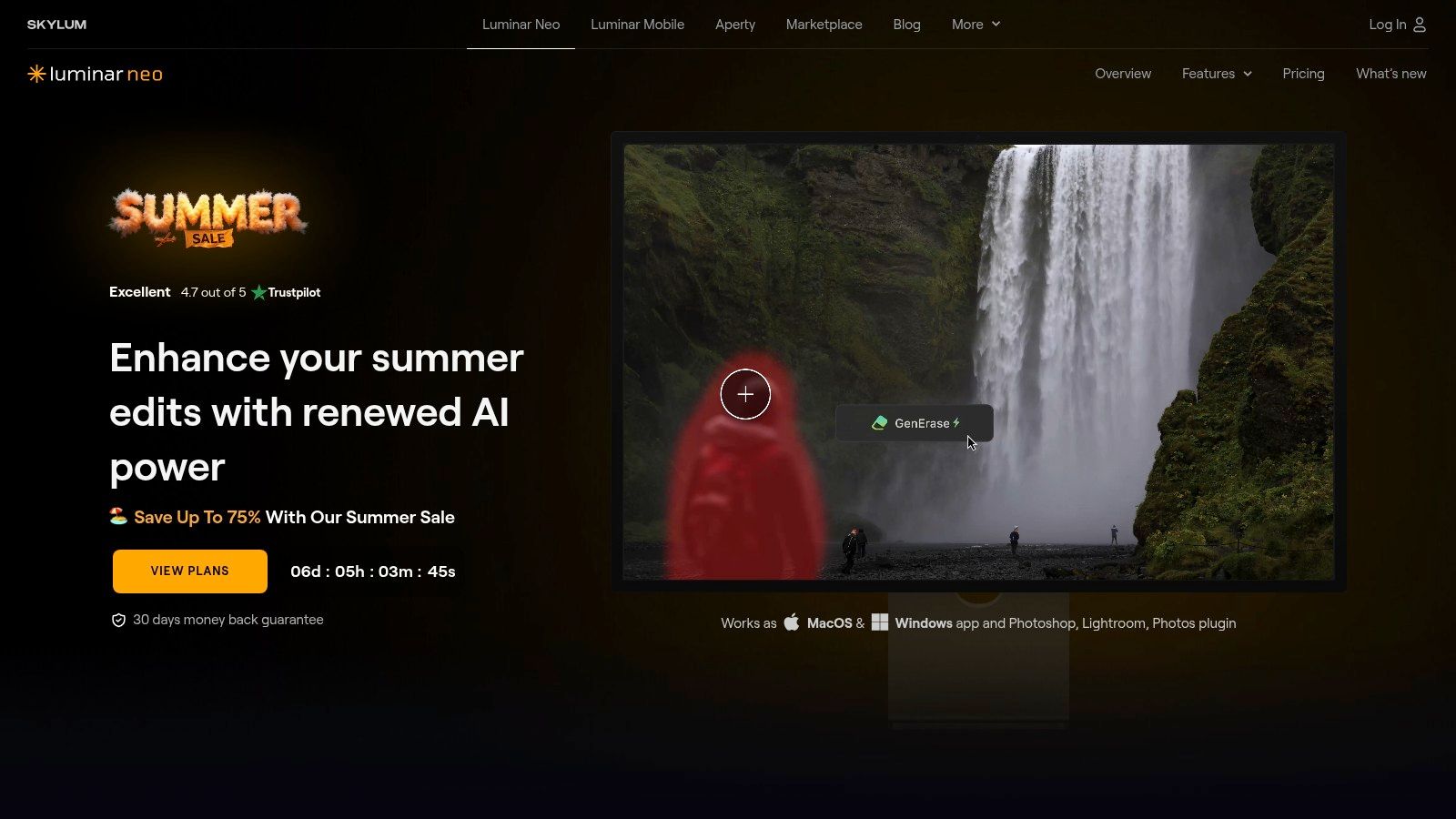
Unlike Photoshop's layer-based complexity, Luminar Neo uses a more intuitive, tool-based workflow. You can apply specific AI adjustments like Enhance AI or Noiseless AI and stack their effects, making the process feel more like a guided checklist than a manual operation. This approach is ideal for beginners or hobbyists who want impressive results quickly.
Practical Steps for Restoring Photos in Luminar
For a typical faded or noisy old photograph, you can combine several of Luminar’s tools for a complete restoration:
- Open your scanned photo and head to the Edit tab.
- Start with the Enhance AI tool in the Essentials section. Drag the Accent AI slider to the right to instantly improve color, contrast, and details. This one slider often provides the biggest improvement.
- Navigate to the Noiseless AI tool to clean up any grain or digital noise from the scan, choosing a Low, Middle, or High level of correction based on the image's graininess.
- Use Structure AI to bring back sharpness and texture to areas that look soft or out of focus, without creating unwanted artifacts around edges.
- Finally, use the Color tool to correct any color casts. If the photo has a yellow tint, for example, go to Remove Color Cast and move the slider slightly towards blue to neutralize it.
Luminar Neo is available for a one-time purchase (currently around $149) or through a subscription model. Although it's a significant investment, its user-friendly interface and powerful AI automations provide a fast track to professional-looking results.
Website: https://skylum.com/luminar
4. PhotoGlory PRO
PhotoGlory PRO is a dedicated desktop application engineered specifically for bringing old photos back to life. It stands out by offering a balanced blend of one-click automatic fixes and detailed manual controls, making it a strong contender for the best photo restoration software for users who prefer a dedicated, offline tool with a one-time purchase. Its capabilities extend beyond simple repairs to include impressive AI-driven colorization and creative vintage effects.
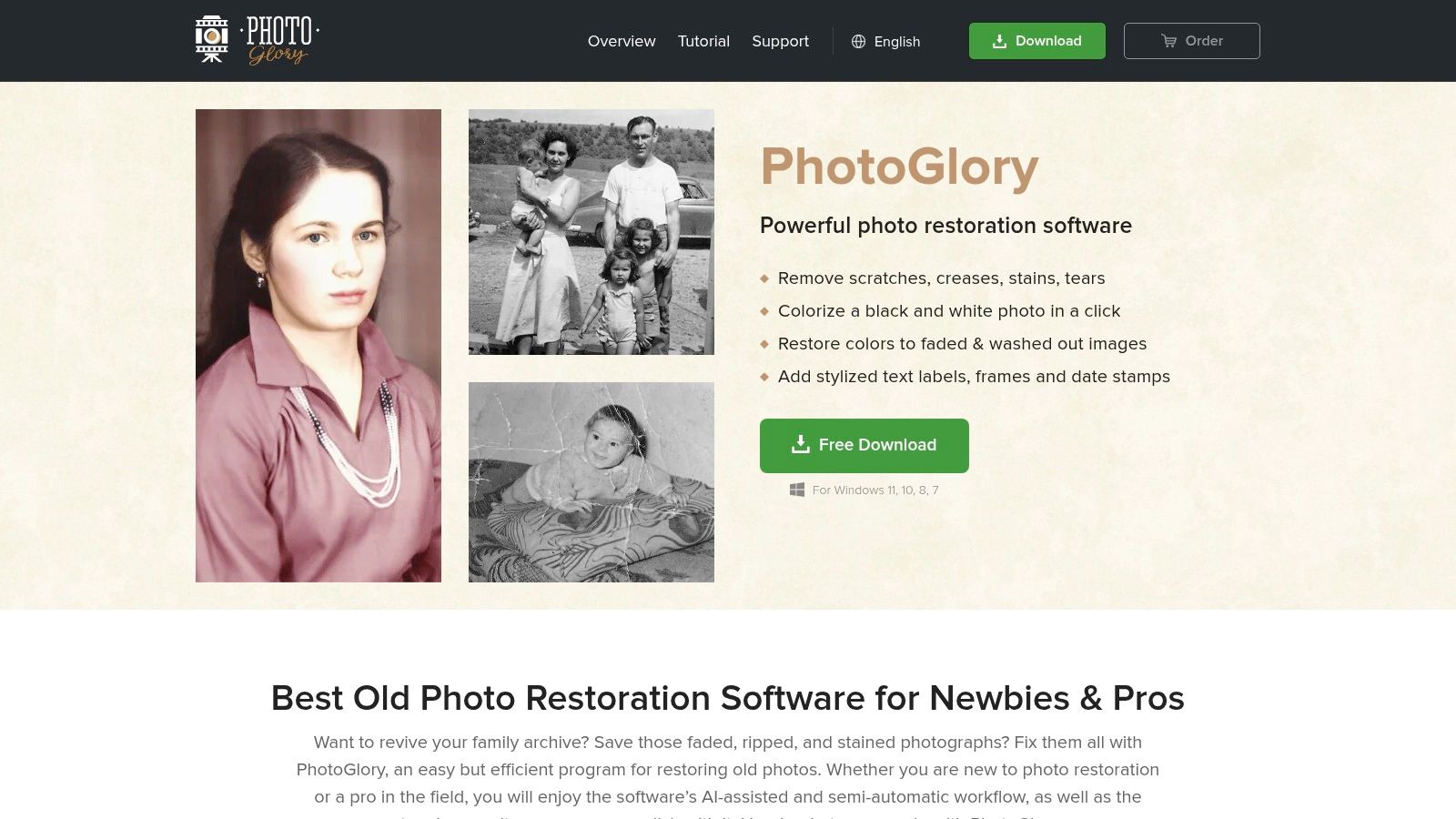
Unlike subscription-based cloud services, PhotoGlory PRO is a standalone program for Windows. It provides a user-friendly interface where you can quickly enhance a photo automatically and then switch to manual tools for more precise adjustments. The software's strengths lie in its focused feature set, which avoids the overwhelming complexity of a full-fledged photo editor while still delivering powerful results.
Practical Steps for Colorizing a B&W Photo
Getting started with colorization and basic restoration in PhotoGlory PRO is highly intuitive:
- Open your scanned black and white photograph within the software.
- In the "Enhance" tab, click the Restore Old Photo button for an instant AI-powered fix that addresses contrast, saturation, and grain.
- Next, click the Colorize Black & White Photo button. The AI will analyze the image and apply realistic colors.
- Navigate to the "Retouch" tab to access manual tools. Use the Patch for larger tears or stains by selecting the damaged area and dragging it to a clean area to sample from. Use the Clone Stamp for more precise texture replication.
- Fine-tune the auto-colorization by going to the Color tab and adjusting the saturation or hue of specific tones.
PhotoGlory PRO is available as a one-time purchase with a lifetime license, with pricing typically starting around $19.25 for the Standard version. Its biggest limitation is its availability, as it is exclusively for Windows users. However, for those on the platform, it offers a powerful and cost-effective solution for comprehensive photo restoration tasks.
Website: https://photoglory.net/
5. AKVIS Retoucher
AKVIS Retoucher is a highly specialized photo restoration tool designed to intelligently remove defects and reconstruct missing parts of an image. It excels at analyzing the surrounding areas to seamlessly fill in scratches, dust, and even larger missing sections. Its focused approach makes it one of the best photo restoration software options for users who need powerful, guided repair tools without the complexity of a full-blown image editor.
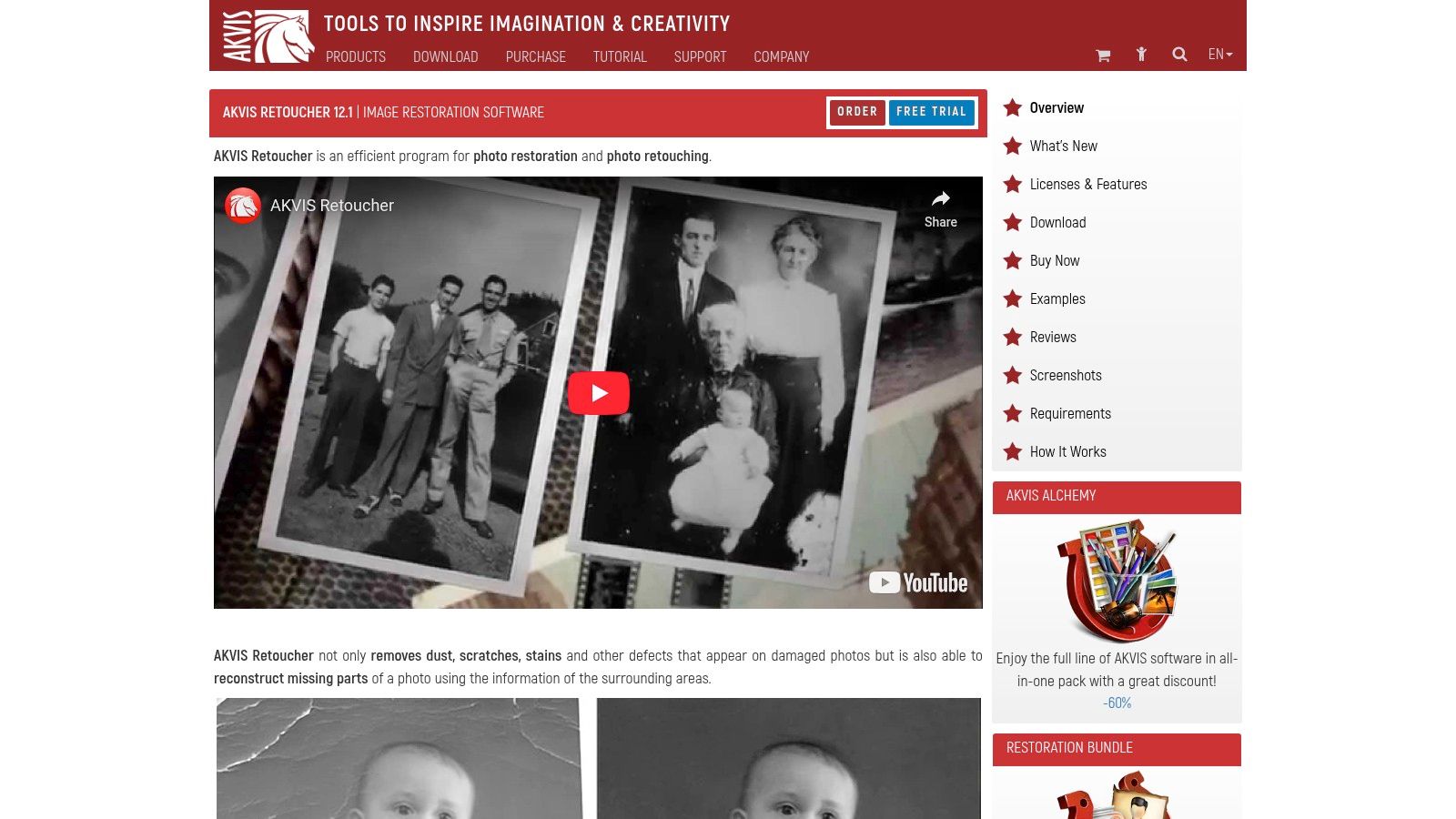
What sets AKVIS Retoucher apart is its versatility as both a standalone application and a plugin for software like Adobe Photoshop or Corel PaintShop Pro. This allows users to integrate its powerful defect removal capabilities into their existing workflows. The software also supports batch processing, which is a significant time-saver when restoring multiple photos from the same collection.
Practical Steps for Removing Large Tears
Using the software involves a simple selection-and-process workflow, perfect for significant damage:
- Open your torn photograph in the AKVIS Retoucher application.
- Select the Selection Brush tool from the toolbar. Carefully paint over the entire tear, making sure your selection covers all parts of the damage.
- If the tear goes through complex textures (like clothing patterns or foliage), use the Structure lines tool. Draw lines that follow the direction of the pattern across the selected tear. This tells the AI how to reconstruct the texture correctly.
- Press the Run button (play icon) to start the restoration process. The software will analyze the pixels and structure lines around your selection to reconstruct the damaged area.
- Review the results. If any small imperfections remain, use tools like the Clone Stamp or Chameleon Brush for minor manual touch-ups.
AKVIS Retoucher is available as a one-time purchase with different license types (Home, Home Deluxe, Business), starting at $87. While there is a slight learning curve to mastering the selection tools, its dedicated function and extensive tutorials make it a strong contender for focused restoration tasks.
Website: https://akvis.com/en/retoucher/index.php
6. Corel PaintShop Pro
Corel PaintShop Pro has long been a powerful and affordable alternative to Photoshop, making it a strong contender for the best photo restoration software, especially for Windows users. It offers a robust suite of manual and AI-assisted tools specifically designed to repair old and damaged photographs, providing a great balance between ease of use and professional-level control.
Unlike purely subscription-based models, PaintShop Pro is available for a one-time purchase, making it highly attractive for hobbyists and professionals on a budget. Its dedicated restoration tools, such as the Scratch Remover and Fade Correction, allow for precise, targeted repairs without the complexity of a full-blown graphics suite.
Practical Steps for Photo Restoration
Here’s a common workflow for restoring a faded, scratched photo in PaintShop Pro:
- Open your scanned image and switch to the "Manage" workspace to organize your photos, then switch to the "Edit" workspace to begin.
- Start with color. Navigate to Adjust > Brightness and Contrast > Fade Correction. A small adjustment here can instantly revive washed-out colors and improve contrast.
- Select the Scratch Remover tool from the left-hand toolbar (it looks like a brush cleaning a line). Adjust the brush size to match the width of the scratch or crease you want to remove.
- Click at the beginning of the scratch and drag the tool along its length. The software intelligently samples pixels from either side of the brush to fill in the damaged area seamlessly.
- For general graininess, go to Adjust > Digital Noise Removal to smooth out the image texture. Use the preview window to find a balance that reduces noise without losing too much detail.
PaintShop Pro offers a one-time purchase price, typically around $79.99, which is a significant advantage over monthly subscriptions. While it is exclusive to Windows and some of its more advanced features require practice, its dedicated restoration functions and user-friendly workspace make it an excellent and cost-effective choice.
Website: https://www.paintshoppro.com/en/
7. DxO PhotoLab
DxO PhotoLab is a professional-grade photo editor renowned for its scientific approach to image correction, particularly its world-class DeepPRIME XD noise reduction and optical correction technologies. While not a dedicated restoration tool, its ability to fix fundamental image quality issues like grain, blur, and lens distortion makes it an exceptional choice for restoring photos that suffer from technical flaws rather than physical damage. It's a powerful software for photographers who want to salvage technically imperfect but valuable old photos.
Unlike all-in-one AI restorers, DxO's strength lies in its precision. Its software automatically analyzes your image's metadata to apply custom lens and camera-specific corrections, instantly fixing issues like vignetting and chromatic aberration that are common in older photography. This makes it one of the best photo restoration software options for improving the core quality of a digital scan.
Practical Steps for Improving an Old Photo
To correct common issues in a scanned vintage photograph, you can follow this workflow:
- Open your scanned image in DxO PhotoLab. The software will automatically apply standard corrections for lens distortion and vignetting if it recognizes the camera data.
- In the Customize tab, locate the Detail panel. Activate DeepPRIME or DeepPRIME XD and zoom in to 100% on the preview. This will intelligently remove digital noise or film grain while preserving sharp details.
- Go to the Geometry panel and use the Keystoning tool to correct any perspective issues that occurred when the photo was taken or scanned.
- Use the Light panel's DxO Smart Lighting tool. Set it to a subtle mode like "Slight" to automatically recover lost details in shadows and highlights without making the photo look unnatural.
- Leverage the U Point™ technology for selective adjustments. Right-click on a face, for example, and add a control point. You can then increase the exposure or contrast just for that area without creating complex masks.
DxO PhotoLab is available as a one-time purchase, typically starting at $229 for the ESSENTIAL edition. Its methodical, technical approach provides a level of clarity and detail that automated scratch-removal tools can't match, making it ideal for the purist.
Website: https://www.dxo.com/dxo-photolab/
8. Affinity Photo
Affinity Photo has emerged as a major contender to Photoshop, offering a professional-grade suite of tools at a fraction of the cost. For photo restoration, its strength lies in its powerful manual tools, including an advanced healing brush, a precise clone stamp, and an AI-powered Inpainting Brush Tool (similar to Content-Aware Fill). This makes it one of the best photo restoration software choices for users who want complete control without a monthly subscription.
Unlike fully automated tools, Affinity Photo is built for a hands-on approach. Its non-destructive, layer-based workflow allows you to meticulously repair scratches, tears, and discoloration while preserving the original image data. The performance is optimized for handling high-resolution scans, ensuring smooth editing even on large files.
Practical Steps for Using the Inpainting Brush
The Inpainting Brush is a powerful tool for removing defects like scratches or unwanted objects:
- Open your scanned photo in Affinity Photo.
- Duplicate the background layer by right-clicking it in the Layers panel and selecting Duplicate. This preserves your original image. All your edits should be on this new layer.
- Select the Inpainting Brush Tool from the toolbar (it looks like a bandage).
- Adjust the brush size in the top context toolbar to be slightly larger than the flaw you want to remove. You can use the
[and]keys to change size quickly. - Paint directly over the scratch, dust spot, or even a distracting person in the background. When you release the mouse, the software will intelligently sample surrounding pixels to fill in the area seamlessly.
- For better results on complex areas, make several small strokes instead of one large one.
Affinity Photo is available for a one-time purchase of around $69.99, with no ongoing fees, making it a highly cost-effective professional tool. While it has a steep learning curve similar to Photoshop, its powerful feature set and affordable price make it an exceptional value for serious restoration work.
Website: https://affinity.serif.com/photo/
9. Remini
Remini is an AI-powered mobile app that has become a household name for quick, effective photo enhancement. It specializes in transforming blurry, low-resolution, and damaged old photos into clear, sharp images with a single tap. Its strength lies in its simplicity and accessibility, making it one of the best photo restoration software choices for casual users who want impressive results without navigating complex desktop software.
Unlike professional-grade editors, Remini is built for speed and convenience. The app's AI model automatically handles tasks like scratch removal, color correction, and facial detail enhancement. This focus on automation delivers instant gratification, allowing you to restore an entire album of old family photos directly from your phone in minutes.
Practical Steps for Using Remini
Getting started with Remini on your mobile device is incredibly simple:
- Download and open the Remini app from your device's app store (iOS or Android).
- Tap the Enhance button and grant the app permission to access your photos.
- Select the old, blurry, or damaged photo you wish to restore from your gallery.
- The app will automatically process the image and show you the result. A slider will appear, allowing you to swipe back and forth to compare the "Before" and "After" versions in real-time.
- If you have a black and white photo, you can then take the enhanced version and run it through the Colorize feature for an additional step.
- Tap the download icon in the top right corner to save the restored photo to your device.
The free version allows for a limited number of restorations, often requiring you to watch an ad. For unlimited, ad-free processing and access to HD results, a subscription is required, with weekly plans typically starting around $4.99. While it can occasionally over-sharpen details, its ease of use is unmatched for on-the-go restoration.
Website: https://remini.ai/
10. VanceAI Photo Restorer
VanceAI Photo Restorer offers a purely browser-based solution, making it one of the most accessible and convenient tools for quick, automated photo restoration. It stands out for its simplicity and efficiency, using AI to automatically repair scratches, fix faded colors, and sharpen details without requiring any software installation or technical expertise. This makes it an excellent choice for users who need fast results with minimal effort.
Unlike comprehensive editing suites, VanceAI focuses entirely on automation. Its AI model handles everything from scratch removal to color correction in a single operation. While it lacks manual control, its batch processing feature is a significant advantage, allowing users to upload and restore multiple photos simultaneously, which is a major time-saver for digitizing entire family albums.
Practical Steps for Using VanceAI Photo Restorer
The platform’s web interface is designed for immediate use:
- Navigate to the VanceAI Photo Restorer website in your browser.
- Click the "Upload Image" button and select the old photo from your computer. The tool supports formats like JPG, JPEG, and PNG.
- Before processing, you can select specific preferences, such as enabling "100% AI Old Photo Restoration" or choosing to also "Colorize Photo" if it's black and white.
- Click the "Start to Process" button. The AI will automatically process the image, removing scratches, improving clarity, and restoring colors based on your selections.
- Preview the restored image in the "Processed" tab. You can use a slider to compare it with the original. Click "Download" to save the result. Free users can download with a watermark, while paid subscribers get high-resolution, watermark-free downloads.
This streamlined workflow makes VanceAI a strong contender for the best photo restoration software for beginners or those needing to process many images quickly. Pricing is subscription-based, starting with a free trial and paid plans from around $4.99/month, which provide credits for processing images across their suite of AI tools.
Website: https://vanceai.com/photo-restorer/
11. PhotoWorks
PhotoWorks is an intelligent, downloadable photo editor that strikes a balance between user-friendly design and effective restoration tools. It stands out for its straightforward approach, making it one of the best photo restoration software choices for beginners or hobbyists who need reliable results without a steep learning curve or high cost. Its core strength lies in its combination of AI-powered colorization and manual retouching tools.
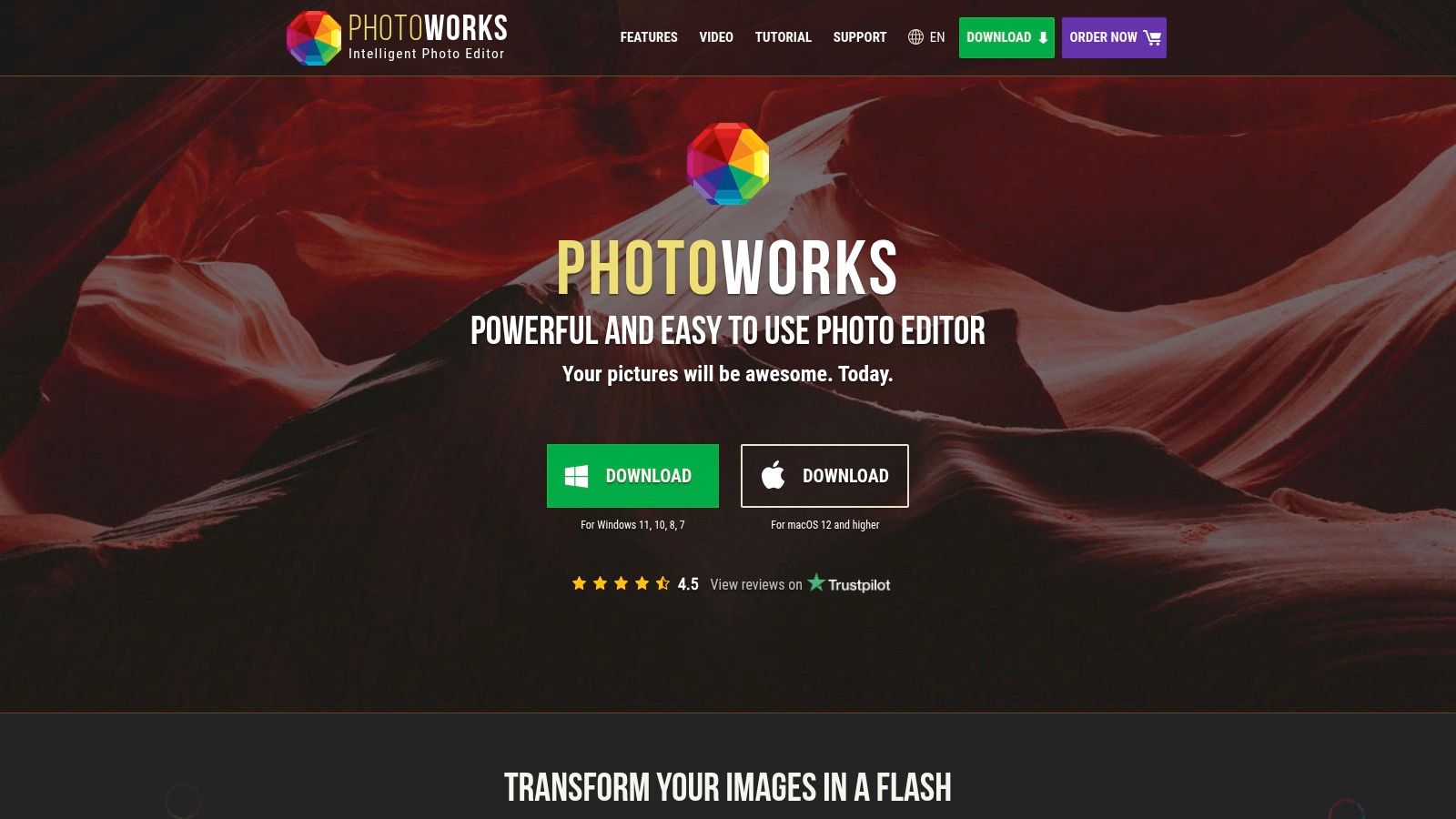
Unlike complex professional suites, PhotoWorks focuses on an intuitive workflow. You can easily fix common issues like scratches, dust, and faded colors using dedicated tools that are simple to master. The software also includes AI-driven color correction that can automatically bring a black-and-white photo to life with a single click, which you can then fine-tune manually.
Practical Steps for Basic Restoration
Restoring a photo in PhotoWorks is a quick process:
- Open your scanned photo within the PhotoWorks software.
- Navigate to the Retouch tab to access the repair tools.
- Select the Healing Brush. Adjust its size to be slightly larger than a dust spot or small crease, then simply click on the imperfection to remove it.
- For larger tears or missing parts, use the Clone Stamp tool. Hold the
Altkey and click on a clean area to sample a texture, then paint over the damaged area to cover it. - If the photo is black and white, go to the Tools tab and click the Colorize Photo button to apply AI-based color in one click.
- Finally, go to the Enhancement tab and use the main sliders for Exposure, Contrast, and Saturation to adjust the final look.
PhotoWorks is available as a one-time purchase, with lifetime licenses starting at $19.25 for the Standard version. While it lacks the advanced layering and masking of Photoshop, its affordability and ease of use make it an excellent entry point for basic to intermediate restoration tasks.
Website: https://photo-works.net/
12. SoftOrbits Photo Retoucher
SoftOrbits Photo Retoucher strikes a balance between automated fixes and manual control, positioning itself as a strong contender for users who want more hands-on involvement without a professional-grade learning curve. It’s a downloadable software designed specifically for repairing old photos, offering a targeted toolset for common issues like scratches, dust, and color fading. This makes it one of the best photo restoration software choices for hobbyists who prefer direct manipulation.
Unlike fully automated web tools, Photo Retoucher provides a suite of brushes and selection tools. You can use its automatic scratch finder to highlight imperfections and then manually use the Smudge, Concealer, and Clone Stamp tools to perfect the repair. This hybrid approach gives you granular control over the final result, ensuring the restoration retains the photo's original character.
Practical Steps for Manual Scratch Removal
For targeted repairs, the manual workflow offers precision:
- Open your scanned image in the SoftOrbits Photo Retoucher application.
- In the top menu, click "Remove" and select "Find Scratches". The software will automatically highlight detected scratches in red. You can adjust the sensitivity with the slider.
- Once scratches are selected, click the "Remove" button on the main toolbar to let the software intelligently fill in the selected areas based on surrounding pixels.
- For any remaining imperfections, select the Concealer Tool. Adjust the brush size and paint over the flaws to blend them away.
- Use the Clone Stamp tool for more complex areas. Hold
Altto select a source point with clean texture, then paint over the damaged area to replicate that texture. - Adjust color balance and brightness using the dedicated correction tools to finalize the image.
This focused process is a key part of learning how to preserve old photos effectively. SoftOrbits offers a one-time purchase license, which is an attractive alternative to subscription models, with pricing typically starting around $21.99 for a personal license.
Website: https://www.softorbits.com/photo-retoucher/
Top 12 Photo Restoration Software Comparison
| Product | Core Features/Characteristics | User Experience/Quality ★ | Value Proposition 💰 | Target Audience 👥 | Unique Selling Points ✨ |
|---|---|---|---|---|---|
| 🏆 AI Photo HQ | Instant AI photo generation, restoration, 5-sec AI videos | ★★★★★ Fast, professional-grade | 💰 Subscription: from $29/mo (1,000 images) to $269/mo (25,000 images) | 👥 Influencers, artists, marketers, enterprises | ✨ Stable Diffusion XL, diverse styles, unlimited characters, priority support |
| Adobe Photoshop | AI photo restoration, manual & layer editing | ★★★★★ Industry-standard, powerful | 💰 Subscription-based, higher cost | 👥 Professionals, advanced users | ✨ Neural filters, extensive editing tools |
| Luminar Neo | AI color correction, lighting, noise reduction | ★★★★☆ User-friendly, automated tools | 💰 One-time purchase, relatively expensive | 👥 Enthusiasts, Mac & Windows users | ✨ Relight AI, structure AI, noiseless AI |
| PhotoGlory PRO | Automatic/manual restoration, colorization, vintage effects | ★★★★☆ Easy-to-use | 💰 One-time payment, lifetime license | 👥 Casual users, Windows only | ✨ AI color correction, vintage effects |
| AKVIS Retoucher | Defect removal, missing part reconstruction, batch processing | ★★★★☆ Guided restoration, tutorials | 💰 One-time purchase | 👥 Beginners to pros, Mac & Windows | ✨ Powerful restoration, plugin mode support |
| Corel PaintShop Pro | Photo restoration, color correction, layers, batch processing | ★★★★☆ User-friendly, affordable | 💰 One-time purchase | 👥 Beginners & advanced users, Windows only | ✨ Comprehensive tools, regular updates |
| DxO PhotoLab | RAW processing, noise reduction, lens corrections | ★★★★☆ Intuitive, precise corrections | 💰 Mid-range one-time purchase | 👥 Professional photographers | ✨ Advanced selective adjustments, lens profiles |
| Affinity Photo | Healing/clone tools, AI fill, layer-based editing | ★★★★☆ Powerful, professional | 💰 One-time purchase | 👥 Pros, creatives, multi-platform | ✨ AI content-aware fills, no subscription |
| Remini | AI restoration, mobile app, batch processing | ★★★☆☆ Quick, mobile-friendly | 💰 Affordable subscription | 👥 Casual users, mobile-first | ✨ Instant AI enhancement, on-the-go editing |
| VanceAI Photo Restorer | Browser-based AI restoration, scratch removal, batch processing | ★★★☆☆ Beginner-friendly, no install | 💰 Affordable subscription | 👥 Beginners, casual users | ✨ No downloads, fully online |
| PhotoWorks | AI color correction, retouching, one-click enhancement | ★★★☆☆ Easy, intuitive for beginners | 💰 Affordable one-time purchase | 👥 Small businesses, beginners | ✨ Customizable brushes, basic restoration |
| SoftOrbits Photo Retoucher | Manual/automatic scratch removal, color correction | ★★★☆☆ Balanced manual & automation | 💰 Affordable monthly subscription | 👥 Beginners & intermediate users | ✨ Control over edits, easy interface |
Choosing the Right Tool to Preserve Your Past
Navigating the landscape of the best photo restoration software can feel overwhelming, but as we've explored, the perfect tool is simply the one that aligns with your specific goals, technical skill, and the condition of your photographs. Your journey from a faded, damaged print to a vibrant, restored image is now more accessible than ever, thanks to a diverse market of powerful applications.
We've seen the sheer power and granular control offered by industry titans like Adobe Photoshop and Affinity Photo, which remain the top choice for professionals and enthusiasts who need to tackle complex restorations involving missing sections, intricate texture reconstruction, or precise color grading. These tools require a learning curve, but their capabilities are virtually limitless for those willing to invest the time.
On the other end of the spectrum, one-click AI solutions like AI Photo HQ and Remini have revolutionized the process for everyone else. They provide a gateway for social media influencers, hobbyists, and families to achieve stunning results without a deep understanding of layers, masks, or cloning tools. Their automated algorithms for scratch removal, color correction, and facial enhancement deliver speed and convenience that manual methods cannot match.
A Practical Framework for Your Decision
Making the right choice comes down to a clear assessment of your needs. Instead of just picking the software with the most features, consider these practical scenarios to guide your selection:
For Quick, High-Volume Restoration: If you have a shoebox full of old family photos with minor fading, scratches, and dust, an AI-powered tool is your best bet. AI Photo HQ or VanceAI are designed for this exact purpose. The workflow is simple: scan your photo, upload it, apply the restoration filter, and download the result. This approach is ideal for digitizing an entire album efficiently.
For Heavily Damaged Heirlooms: When a photograph has significant damage like large tears, water stains, or missing pieces of a face, you need manual control. Your best workflow will involve Adobe Photoshop or Corel PaintShop Pro. Start with the Clone Stamp and Healing Brush tools to meticulously reconstruct the damaged areas, using a low-flow setting for a more natural blend. Follow this by creating adjustment layers for non-destructive color and contrast corrections.
For Enhancing and Colorizing Black and White Photos: If your primary goal is to bring monochrome images to life, look for software with a strong, specialized colorization algorithm. While many tools offer this, PhotoGlory PRO and the AI features within Luminar Neo excel here. The key is to use the automated colorization as a starting point and then use manual sliders to fine-tune the skin tones, clothing, and background for a more realistic and historically accurate result.
Implementation and Final Thoughts
Ultimately, the best photo restoration software is a means to an end: reconnecting with your history and preserving it for future generations. Don't be afraid to combine tools. You might use an AI tool for an initial quick fix and then import that image into a more robust editor like Affinity Photo for final touch-ups. When evaluating different software options, it's also helpful to see how specialized photo restoration tools fit into a broader landscape of AI solutions, including a look at the top AI tools for content creators.
The most important step is the one you take now. Pick a tool that seems like the best fit, digitize a cherished photograph, and start the process. Each restored image is more than just pixels on a screen; it's a story revived, a memory clarified, and a piece of your personal legacy brought back into the light.
Ready to bring your old photos back to life with the power of artificial intelligence? AI Photo HQ offers a user-friendly platform that automates the removal of scratches, restores faded colors, and enhances facial details in seconds. Try AI Photo HQ today and see how easy it is to preserve your most precious memories.


