
Designing a logo used to mean hiring a designer, going through weeks of revisions, and spending hundreds (or thousands) of dollars. Today we want to show you how we created a logo for Clawly — a hosted OpenClaw solution — in just a few minutes using our new Flows feature in AI Photo Generator. The entire process cost literally nothing compared to a traditional designer.
What are Flows?
Flows is a new feature that lets you continuously iterate on your AI-generated images. Instead of generating a single image and starting from scratch every time, Flows keeps the conversation going. After each generation, your AI assistant analyses the result, gives you feedback on what works and what could be improved, and suggests concrete next steps. You pick a direction — or type your own instructions — and the AI generates an improved version. It's like having a creative partner who never gets tired.
Special commands: /ask and /sketch
Flows also introduces two unique commands to help you get started and stay inspired:
/ask — Ask your AI assistant for any kind of help. Not sure how to describe what you want? Need the AI to propose some prompts for you? Just type /ask followed by your question and the assistant will help you craft the perfect prompt or guide your creative direction.
/sketch — Sometimes you just need a spark. Use /sketch to get the creative juices flowing — the AI will generate random ideas, sketches, and starting points for you to explore. It's perfect when you have a vague idea but don't know where to begin.
A practical example: creating the Clawly logo
Let's walk through how we created a logo for Clawly step by step. We started a new Flow and set our goal: "I need a playful red-coloured logo for a startup called Clawly". With AI Assist enabled, the flow kicked off immediately.
The AI generated a first attempt — a circular red badge with a claw icon. Not bad for a first try, but not quite what we were looking for. Here's where Flows shines: the AI automatically suggested an edit prompt to take it in a different direction — a whimsical red lobster claw shaped like a crescent moon. Each new generation came with a fresh suggestion, keeping the creative momentum going.
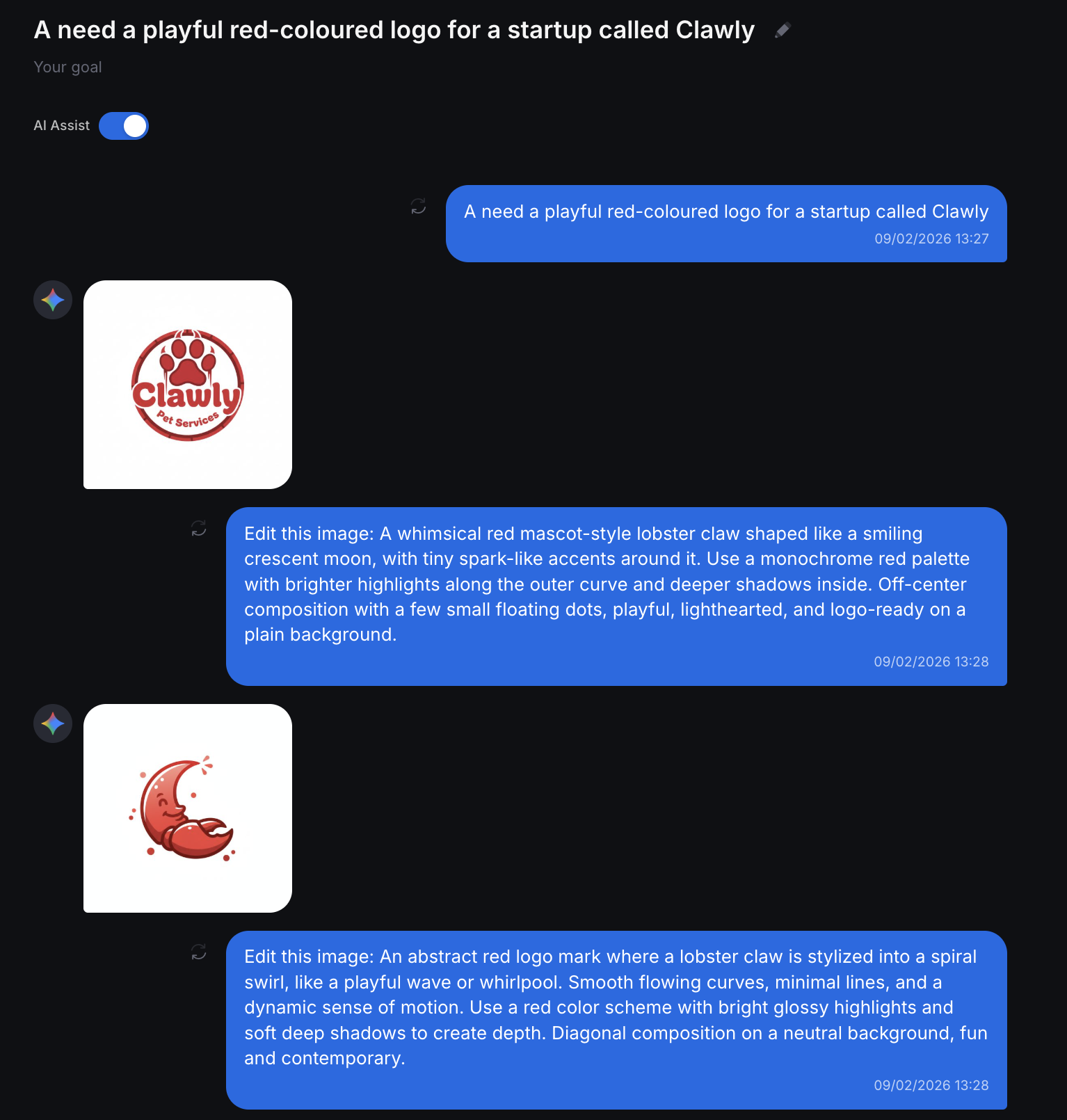
After a few iterations, the AI started providing detailed feedback on each result — commenting on how the shapes read at small sizes, whether the shading feels cohesive, and whether the negative space is open enough for legibility. It even offered a "Try Next" menu with specific refinements like "Widen the pincer opening negative space" or "Smooth all edges to perfectly clean curves". You can click any suggestion to instantly apply it, or write your own instructions.
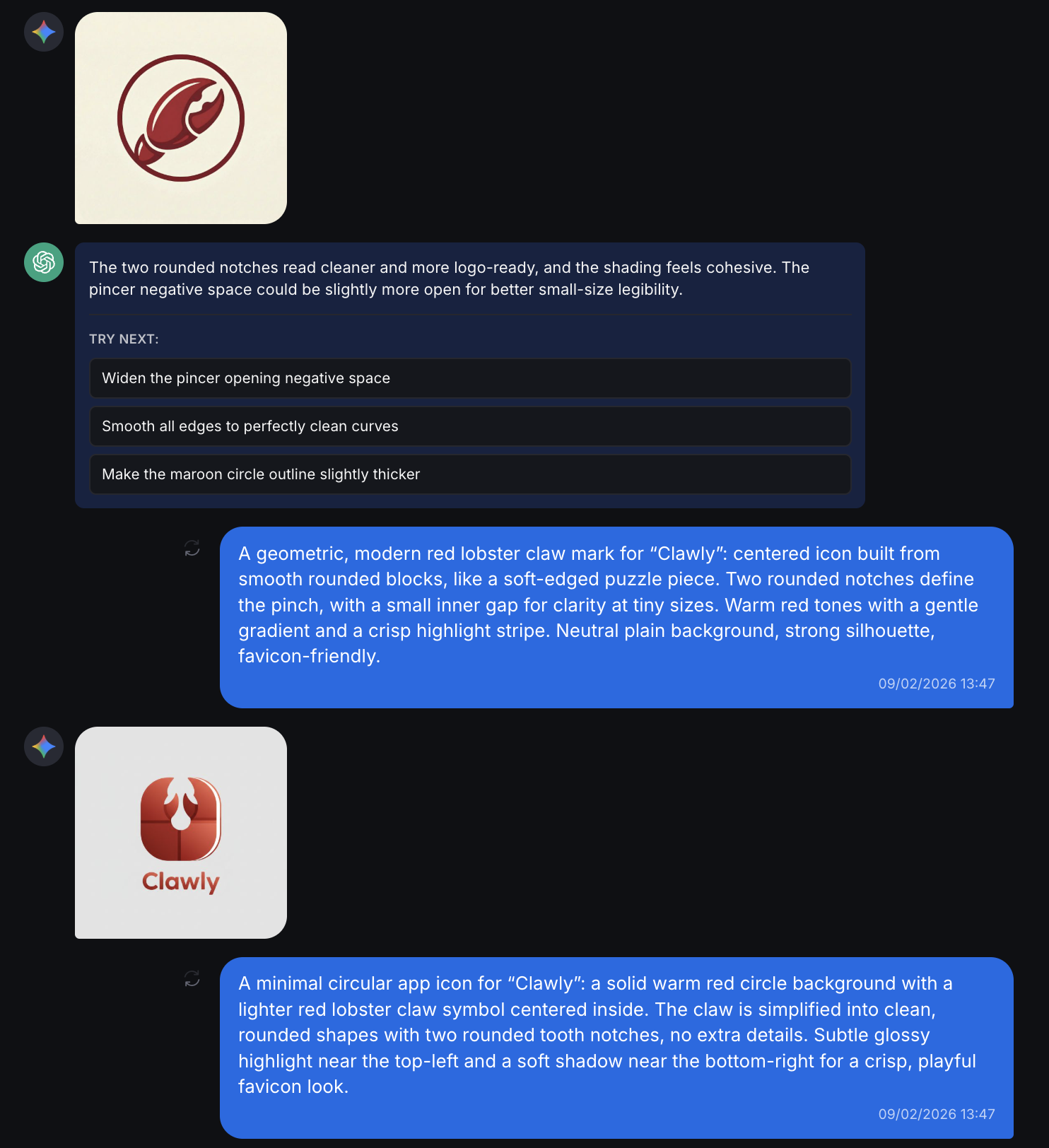
At some point we saw a direction we liked and jumped in with our own edit: "Remove any text, make the logo itself bigger — zoom it in, make it look professional". The AI executed the edit and came back with more constructive feedback — noting the improvement while pointing out that the shading still looked a bit too 3D for a favicon. It suggested simplifying the shading and increasing the negative-space gap between the pincers.
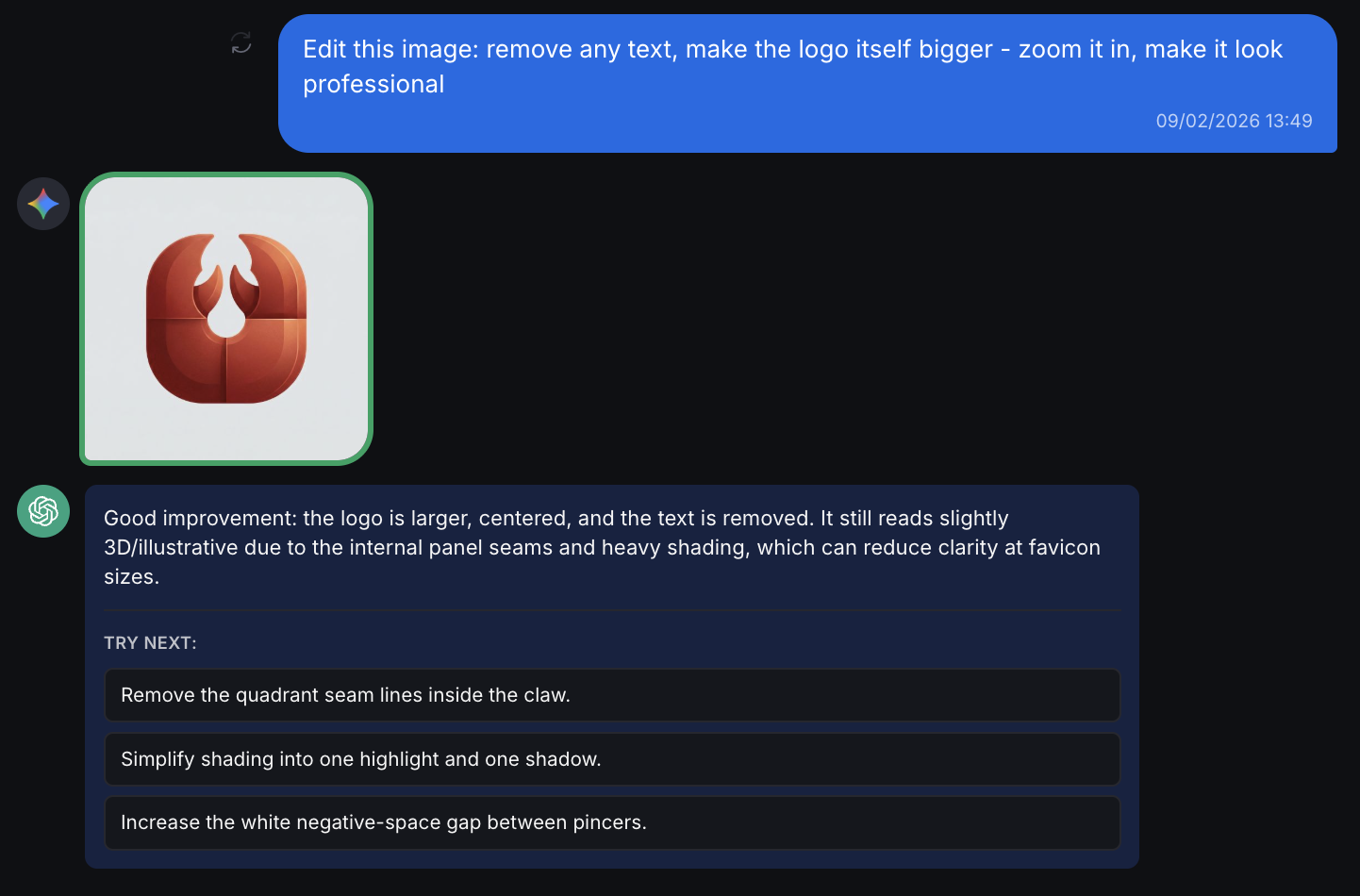
The result
Within about 20 minutes of back-and-forth with the AI, we had a clean, professional-looking logo that we were happy with. No designer needed, no lengthy email threads, no revision rounds stretching over weeks. Just a focused, iterative conversation with an AI that understands visual design.
If you want to try Flows yourself, head over to AI Photo Generator and start a new Flow. Whether you're designing a logo, exploring art styles, or just playing around — Flows makes the creative process faster, cheaper, and more fun than ever.


