
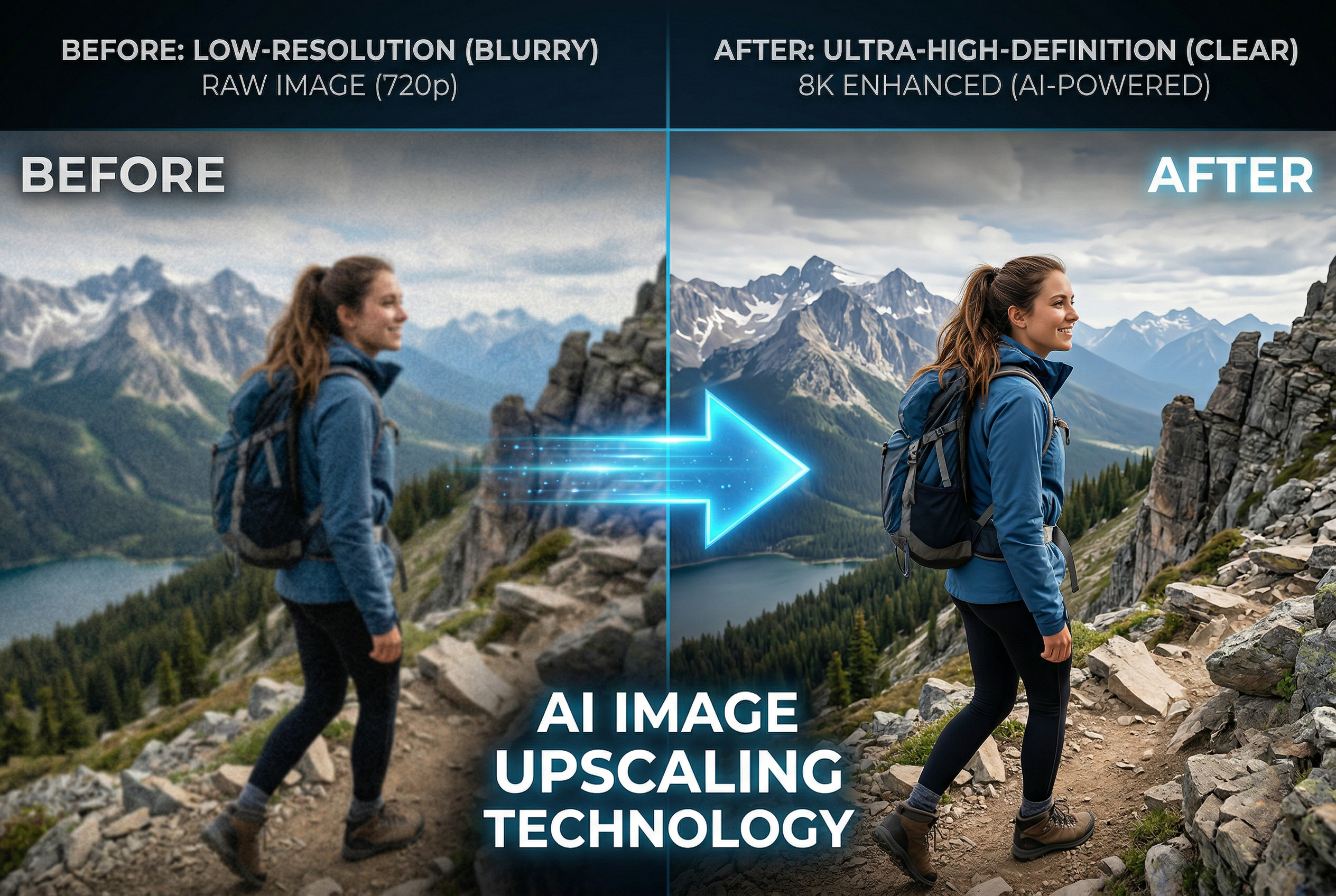
What Is AI Image Upscaling?
You have a photo you love — a candid shot from a vacation, a product image for your online store, or an old family portrait scanned from print. The problem? It's tiny. Pixelated. Unusable at any size larger than a postage stamp.
Traditional upscaling just stretches pixels apart and fills the gaps with blurry guesses. The result is that mushy, soap-opera look nobody wants. AI upscaling is fundamentally different. Instead of interpolating between existing pixels, it generates new detail that wasn't in the original image.
Modern AI upscalers are trained on millions of image pairs — low-resolution inputs matched with their high-resolution originals. Through this training, the neural network learns what sharp edges, fine textures, skin pores, hair strands, and fabric weaves should look like. When you feed it a blurry 500×500 photo, it doesn't just stretch it to 2000×2000 — it intelligently reconstructs detail based on everything it has learned.
The practical result? You can take a small JPEG and upscale it to 4K, 8K, or even 16K resolution while actually improving visual quality. That's not science fiction. That's 2026.
How AI Upscaling Actually Works (The Non-Technical Version)
If you want to understand why some upscalers produce better results than others, it helps to know the basics of what's happening under the hood.
Super-Resolution Neural Networks
Most AI upscalers use a type of neural network called a super-resolution model. The two most common architectures are:
- ESRGAN (Enhanced Super-Resolution Generative Adversarial Network) — Uses two competing neural networks: one generates the upscaled image, and the other critiques it. This adversarial process pushes the output toward photorealistic results. Most free online upscalers are based on ESRGAN variants.
- Diffusion-based upscaling — Newer tools (like Magnific AI and Topaz Bloom) use diffusion models similar to those powering Stable Diffusion and DALL-E. These models can actually hallucinate convincing new detail — adding realistic textures, facial features, and environmental elements that weren't visible in the original.
The Upscaling vs. Enhancement Distinction
This is important and most guides skip it:
- Upscaling increases resolution (more pixels). A 1024×1024 image becomes 4096×4096.
- Enhancement improves quality at the same resolution — denoising, sharpening, color correction, artifact removal.
The best tools do both simultaneously. When you see "AI image enhancer" and "AI image upscaler" used interchangeably, it's because modern tools have merged these capabilities.
Creative vs. Faithful Upscaling
Here's where things get interesting in 2026. The latest generation of upscalers offers two distinct modes:
- Faithful upscaling stays as close to the original image as possible. It sharpens and adds resolution without changing composition. Best for product photos, documents, and scientific imaging.
- Creative upscaling lets the AI reinterpret and add detail that wasn't there. Skin textures, fabric patterns, background elements — the AI generates them based on context. Best for AI-generated art, old photos, and creative projects.
Understanding which mode you need will save you hours of trial and error.
10 Best AI Image Upscalers in 2026 (Free and Paid)
We evaluated each tool on output quality, speed, pricing, ease of use, and how well it handles different image types (photos, AI art, illustrations, text). Here's our ranked list.
1. Topaz Gigapixel AI
Best for: Professional photographers and print-ready output
Upscale limit: Up to 6× (16× with Bloom)
Price: $99/year or $199 lifetime
Platform: Windows, macOS (desktop app)
Topaz Gigapixel has been the gold standard in AI upscaling since its launch, and the 2026 version cements that position. It processes images locally on your machine (no cloud upload required), which means your photos stay private and there's no file size limit.
The real standout feature is the new Bloom creative upscaler, which uses diffusion-based technology to generate stunning detail at up to 8× magnification. For portrait photographers, the face recovery module is exceptional — it can reconstruct facial features from surprisingly low-resolution inputs.
Pros: Best-in-class output quality, local processing (privacy), batch processing, Lightroom/Photoshop plugins
Cons: Requires decent GPU, no free tier (but 30-day trial available), desktop only
2. Magnific AI
Best for: AI-generated art and creative upscaling
Upscale limit: Up to 16×
Price: From $39/month
Platform: Web-based
Magnific changed the game when it launched, and it remains the tool to beat for creative upscaling. Where other upscalers try to faithfully reproduce the original, Magnific takes creative liberty — adding convincing textures, detail, and visual richness that makes the upscaled version look like it was shot at a higher resolution.
The "Creativity" and "HDR" sliders give you precise control over how much the AI embellishes. For AI-generated anime art or fantasy illustrations, Magnific produces results that are genuinely stunning.
Pros: Unmatched creative upscaling quality, fine-grained controls, excellent for AI art
Cons: Expensive (the main barrier), cloud-only processing, can sometimes over-embellish photos
3. Adobe Photoshop (Generative Upscale)
Best for: Designers already in the Adobe ecosystem
Upscale limit: Up to 4×
Price: Included with Photoshop subscription ($22.99/month)
Platform: Windows, macOS
Adobe's Generative Upscale feature, powered by Firefly and a Topaz Labs partnership, brings professional upscaling directly into Photoshop's workflow. The integration is seamless — upscale an image, then immediately continue editing with all of Photoshop's tools.
Quality is very good (not quite Magnific-level for creative work), but the convenience factor is hard to beat if you're already paying for Creative Cloud.
Pros: Seamless Photoshop integration, non-destructive workflow, reliable quality
Cons: Requires CC subscription, not available standalone, 4× limit
4. Upscayl
Best for: Budget-conscious users who want desktop-quality results for free
Upscale limit: Up to 16×
Price: Free and open-source
Platform: Windows, macOS, Linux
Upscayl is the best free AI image upscaler, period. It's an open-source desktop application that runs multiple ESRGAN models locally on your machine. No cloud uploads, no watermarks, no account required.
The default Real-ESRGAN model handles photographs well, while the UltraSharp and Digital Art models are optimized for illustrations and AI-generated images. Batch processing is included. The only trade-off is that you need a decent GPU for reasonable processing speeds.
Pros: Completely free, open-source, local processing, multiple model options, batch processing
Cons: Requires GPU, less polished UI, no web version, learning curve for model selection
5. Leonardo AI (Universal Upscaler)
Best for: AI artists who generate and upscale in one platform
Upscale limit: Up to 4×
Price: Free tier available (limited); paid from $12/month
Platform: Web-based
Leonardo's Universal Upscaler is tightly integrated with its AI image generation suite. Generate an image, upscale it, and refine it — all without leaving the platform. The quality sits between faithful and creative upscaling, making it versatile for most use cases.
The free tier gives you enough credits to test the waters, which is more than most competitors offer.
Pros: Integrated with AI image generation, free tier, solid quality, easy to use
Cons: Credit-based system, 4× max, cloud only
6. Pixa (formerly Pixelcut)
Best for: E-commerce sellers and social media creators
Upscale limit: Up to 16×
Price: Free tier (limited); Pro from $9.99/month
Platform: Web-based, iOS, Android
Pixa combines background removal, image upscaling, and product photo editing in one platform. The upscaler handles product photos particularly well — clean edges, accurate colors, and consistent results across batches.
The mobile apps make it convenient for sellers who shoot and edit on their phones. The free tier includes basic 2× upscaling with watermarks.
Pros: Great for product photos, mobile apps, combined editing suite
Cons: Watermarks on free tier, not the best for portraits or AI art
7. Let's Enhance
Best for: Real estate photographers and bulk processing
Upscale limit: Up to 16×
Price: Free (5 images); paid from $12/month
Platform: Web-based, API available
Let's Enhance has been in the upscaling game longer than most competitors, and their experience shows. The "Smart Enhance" mode automatically detects image type and applies the optimal upscaling parameters. The API is well-documented, making it a solid choice for developers who need programmatic access.
Real estate and property photographers love it because it handles interior/exterior shots with consistent quality and accurate color reproduction.
Pros: Mature platform, smart auto-detection, API access, reliable quality
Cons: Limited free tier, interface feels dated, processing can be slow on busy days
8. Aiarty Image Enhancer
Best for: Old photo restoration and face enhancement
Upscale limit: Up to 8×
Price: Free trial; lifetime license from $65.95
Platform: Windows, macOS
Aiarty is a desktop application that excels at two things: upscaling and restoring old or damaged photos. Its face enhancement module can reconstruct remarkably detailed faces from very low-resolution inputs — we're talking 50×50 pixel faces becoming recognizable and sharp.
The denoising and deblurring capabilities are among the best we've tested, making it the go-to choice for anyone working with scanned photos, old prints, or CCTV stills. It pairs well with dedicated photo restoration software for a complete workflow.
Pros: Excellent face recovery, strong denoising, one-time purchase option, local processing
Cons: No free tier (trial only), Windows/Mac only, interface could be more intuitive
9. Canva (Image Upscaler)
Best for: Non-technical users and casual creators
Upscale limit: Up to 4×
Price: Included with Canva Pro ($12.99/month)
Platform: Web-based, iOS, Android
Canva's built-in upscaler won't win any quality benchmarks against dedicated tools, but it doesn't need to. For the millions of users already designing in Canva, having one-click upscaling integrated into their workflow is invaluable.
Upload a low-res image, upscale it, drop it into your design — done. No context-switching, no separate tool. For social media graphics and presentations, the quality is more than adequate.
Pros: Seamless Canva integration, incredibly easy, no learning curve
Cons: Requires Pro subscription, limited to 4×, quality lags behind dedicated tools
10. ImgUpscaler
Best for: Quick one-off upscales without creating an account
Upscale limit: Up to 4×
Price: Free (with limits); paid from $9.99/month
Platform: Web-based
ImgUpscaler is the tool you use when you need to upscale one image right now and don't want to sign up for anything. Upload, pick 2× or 4×, download. No account required for basic usage.
The output quality is solid for a free web tool — based on Real-ESRGAN models — though it lacks the fine-tuning controls of premium options. For bloggers, students, and anyone with occasional upscaling needs, it's hard to beat the convenience.
Pros: No sign-up required, fast, free for basic use, simple interface
Cons: Limited to 4×, no batch processing on free tier, fewer controls than desktop tools
AI Image Upscaler Comparison Table
| Tool | Max Upscale | Free Tier | Best For | Processing | Starting Price |
|---|---|---|---|---|---|
| Topaz Gigapixel | 16× | 30-day trial | Professional photography | Local | $99/yr |
| Magnific AI | 16× | No | Creative/AI art upscaling | Cloud | $39/mo |
| Adobe Photoshop | 4× | 7-day trial | Adobe ecosystem users | Local + Cloud | $22.99/mo |
| Upscayl | 16× | Yes (fully free) | Budget users, privacy | Local | Free |
| Leonardo AI | 4× | Yes (limited) | AI artists | Cloud | $12/mo |
| Pixa | 16× | Yes (watermarked) | E-commerce | Cloud | $9.99/mo |
| Let's Enhance | 16× | Yes (5 images) | Real estate, bulk | Cloud | $12/mo |
| Aiarty | 8× | Trial only | Old photo restoration | Local | $65.95 once |
| Canva | 4× | No (Pro required) | Casual creators | Cloud | $12.99/mo |
| ImgUpscaler | 4× | Yes | Quick one-offs | Cloud | $9.99/mo |
How to Choose the Right AI Upscaler for Your Needs
With ten solid options on the table, the choice comes down to four questions:
What Type of Images Are You Upscaling?
- Photographs (portraits, landscapes, events): Topaz Gigapixel or Aiarty. Faithful upscaling that preserves the original look.
- AI-generated art: Magnific AI or Leonardo AI. Creative upscaling that enhances AI-generated images with convincing new detail.
- Product photos: Pixa or Let's Enhance. Clean, consistent results optimized for e-commerce.
- Old or damaged photos: Aiarty or Topaz Gigapixel. Strong face recovery and denoising capabilities. Pair with a photo restoration tool for best results.
- Illustrations and digital art: Upscayl (free) or Magnific (paid). Models optimized for non-photographic content.
How Often Do You Need to Upscale?
- Occasionally (a few times per month): Use ImgUpscaler or Upscayl — free and no commitment.
- Regularly (daily or weekly): A subscription tool like Topaz, Magnific, or Let's Enhance makes more sense.
- At scale (hundreds or thousands of images): Let's Enhance (API) or Topaz Gigapixel (batch processing).
Does Privacy Matter?
Cloud-based tools upload your images to external servers for processing. If you're working with sensitive content — client photos, unreleased product images, private portraits — choose a local tool: Topaz Gigapixel, Upscayl, or Aiarty.
What's Your Budget?
- $0: Upscayl (desktop, unlimited) or ImgUpscaler (web, limited)
- Under $15/month: Leonardo AI, Pixa, or Let's Enhance
- Under $50/month: Magnific AI
- One-time purchase: Aiarty ($65.95) or Topaz Gigapixel ($199 lifetime)
7 Pro Tips for Better Upscaling Results
The tool matters, but technique matters more. These tips work with any AI upscaler:
1. Start with the Best Source Image Possible
AI upscaling isn't magic — garbage in, garbage out. If you have access to the original file (RAW, TIFF, or high-quality PNG), use that instead of a compressed JPEG. Every bit of quality in the source translates to better upscaled output.
2. Remove Noise and Artifacts Before Upscaling
JPEG compression artifacts, sensor noise, and banding get amplified by upscaling. Clean these up first using a denoiser (many upscalers include one). Upscale the clean version for significantly better results.
3. Upscale in Steps for Extreme Enlargements
Going from 500×500 to 8000×8000 in one shot often produces worse results than doing it in two passes: 500→2000 (4×), then 2000→8000 (4×). The intermediate step gives the AI more to work with on the second pass.
4. Match the Model to Your Content
Most tools offer multiple AI models — general purpose, photo, anime, illustration, text. Using the right model for your content type makes a dramatic difference. A photo model on anime art (or vice versa) produces artifacts and unnatural textures.
5. Use Creative Upscaling Sparingly on Photos
Creative upscaling can hallucinate detail that wasn't in the original — which is amazing for art but problematic for documentary or product photography. If accuracy matters, stick to faithful mode and keep creativity sliders low.
6. Check Faces at 100% Zoom
AI upscalers often struggle with faces, especially at high magnifications. Always zoom to 100% and check eyes, teeth, and skin texture before considering the job done. Many tools have dedicated face enhancement modules — use them.
7. Save in a Lossless Format
After spending time and credits on upscaling, don't throw away quality by saving as a compressed JPEG. Export as PNG or TIFF for the master file, then create compressed versions for web use as needed.
When Should You NOT Use AI Upscaling?
AI upscaling is powerful, but it's not always the right answer:
- When you can reshoot: No upscaler beats having the original high-resolution file. If you can take the photo again at higher quality, do that.
- Legal or forensic use: AI-upscaled images add detail that wasn't in the original. In legal contexts, this is fabrication, not enhancement.
- When the source is too degraded: There's a floor below which even the best AI can't produce usable results. A 20×20 pixel image upscaled to 4K will look AI-generated, not real.
- Text-heavy images: AI upscalers can mangle text, turning legible words into AI-hallucinated gibberish. For documents, use OCR and re-typeset instead.
AI Upscaling for Specific Workflows
Workflow 1: Upscaling AI-Generated Images for Print
Most AI image generators output at 1024×1024 or similar. For print, you need at least 300 DPI, which means a 1024px image only prints at about 3.4 inches. Here's the workflow:
- Generate your image at the highest resolution your AI tool supports
- Run it through inpainting to fix any artifacts or unwanted elements
- Upscale 4× using a creative upscaler (Magnific or Topaz Bloom)
- Apply light sharpening to the final output
- Export as TIFF at 300 DPI for your print vendor
This takes a 1024×1024 image to 4096×4096, giving you a clean 13.6-inch print at 300 DPI.
Workflow 2: Restoring and Upscaling Old Family Photos
- Scan the original at the highest resolution your scanner supports (600+ DPI)
- Use a photo restoration tool to repair scratches, tears, and discoloration
- Apply face enhancement if faces are small or blurry
- Upscale 2-4× using faithful mode (Topaz Gigapixel or Aiarty)
- Color-correct if needed, then save as PNG
Workflow 3: Preparing Product Photos for Marketplace Listings
- Shoot on a clean background (white or solid color)
- Remove background if needed
- Upscale to marketplace requirements (Amazon requires 1600px minimum on the longest side)
- Use faithful upscaling — product photos need accuracy, not creativity
- Batch process your entire catalog for consistency
The Future of AI Upscaling
AI upscaling technology is advancing rapidly. Here's what we're seeing emerge in 2026:
- Video upscaling is becoming real-time. Tools like Topaz Video AI can upscale 1080p footage to 4K with impressive results, and real-time upscaling is being built into gaming GPUs.
- On-device processing is getting faster. Apple's Neural Engine and Qualcomm's NPU mean phone-based upscaling will soon rival desktop quality.
- Semantic understanding is improving. Next-gen upscalers don't just see pixels — they understand what's in the image (face, sky, fabric, fur) and apply specialized enhancement to each element.
- Integration everywhere. Upscaling is becoming a built-in feature rather than a standalone tool. Expect it in every photo app, browser, and operating system within the next few years.
Frequently Asked Questions
Is AI upscaling the same as increasing resolution in Photoshop?
No. Traditional Photoshop resizing uses bicubic interpolation — it guesses pixel values based on neighboring pixels, producing soft, blurry results. AI upscaling uses neural networks trained on millions of images to generate realistic new detail. The quality difference is dramatic, especially at 4× and above.
Can AI upscalers improve JPEG quality?
Yes, to a degree. Most AI upscalers include artifact removal that can clean up JPEG compression artifacts (banding, blocking, mosquito noise). However, severely compressed JPEGs have lost too much data for even AI to fully recover. Start with the highest-quality source you have.
Is it legal to use AI-upscaled images commercially?
Generally yes, as long as you have the rights to the original image. AI upscaling doesn't change copyright ownership — if you own the original, you own the upscaled version. However, check your upscaling tool's terms of service, as some cloud-based tools may claim certain rights over processed images.
What resolution do I need for printing?
For high-quality prints, aim for 300 DPI at your target print size. A 4000×6000 pixel image prints at approximately 13×20 inches at 300 DPI. For large format (posters, banners), 150 DPI is often acceptable since viewers stand further back.
Which AI upscaler is best for anime and digital art?
Upscayl (free) with the Anime or Digital Art model, or Magnific AI (paid) with creativity settings tuned for illustration. Standard photo upscalers tend to smooth out the clean lines and flat color areas that define anime style. Check out our AI anime art generator guide for more on creating anime-style images.
Do AI upscalers work on video?
Dedicated video upscalers do (Topaz Video AI is the leader), but image upscalers aren't designed for video. Applying an image upscaler frame-by-frame produces temporal flickering — inconsistencies between frames that make the video look unstable. Use a purpose-built video upscaler instead.
How much does AI upscaling cost?
Anywhere from free (Upscayl, ImgUpscaler) to $39/month (Magnific AI). For most users, a free tool or a $10-15/month subscription covers everything they need. Professional photographers and studios typically justify the $99-199 investment in Topaz Gigapixel within a few projects.
Final Thoughts
AI image upscaling has gone from a novelty to an essential tool in less than three years. Whether you're a photographer preparing prints, an e-commerce seller optimizing product listings, or a digital artist pushing AI-generated work to print resolution, there's a tool on this list that fits your workflow and budget.
Our overall recommendation? Topaz Gigapixel for professionals who need consistent, top-tier quality. Upscayl for anyone who wants great results without spending a dime. And Magnific AI for creative work where you want the AI to add its own magic.
Start with a free option, learn what good upscaling looks like, then upgrade if your needs demand it. The technology is only getting better.